For long sessions organising files, entering figures or writing at a fixed desk, consider a full-size keyboard with the connection methods and shortcuts your devices allow. If you carry it between teaching spaces, a compact layout may matter more than a number pad. For prolonged laptop work, assess the keyboard alongside the screen, mouse and desk arrangement rather than treating it as an ergonomic fix on its own.
Who needs which setup?
Multi-device lesson planners
Teachers and support staff moving lesson files between a school computer, home laptop and tablet need straightforward switching and compatibility with each device. Logitech and HP describe multi-device options, but the required functions still need checking for the devices in use.
Shared-workspace resource organisers
Staff using classroom, department-office or hot-desk equipment may prioritise quiet keys and model-specific cleaning guidance. The Health and Safety Executive also advises considering keyboard position as part of the workstation.
Classroom-to-home workers
People carrying a keyboard between locations may prefer a compact UK layout while still needing to check wired use and shortcut configuration. Keychron describes those options for its K3 Version 3, with conditions on how its configuration tool is used.
What matters when choosing?
Start with where you work and which devices you use, then decide whether number entry, carrying space or shared-desk use should determine the layout.
| Concern |
What to check |
Who this matters to |
| Device switching |
Check connection types and operating-system support on each school, home or tablet device. |
Moving lesson files between devices makes repeated reconnection a nuisance. Around 33% of consumers put device switching first. |
| Shared-desk use |
Check the exact model’s key-noise claims and approved cleaning method. |
In a shared classroom or office, I want keys that suit nearby colleagues and a cleaning routine appropriate to the keyboard. For around 25% of consumers, shared-desk use is the primary concern. |
| Portability and shortcuts |
Check the physical key layout and any requirements for configuring shortcuts. |
Carrying a keyboard between rooms makes its size important, while repeated commands may make remapping worthwhile. Around 25% of consumers prioritise portability and shortcuts. |
| Prolonged laptop work |
Check keyboard height and space for a separate mouse and a suitably positioned screen. |
When resource administration takes a long stretch at a laptop, I need the whole workstation arranged comfortably. Workstation setup comes first for around 17% of consumers. |
Buying pitfalls to avoid
-
Treating the keyboard as the whole workstation solution
A different keyboard will not address an awkward screen, desk or mouse position. The Health and Safety Executive considers keyboard placement as part of the wider display-screen workstation.
For prolonged laptop work, check whether you can position the screen and use a separate keyboard and mouse comfortably.
-
Assuming every device supports the same features
A keyboard may connect to several devices while its configuration software or shortcuts work differently on each operating system.
Check school-device permissions, the available ports and whether essential shortcuts work without optional software.
-
Choosing a compact layout without checking number entry
A smaller layout may not provide the keys you use for marks, spreadsheets or inventory work.
List the keys you use daily, particularly number-pad keys, before choosing a compact model.
-
Applying one keyboard’s cleaning claim to another
HP’s stated sanitisation-wipe tolerance concerns its 585 model; it is not guidance for other keyboards or every cleaning product.
Follow the exact model’s cleaning instructions and your workplace’s approved process.
Brands to consider
Logitech
Its MX Keys range offers full-size and smaller keyboards for work across devices.
- Logitech says the MX Keys S can switch between up to three devices and supports programmable Smart Actions through Logi Options+.
- Logitech says some systems outside Windows and macOS support basic functions rather than every software feature. Check required shortcuts on the school device.
HP
Its office keyboards include models aimed at multi-device desks and shared workspaces.
- HP specifies two Bluetooth connections and one USB-A receiver connection for the 975. Separately, it describes quiet keys and a magnetic palm rest on the 585.
- HP’s sanitisation-wipe claim applies to the 585 model; check its cleaning instructions rather than applying the claim to the 975 or another keyboard.
Keychron
Its K3 Version 3 offers a compact UK-ISO option for those who value a smaller layout and configurable keys.
- Keychron describes Bluetooth and wired use, plus QMK/Launcher key remapping on the K3 Version 3.
- According to Keychron, Launcher configuration requires a wired connection and a current Chrome, Opera or Edge browser.
Joybuy keyboards for lesson-resource work
These keyboards cover desk-based resource administration and, for the HyperX model, a more compact carry-between-locations option. Match the layout and connection method to the devices you actually use.
 No image available
Targus EcoSmart Full Size Wireless Keyboard, UK layout
Consider this full-size UK-layout wireless keyboard for a fixed desk where lesson planning involves regular typing or number entry. Check its connection methods against your school device and follow its own cleaning instructions.
View on Joybuy
 No image available
Hyper HyperSpace Next Bluetooth Wireless Keyboard, UK, White
For desk-based work across devices, this UK-layout wireless keyboard names Bluetooth as its connection method. Confirm that each school-managed device permits the connection you need.
View on Joybuy
 No image available
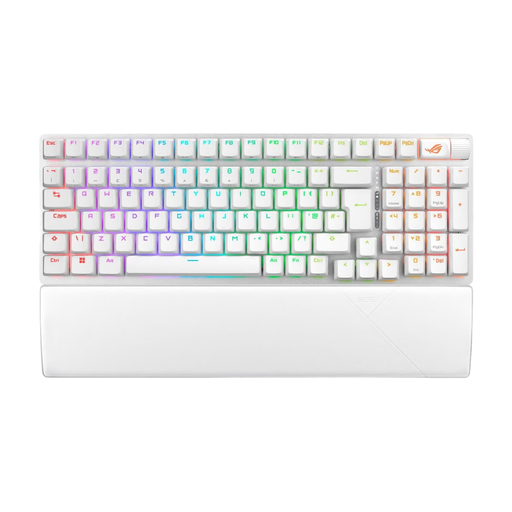
ASUS ROG Strix Scope II 96 Wireless Keyboard, White, UK layout
This UK-layout wireless model is an option to examine if your desk needs leave room for a gaming-style keyboard. Confirm the supplied switch variant before choosing it for a space where typing noise matters.
View on Joybuy
 No image available
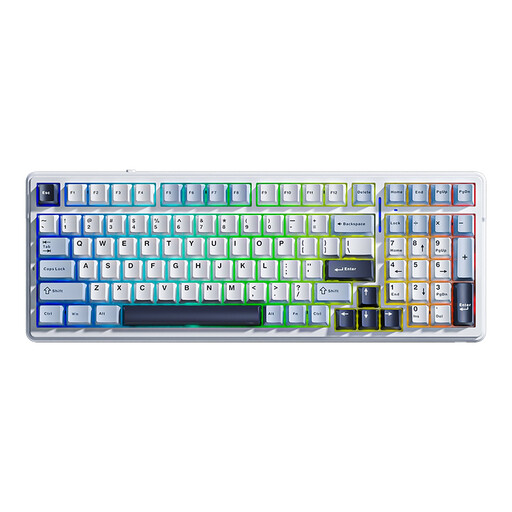
AULA F99 Mechanical Wireless Keyboard, US layout, Light Blue/Reaper Switch
For resource work involving several devices, its title lists wired, Bluetooth and 2.4G modes. Check whether the US key placement suits your work, confirm compatibility with your school device and verify the supplied switch variant before relying on typing-feel or sound descriptions.
View on Joybuy
 No image available
HyperX Alloy Rise 75 Wireless Keyboard, UK layout
Consider this UK-layout wireless model if you carry a keyboard between work locations. Check its exact key set before ordering, particularly if lesson administration involves frequent number entry.
View on Joybuy
Common questions
Do I need an external keyboard for lesson planning on a laptop?
For prolonged laptop work, a separate keyboard and mouse can let you raise the screen while positioning the input devices independently. This follows Health and Safety Executive workstation guidance; it does not mean every occasional laptop task calls for another keyboard.
Should I choose a full-size or compact keyboard?
Choose a full-size layout if a dedicated number pad is important at a fixed desk; consider a compact layout if carrying space matters more. Check the exact keys before deciding, especially for spreadsheets and other number-heavy administration.
Can one keyboard work with my school laptop and home devices?
Some models can switch between multiple devices, provided their connection methods and functions suit each one. Logitech says MX Keys S switches between up to three devices, while HP specifies two Bluetooth connections and one USB-A receiver connection for its 975; check school-device permissions before ordering.
Can I use sanitising wipes on any classroom keyboard?
No cleaning method should be assumed suitable for every model. HP states that its 585 withstands up to 1,000 sanitisation wipes, but that model-specific claim does not establish what another keyboard tolerates. Follow the exact keyboard’s instructions and your workplace’s approved cleaning process.


