Two-device exercise creators
You prepare exercises on a work laptop and a tablet or second computer, and need to move typing control between them. That is different from using two monitors attached to one computer.


Start by checking whether the two screens belong to one computer or to separate devices. If you type on more than one device, look for explicit multi-device pairing and a way to switch between them; if one computer drives both screens, layout, shortcuts and desk positioning are more important to the choice. For long editing sessions, assess the whole workstation rather than expecting keyboard shape alone to address comfort.
You prepare exercises on a work laptop and a tablet or second computer, and need to move typing control between them. That is different from using two monitors attached to one computer.
You spend extended periods drafting and revising exercises. Keyboard position and the surrounding workstation matter alongside the keyboard’s shape; the Health and Safety Executive advises keeping the keyboard central and just below elbow height.
You have limited desk space or work in a shared room, but still need the keys and shortcuts used in repeated editing tasks. A compact layout is worth weighing against access to dedicated keys.
Decide how many separate devices need the keyboard before comparing layouts. Then consider the editing tasks you repeat and the space available for both keyboard and mouse.
| Concern | What to check | Who this matters to |
|---|---|---|
| Switching between devices | Count the computers or tablets you type on; check the supported connections and whether a control switches between paired devices. | If I draft on one device and revise on another, I want to change where I type without pairing the keyboard again. Around 36% of consumers would put switching between separate devices first. |
| Comfort during long sessions | Check keyboard height and position, mouse reach and whether the keyboard shape suits your setup. | When editing takes a long stretch, I need a typing position I can maintain without twisting towards either screen. For around 29% of consumers, long-session comfort is the primary concern. |
| Layout and shortcuts | Decide whether you need a number pad or dedicated navigation keys; check operating-system support before relying on programmable controls. | If I enter marks or repeat formatting commands, I want the relevant keys within easy reach. Layout and shortcut access would come first for around 21% of consumers. |
| Desk space and noise | Allow room for the mouse and documents; check the exact layout and any manufacturer description of typing noise. | With two screens and little desk room, I may prefer a smaller keyboard, provided it keeps the keys I use. Around 14% of consumers would prioritise a compact or quieter setup. |
Multi-device pairing changes which computer or tablet receives your typing; it does not move a window between monitors on the same computer.
Count the separate devices you type on before making switching controls a requirement.
Keyboard shape is only one part of the setup. The Health and Safety Executive also advises positioning the screen and keyboard to avoid twisting, with the keyboard central and just below elbow height.
Check screen position, keyboard height and mouse reach before deciding whether a wave or split shape suits you.
A 75% layout such as the Keychron V1 Max UK-ISO does not have a dedicated number pad, which matters if exercise preparation involves frequent numeric entry.
Check the exact layout and switch variant, then compare its dedicated keys with the tasks you repeat.
Kensington notes that some ChromeOS shortcuts and customisation features may not be supported on its KB620-RC. A programmable-key count alone cannot establish that your editing commands will work.
Check the chosen keyboard’s operating-system and software compatibility against the applications you use.
Relevant if typing must move between separate devices, with compact and number-pad options in the cited range.
Relevant if you are comparing wave and split keyboard shapes alongside full-size editing controls.
Relevant if a compact UK-ISO mechanical layout is more useful to you than a dedicated number pad.
These choices cover different needs when preparing exercises across two screens: a split layout, full-size keyboards, a compact mechanical option and a keyboard-and-mouse set. Check host switching if the screens belong to separate devices; for one computer driving both displays, focus on layout and desk fit.
 No image available
Consider the split layout if keyboard shape is a priority during extended editing, while assessing its fit with your desk position. The title specifies a wireless keyboard and padded wrist rest; check operating-system and application compatibility before relying on shortcut customisation.
 No image available
A full-size layout is worth considering if exercise preparation involves frequent number entry, provided you have enough mouse space. Check the physical key mapping of this UK variant and how host switching works if you type on separate devices.
 No image available
If you prepare exercises on separate devices, check the switching controls alongside the Bluetooth connection named in the title. Confirm that this white UK variant has the physical key arrangement you need.
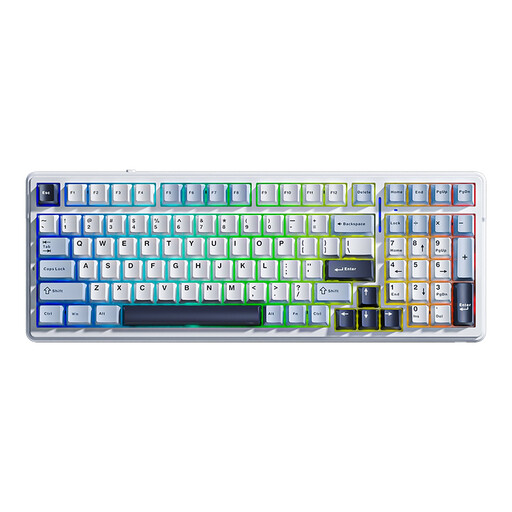 No image available
This variant is a mechanical option for someone weighing keyboard layout against desk space. Its title specifies a US QWERTY layout and wired, Bluetooth and 2.4G connection modes; check whether the key arrangement and device-switch controls suit your setup.
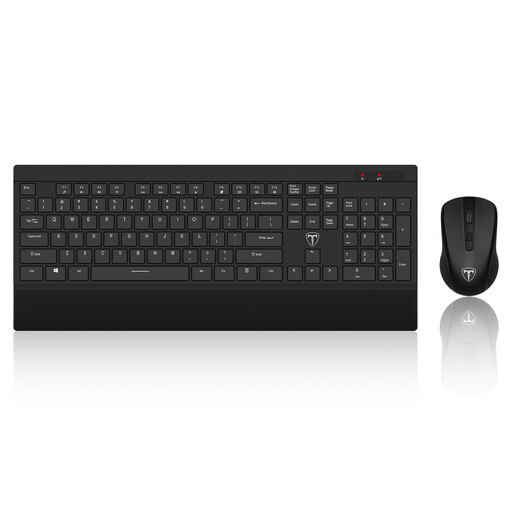 No image available
A keyboard-and-mouse set may suit a desk where one computer drives both screens. The title specifies a full-size US layout and 2.4GHz wireless connection; check the key arrangement against your usual layout, and confirm switching capability if you need to type on separate devices.
No: if both screens connect to one computer, multi-device switching is optional. It becomes useful when you need to type on separate computers or tablets; otherwise, choose around your layout, shortcuts and available desk space.
Keep it central to your working position and just below elbow height. The Health and Safety Executive also advises arranging the screen and keyboard so you do not twist your back; check that the mouse remains within comfortable reach.
They can apply if you use display screen equipment for work daily in continuous periods of an hour or more. The Health and Safety Executive says the workstation should be assessed and that workers cannot be charged for action needed as a result of that assessment, including when working from home.