Set up the foreign-language input source on your computer before choosing a keyboard: printed key legends do not determine which characters you can type. For annotation across devices, consider a multi-device keyboard; for repeated commands, consider a remappable UK-ISO model; for a Mac-focused desk, check the Apple keyboard’s system requirements. The physical layout, configuration software and space available on your desk can change which route suits you.
Who this is for
Bilingual input switchers
If you annotate mainly in English but sometimes enter quotations, names or notes in another language, start with the input-source settings on your computer. Microsoft Support and Apple Support explain how to add keyboard layouts or input sources; choose physical key legends that you can use confidently alongside them.
Shortcut-heavy close readers
If comments, highlights and navigation commands recur throughout your work, key remapping may be worth configuring. Keychron describes remapping and macros for the K8 Max, subject to its setup requirements.
Long-session home-office annotators
If you spend long periods annotating at a laptop, consider where the screen, keyboard and mouse will sit together. The Health and Safety Executive advises separating the keyboard and mouse from a laptop so its screen can be raised.
What matters when choosing
Multi-device productivity keyboard
Consider it when: You move annotations between computers or other supported devices; Logitech says the MX Keys S can switch among up to three devices.
Trade-off: Logitech documents its full app-led workflow on Windows and macOS, with basic keyboard functions on other systems.
Remappable UK-ISO mechanical keyboard
Consider it when: Repeated annotation commands make remapping useful and you want a UK-ISO layout; Keychron offers these features on the K8 Max UK-ISO.
Trade-off: Keychron says Launcher configuration needs a wired connection and a current Chrome, Opera or Edge browser. Its TKL layout omits a numeric keypad.
Mac-native British English keyboard
Consider it when: You work on a compatible Mac and want the Touch ID and extended layout of Apple’s Magic Keyboard with Numeric Keypad.
Trade-off: Apple specifies an Apple-silicon Mac running macOS 15.1 or later for this model; its extended layout also needs more desk space than a compact board.
| Concern |
What to check |
Who this matters to |
| Foreign-language input |
Test the required Windows keyboard layout or macOS input source, including how you switch back to English. Decide whether you need different printed key legends. |
If I alternate between English notes and quotations in another script, I need to know which layout is active without interrupting my reading. Around 36% of consumers put dependable language input first. |
| Annotation shortcuts |
Identify recurring commands and check remapping support and configuration requirements for the exact model. |
When I repeatedly highlight passages and add comments, accessible commands matter more to me than extra device connections. Roughly 29% of consumers prioritise annotation shortcuts. |
| Long-session desk setup |
Check keyboard placement and usable desk space alongside screen height and mouse position, particularly with a laptop. |
For a long annotation session, I need room to position the keyboard and screen without crowding the mouse. Around 21% of consumers make the workstation setup their primary concern. |
| Device workflow |
Check each device’s basic typing compatibility separately from app features, device switching or Mac-specific functions. |
If I work across devices, or rely on features tied to my Mac, the keyboard needs to fit that workflow. About 14% of consumers put device switching or Mac-native functions first. |
Buying pitfalls
-
Assuming the printed legends determine what you can type
The active input source controls character entry; unfamiliar legends can make it harder to keep track of the keys you are pressing.
Set up and try your target-language input source on your current Windows or Mac device before deciding which physical legends you want.
-
Overlooking how remapping is configured
On the Keychron K8 Max, Launcher configuration requires a wired connection and a current Chrome, Opera or Edge browser, according to Keychron. Hot-swapping applies only to its hot-swappable version.
Check the exact variant and whether its configuration process fits the computer you use for annotation.
-
Expecting a keyboard alone to fix a laptop setup
The Health and Safety Executive’s advice for prolonged laptop use considers the screen, keyboard and mouse together, rather than treating the keyboard as a complete workstation change.
Check that you can place the keyboard comfortably while raising the screen and positioning a separate mouse.
-
Choosing Mac-specific features for a mixed-platform desk
Apple specifies an Apple-silicon Mac with macOS 15.1 or later for the Magic Keyboard with Touch ID and Numeric Keypad. Basic typing compatibility on another keyboard does not establish that all its software features work across platforms.
List the devices you use, then check typing support and each feature you intend to use against the exact keyboard model.
Brands to consider for this task
Logitech
The MX Keys S is relevant to a desk where programmable actions and switching between devices matter.
- Logitech says the MX Keys S supports Smart Actions, adaptive backlighting and switching among up to three devices.
- Logitech documents its full app-led workflow for Windows and macOS; other systems have basic keyboard functions rather than the same software feature set.
Keychron
The K8 Max UK-ISO is relevant if you want a TKL mechanical layout and configurable annotation shortcuts.
- Keychron lists wired, Bluetooth and 2.4 GHz connections, QMK and Launcher remapping, and keycaps for Mac and Windows.
- Launcher setup requires wired mode and a current Chrome, Opera or Edge browser; only the hot-swappable version supports hot-swapping.
Apple
The Magic Keyboard with Touch ID and Numeric Keypad is a British English option for a compatible Mac-focused desk.
- Apple lists Bluetooth, USB-C charging, automatic Mac pairing and an extended layout with navigation keys and a numeric keypad.
- Apple specifies an Apple-silicon Mac running macOS 15.1 or later for this model; do not assume its Mac-specific features fit a Windows-first setup.
Joybuy keyboards for this task
These keyboards offer different physical layouts and desk arrangements for annotation. Check the input source on your computer separately, and compare the stated key layout with the legends you prefer.
 No image available
Targus EcoSmart Full Size Wireless Keyboard (UK)
Consider this full-size wireless keyboard if your home-office annotation setup has room for an extended board. Check the physical key legends before relying on the UK designation for your preferred layout.
View on Joybuy
 No image available
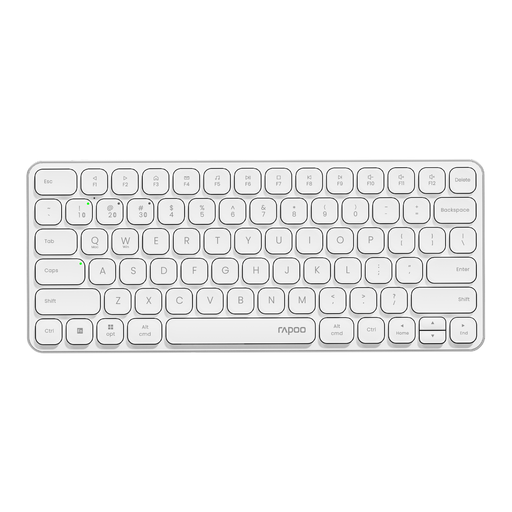
Rapoo E9050L 75% Wireless Keyboard, US QWERTY, White
Consider its compact format if desk space matters, provided US QWERTY legends suit the way you annotate. The product name specifies 78 keys, 2.4 GHz and Bluetooth connections, and support for up to four devices; set up your foreign-language input source on each device you use.
View on Joybuy
 No image available
HP 960 Ergonomic Split Layout Wireless Keyboard with Padded Wrist Rest
Consider the split layout and padded wrist rest as part of a wider desk setup, not as a substitute for checking screen and mouse positions. Confirm the physical regional layout and compatibility with your computer before choosing it for foreign-language annotation.
View on Joybuy
 No image available
Hyper HyperSpace Next Bluetooth Wireless Keyboard (UK), White
Consider this Bluetooth wireless keyboard if you want a conventional desk layout for annotation. Check its physical legends rather than assuming that the UK designation identifies the exact key layout.
View on Joybuy
 No image available
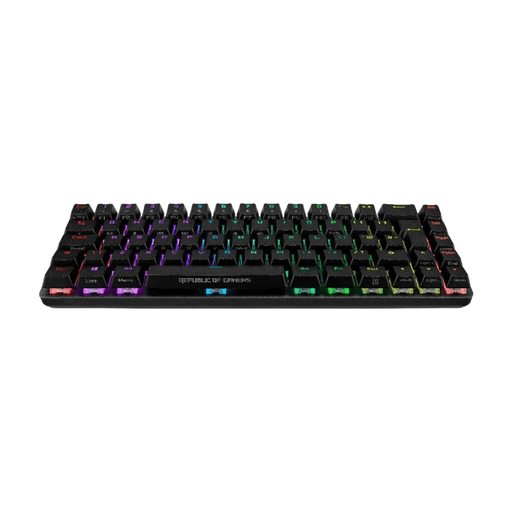
ASUS ROG Falchion Ace HFX 65 Analog Gaming Keyboard, UK Layout
Consider this UK-layout model if its keyboard format also suits your other computer use. Its gaming focus is not, by itself, a reason to expect faster annotation; test the Windows input layout you need for foreign-language text.
View on Joybuy
Common questions
Do I need a keyboard printed in the foreign language?
Not necessarily: Windows keyboard layouts and macOS input sources let you configure typing in other languages, according to Microsoft Support and Apple Support. Choose language-specific legends if seeing the characters on the keys helps you, and test your required input method before buying.
Can I switch between English and a non-Latin input source on a Mac?
Yes, macOS provides input-source switching, and Apple Support documents a Caps Lock option for switching between a non-Latin source and the last used Latin source. Add the relevant input source and check whether that option is available in your Mac’s settings.
What else matters if I annotate on a laptop for long periods?
Plan the screen, keyboard and mouse placement together. The Health and Safety Executive advises a separate keyboard and mouse for prolonged laptop use so the screen can be raised; check that your desk leaves room to position them comfortably.


