Multi-device help-centre editors
If you update articles on a work computer and another device, switching between them or using repeatable shortcut actions may matter more than the number of screens on your desk.


Using two screens does not call for a special keyboard; choose around the work you repeat most. Consider programmable actions and device switching if you move between computers, a full-size UK layout if dedicated editing keys matter, or an ergonomic shape if sustained typing comfort is your priority. Check the exact key layout and any shortcut software you plan to use before buying.
If you update articles on a work computer and another device, switching between them or using repeatable shortcut actions may matter more than the number of screens on your desk.
Long drafting and editing sessions make keyboard position and typing comfort important parts of the workstation. The Health and Safety Executive advises positioning the keyboard just below elbow height.
If formatting relies on cursor navigation, function keys, number entry or custom actions, check the physical keys and configuration options on the particular keyboard you choose.
Start with the actions and keys your help-centre workflow uses most, then check whether the keyboard fits your devices and typing setup.
| Concern | What to check | Who this matters to |
|---|---|---|
| Shortcuts and device switching | Check the actions you can programme, software compatibility and how the keyboard switches between your devices. | When formatting involves repeated actions across a work computer and another device, I want fewer manual steps. Around 42% of consumers put shortcuts and switching first. |
| Comfort during long sessions | Assess the shape and palm support alongside whether you can position the keyboard just below elbow height, as the Health and Safety Executive advises. | After a long stretch of writing and editing, I need a typing position that works with my desk setup. Comfort is the primary concern for around 33% of consumers. |
| Editing keys and UK layout | Check the selected variant's symbol positions and whether it retains your function, navigation and number keys. | If I often navigate text or enter figures, I do not want essential keys buried in shortcuts. Dedicated editing keys and a familiar UK layout come first for around 25% of consumers. |
The screen count does not determine which keys or connection features your editing work requires. An awkward workstation arrangement can also leave you twisting towards the screen you use.
Arrange the keyboard and displays for the work you do most, then choose features according to your shortcuts, devices and typing needs.
A smaller layout can leave out keys used for formatting or navigation. Joybuy Insights notes that some compact mechanical layouts omit the function row.
List the function, arrow, navigation and number keys you use regularly; check the exact layout before trading key coverage for desk space.
A keyboard family can have several regional variants, with different printed symbol positions. Keychron, for example, lists UK layout options within its ISO keyboard collections.
Check the selected variant and its key images for the UK layout you expect, rather than relying on the product family name.
A curved shape or palm rest does not replace sensible screen, chair and keyboard positioning. The Health and Safety Executive treats keyboard position as part of the wider display-screen workstation.
Check that you can place the keyboard just below elbow height and work without twisting; assess its shape as one part of that arrangement.
Relevant to editors considering device switching, programmable actions or a wave-shaped keyboard.
Relevant to editors looking at full-size UK-layout options with configurable keys and a choice of connection types.
Relevant to editors considering a wired split keyboard for a Windows workstation.
These choices include split-layout, full-size and other wireless keyboards relevant to help-centre editing. Compare their physical keys and check device and shortcut compatibility against your own setup.
 Image unavailable
Consider this split-layout design if typing comfort is a priority during long editing sessions.
Its named features include wireless operation and a padded wrist rest. Check the physical UK layout and software compatibility if you plan to use custom keys.
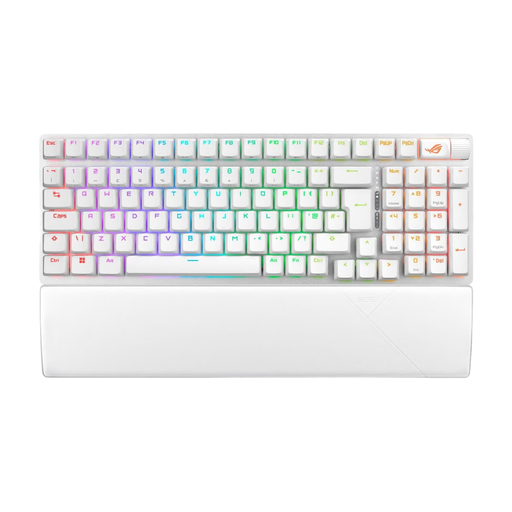 Image unavailable
Consider this UK-labelled wireless model if you want to check a 96-layout option against your editing shortcuts.
Confirm the selected variant's printed symbols and its function, navigation and number keys. Check software compatibility before relying on customised shortcuts.
 Image unavailable
A full-size keyboard is worth considering if dedicated keys matter more to your editing workflow than a smaller footprint.
This model is named as wireless and UK-labelled. Check the selected key layout and any shortcut functions you need.
 Image unavailable
Consider this model if you want a UK-labelled wireless keyboard and use Bluetooth with your work device.
Check the selected physical layout and key coverage. If custom formatting actions matter, confirm that the keyboard supports the functions you intend to use.
 Image unavailable
Consider this 75 model if its physical keys cover the shortcuts and navigation you use while editing.
Check for a dedicated number pad if you need one, confirm the selected UK key layout and verify NGENUITY compatibility before relying on key assignments.
No: choose a keyboard for your editing tasks and devices, not the screen count. The Health and Safety Executive advises arranging the screen and keyboard to avoid twisting, so consider their position as well as your shortcuts and key layout.
A UK-ISO variant makes sense if familiar UK symbol positions matter to your typing. Check the selected variant rather than the keyboard family name: Keychron, for example, offers different ISO layout options.
They can help you carry out repeatable actions if the keyboard's software supports your computer and workflow. Logitech says MX Keys S Smart Actions can automate multiple tasks with one keystroke, while Keychron lists remapping and macros for the K10 Max; check the requirements of the specific feature you intend to use.
No keyboard alone determines whether a workstation is comfortable to use. The Health and Safety Executive advises considering the wider display-screen setup, including keyboard position; assess an ergonomic shape alongside your screen and desk arrangement.
Check that the keyboard connects to your laptop or dock, then arrange it for the screen you use most without twisting. For prolonged laptop work, the Health and Safety Executive advises using a separate keyboard and mouse so the laptop screen can be raised; its guidance also places the keyboard just below elbow height.