Multi-system log reviewers
If you move between a workstation, laptop and other systems, check how the keyboard switches devices and whether both basic typing and any optional software work with each operating system you use.


Choose for the part of log inspection that slows you down: a familiar multi-device keyboard if you move between systems, or a keyboard with a suitable physical layout and configurable controls if command entry and navigation matter most. If typing position is the main concern during long sessions, consider a split design as part of your wider workstation setup, allowing for desk space and time to adapt.
If you move between a workstation, laptop and other systems, check how the keyboard switches devices and whether both basic typing and any optional software work with each operating system you use.
If you repeatedly navigate logs, enter commands or use assigned shortcuts, check the physical placement of those keys before choosing a compact board. Configurable controls are useful only if their setup works on your systems.
If your main difficulty is finding a sustainable typing position, consider the keyboard alongside desk space, screen position and your work routine. The Health and Safety Executive says an individual display screen equipment assessment should be carried out where the relevant rules apply.
Consider it when: you want familiar typing while moving between computers. Logitech says MX Keys S switches across up to three devices.
Trade-off: optional configuration features may have narrower operating-system support than basic keyboard use.
Consider it when: physical UK key placement and configurable controls matter to your command workflow; Keychron offers a UK-ISO V1 Max variant.
Trade-off: its 75% layout calls for a closer look at access to the keys you use regularly.
Consider it when: adjusting keyboard position is a priority. ZSA says the two halves of the ErgoDox EZ can be positioned independently.
Trade-off: allow room on the desk and time to adjust; the keyboard does not replace a wider workstation assessment.
| Concern | What to check | Who this matters to |
|---|---|---|
| Commands and navigation | Locate the arrow, navigation and modifier keys you use; check how any custom assignments are configured. | When I repeatedly search logs and enter commands, I want the controls I rely on within easy reach. Around 33% of consumers put command and navigation access first. |
| System switching | Check each operating system, the available connection methods and support for any configuration software you need. | Moving between a work machine and another system should not interrupt typing or leave a shortcut unusable. For roughly 27% of consumers, multi-system compatibility is the primary need. |
| Typing position | Consider keyboard placement and desk space as part of the whole workstation setup. | During extended sessions, I need a typing position I can adjust without overlooking the rest of my desk. Around 20% of consumers place sustained comfort and posture first. |
| Home-office disruption | Consider key feel and lighting controls; do not treat an unmeasured quietness claim as a sound comparison. | In a shared space or changing light, I want typing to be less intrusive and the keys to remain visible. Low-disruption use comes first for roughly 20% of consumers. |
A keyboard may change where you place your hands, but screen, chair, desk and work routine can also affect the setup. The Health and Safety Executive calls for an individual display screen equipment assessment where the relevant rules apply.
Check the whole desk arrangement. If a workplace assessment applies to your home working, use that process and report discomfort rather than relying on a keyboard change alone.
Keychron lists distinct regional ISO variants of the V1 Max. A family name or product photograph alone does not establish which physical layout you will receive.
Confirm the selected variant and its key legends in the listing before buying.
Basic keyboard input and optional remapping software can have different operating-system requirements. Bluetooth and receiver use may also depend on the devices and workplace rules involved.
Check every system you intend to use, its permitted connections and the software required for your planned shortcuts.
A compact layout can free desk space while changing how you reach keys used for terminal navigation or numeric entry.
Compare the actual layout with your regular commands and decide whether you need immediately accessible keys or a separate number pad.
A conventional low-profile route for people who prefer familiar typing and device switching.
A configurable mechanical route for buyers considering a compact UK-ISO board.
A specialised split route for people prepared to position and configure a less conventional keyboard.
A split-zone option represented here by the HP 960 listing, rather than a claim about HP keyboards generally.
These keyboards cover different decisions within home-office log work: compact key access, system switching, a split arrangement and a full-size layout. Compare the stated variant with your own keys, devices and desk before choosing.
 No image available
Consider this compact wireless model if keeping frequently used navigation keys accessible is your priority. Check its exact physical layout and operating-system support before relying on UK key placement or software customisation.
 No image available
Consider this model if you want to arrange a split-zone keyboard and separate number pad on your desk. The Joybuy listing describes a padded wrist rest, Bluetooth and 2.4 GHz connections, and 20 programmable keys. Check your desk space and operating-system support, including software needed to programme the keys; the keyboard is not a substitute for assessing the wider workstation.
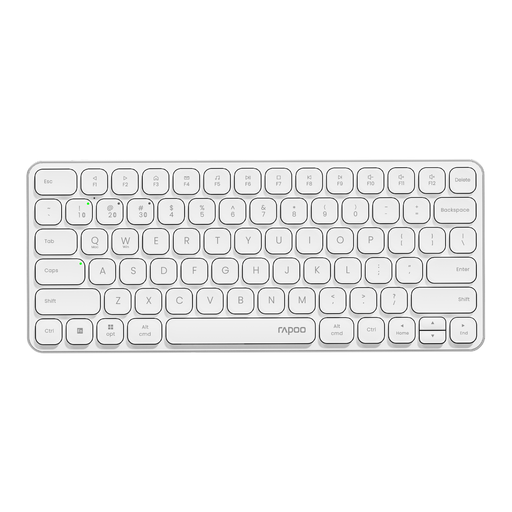 No image available
Consider this model if switching among devices matters more to you than retaining a UK physical layout. Its product name specifies a 75% US QWERTY, 78-key arrangement, 2.4 GHz and Bluetooth connections, and support for up to four devices. Check how its key placement works for your commands before choosing it for regular log inspection.
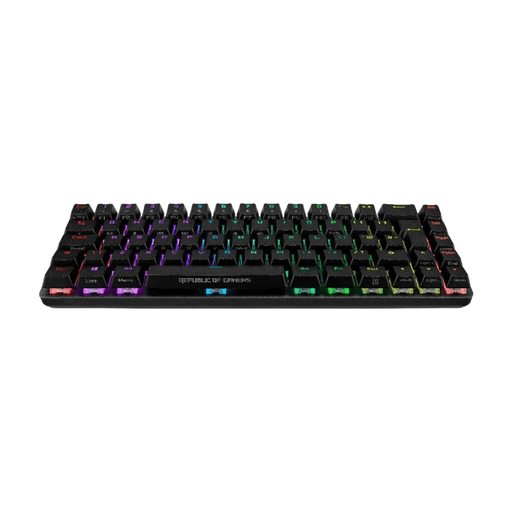 No image available
Consider this UK-layout model if its compact key arrangement fits the commands you use. Check the connection arrangement and compatibility with every system at your desk before choosing it for work across multiple machines.
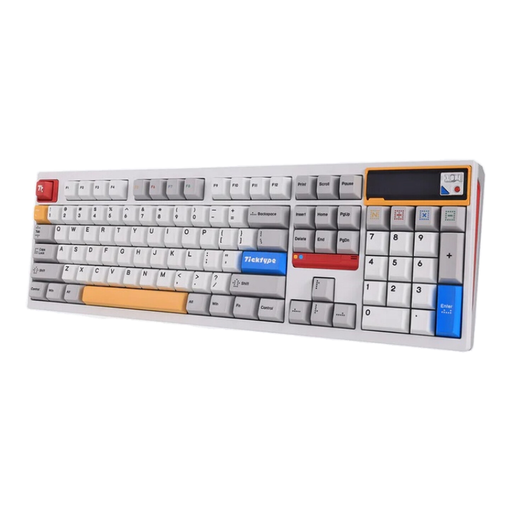 No image available
Consider this full-size arrangement if you want a stated 108-key layout rather than a compact board. Its product name specifies tri-mode wireless connectivity, hot-swappable construction and silent tactile switches. The layout is US, and the switch description does not establish how quiet it will sound in your home office.
No: a split keyboard is one equipment choice, not an assessment of the whole workstation. The Health and Safety Executive says an individual display screen equipment assessment should be carried out where the relevant rules apply.
Choose UK-ISO if its physical key placement and legends match those you use. Keychron lists distinct regional variants of the V1 Max, so confirm the selected variant rather than relying on the keyboard family name.
Not necessarily: check basic keyboard compatibility separately from optional configuration features. Logitech lists Linux compatibility for MX Keys S, while it states Logi Options+ support for Windows and macOS.
Check whether the chosen layout fits your desk, commands and preferred key placement, and whether you are willing to adapt to it. Confirm the particular model’s connections and legends, and consider the rest of your workstation rather than assuming the split layout will resolve discomfort.