For extended handout-writing sessions, start with a keyboard that fits your typing position and desk setup, then decide whether a shaped layout, document shortcuts or a smaller footprint matters most. A wave-shaped or split keyboard is worth considering if its layout suits you; a conventional full-size model gives you more room for a familiar layout and number pad, while a compact model saves desk space. If you work on a laptop for long periods, the Health and Safety Executive advises using a separate keyboard and mouse so the screen can be raised.
Who this is for
Frequent handout writers
If drafting, revising and formatting teaching materials keeps you at the keyboard for extended sessions, consider the keyboard alongside your screen, chair and desk position. The Health and Safety Executive recommends assessing the whole workstation, not just one accessory.
Multi-device lesson planners
If you move between a computer and another device while preparing materials, check the exact keyboard’s supported devices, connection methods and shortcut functions before choosing a multi-device model.
Small-desk home workers
If papers and a laptop compete for desk space, check that a separate keyboard will still sit centrally and leave room to position the screen and mouse comfortably.
What matters when choosing
Check whether your laptop or screen can be positioned comfortably with a separate keyboard, then choose the layout and connection that suit the handout tasks you do most often.
| Concern |
What to check |
Who this matters to |
| Comfort during long sessions |
Compare conventional, wave-shaped and split layouts; check whether the keyboard and any palm rest fit your typing position. |
If I spend long stretches drafting and correcting handouts, I want a position I can maintain comfortably rather than relying on the keyboard’s shape alone. Around 36% of consumers put sustained-typing comfort first. |
| Document workflow |
Check the number-pad arrangement and whether the shortcuts you want work with your operating system. |
When I repeatedly format pages or enter marks and dates, I want a layout that makes those tasks straightforward. Document workflow is the first concern for around 29% of consumers. |
| Desk and device flexibility |
Measure the available space and confirm Bluetooth, receiver or wired compatibility with each device you plan to use. |
If my laptop, papers and other devices share a small desk, I need the keyboard to fit without disrupting the setup. Around 21% of consumers prioritise space and device flexibility. |
| A straightforward replacement |
Confirm the required keyboard layout, connection and port before choosing extra functions. |
For occasional handout work, I would rather use a familiar keyboard than set up functions I rarely need. A straightforward replacement comes first for around 14% of consumers. |
Mistakes to avoid
-
Expecting a shaped keyboard to fix the whole workstation
A wave or split layout does not correct a low screen or a keyboard and mouse placed awkwardly. The Health and Safety Executive’s workstation guidance addresses their positions together.
Check that the screen and keyboard can be centred and that a separate keyboard leaves you able to raise a laptop screen.
-
Assuming every wireless model works with every device
Models differ in their supported operating systems, Bluetooth options, receivers and software-dependent shortcuts.
Check the exact model against each device and its available ports, including whether the functions you want require companion software.
-
Choosing a compact layout without checking number entry
A smaller keyboard frees desk space, but its arrangement may be less convenient if you regularly enter marks, dates or other numbers.
Look at the actual key layout before buying; if number entry is occasional, consider whether a separate keypad would suit your desk better.
-
Treating an ergonomic claim as a personal comfort guarantee
A manufacturer’s description of its keyboard shape does not establish how that layout will feel during your own writing sessions.
Assess the shape, key arrangement and fit within your workstation, and check the retailer’s applicable return terms before purchase.
Relevant keyboard brands to consider
Logitech
Logitech offers different approaches to handout work: the wave-shaped Wave Keys and the conventional full-size MX Keys S.
- Logitech specifies a cushioned palm rest and Bluetooth or receiver connectivity for Wave Keys; MX Keys S offers illumination, programmable actions and switching between up to three devices.
- The two layouts suit different preferences. Check device and software compatibility, and judge comfort by your own workstation fit rather than the manufacturer’s claims.
HP
The HP 960 is a split-layout wireless option with a separate numeric keypad.
- HP specifies negative tilt, a padded wrist rest, 20 programmable keys and a keypad that can be repositioned.
- Check that the keyboard and keypad fit your desk and that the layout and programmable functions suit your devices; HP’s ergonomic descriptions do not guarantee an individual result.
Lenovo
The Lenovo Go Wireless Split Keyboard takes a more pronounced split-layout approach.
- Lenovo specifies 13-degree key separation, 11-degree tenting, detachable negative tilt and a USB-A wireless receiver.
- Lenovo’s stated support covers Windows 7 and Windows 10 PCs with USB-A. Check suitability before using it with a different system or a device without that port.
Microsoft
The Microsoft Ergonomic Keyboard is a wired USB option with a split, arched layout.
- Microsoft describes a cushioned palm rest and dedicated Office and Emoji keys.
- Microsoft states that the Office and Emoji key functions require Windows 10 or Windows 11. Check the available keyboard layout and USB connection before purchase.
Joybuy keyboard choices
These keyboards cover split-layout, conventional wireless and space-conscious approaches to preparing handouts. Compare each model’s layout and connection with your own desk and devices; the keyboard alone does not determine whether a laptop workstation is well positioned.
 Image unavailable
HP 960 Ergonomic Split Layout Wireless Keyboard with Padded Wrist Rest
Consider this model if you want a split layout for extended drafting and a separate keypad for numerical work. HP specifies negative tilt, a padded wrist rest and 20 programmable keys; check desk fit, the supplied key layout and compatibility for any functions you intend to customise.
View on Joybuy
 Image unavailable
Hyper® HyperSpace Next Bluetooth Wireless Keyboard (UK), White
This Bluetooth model is an option if you want a wireless keyboard for a desk used to prepare handouts. Check its key arrangement, device compatibility and desk footprint against the tasks and equipment you use.
View on Joybuy
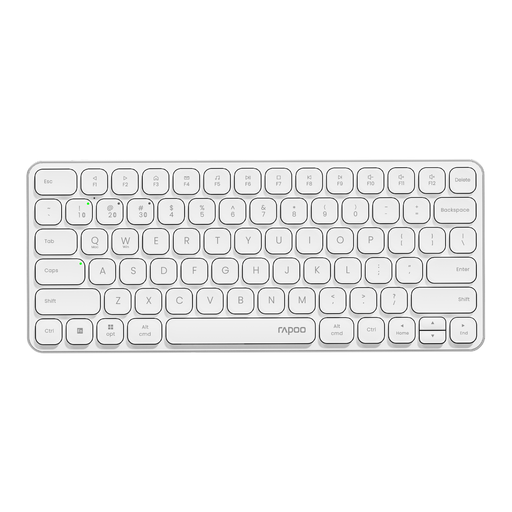 Image unavailable
Rapoo E9050L 75% Wireless Membrane Keyboard, US QWERTY, White
Consider its 75%, 78-key layout when keyboard width matters on a desk shared with papers or a laptop. The product name specifies 2.4 GHz and Bluetooth connections and support for up to four devices; check whether the US QWERTY arrangement and its number-entry options suit your handouts.
View on Joybuy
 Image unavailable
Targus EcoSmart™ Full Size Wireless Keyboard (UK)
This full-size wireless model is an option if you prefer a larger keyboard for document work. Check the actual key layout before buying: the product title says UK, while other supplied product information describes a US layout.
View on Joybuy
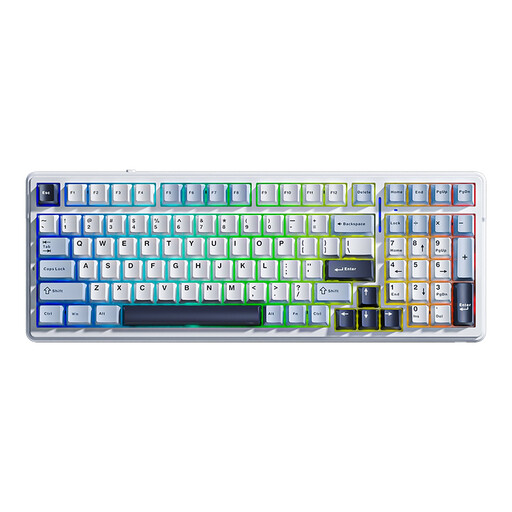 Image unavailable
AULA F99 Mechanical Wireless Keyboard, Light Blue/Reaper Switch
Consider this model if you want to compare wired and wireless connections for a home desk. Its title specifies a US QWERTY layout and wired, Bluetooth and 2.4 GHz modes; confirm the exact switch variant because the supplied product descriptions differ.
View on Joybuy
Common questions
Is an ergonomic keyboard enough for long laptop writing sessions?
No: the keyboard is only one part of the workstation. The Health and Safety Executive advises using a separate keyboard and mouse for prolonged laptop use so the screen can be elevated; check that the screen and keyboard can also be positioned centrally.
Should I choose Bluetooth, a USB receiver or a wired keyboard?
Choose by the devices you need to connect and the ports they have, rather than assuming one connection works everywhere. Bluetooth may suit compatible devices you move between, a receiver requires a suitable USB port, and wired USB suits a computer with the appropriate port; confirm the exact model’s operating-system support and switching functions.
What workstation checks matter for regular lesson preparation at home?
Check the screen, keyboard and mouse positions together, especially if you work on a laptop for extended periods. The Health and Safety Executive identifies daily display-screen use for continuous periods of an hour or more as a criterion relevant to DSE users; if this reflects your work, ask your employer about assessing your home setup.


