Small-desk lesson planners
You prepare documents alongside a mouse, notebook or laptop and need to preserve usable space around the keyboard.


Choose a compact keyboard that leaves room for your mouse and lesson materials, then check its exact key layout and connections against the devices you use. A quieter multi-device model may suit a shared room or mixed-device workflow, while a compact mechanical model is worth considering if wired use or key remapping matters. A larger split keyboard needs sufficient desk space and should be considered as part of the whole workstation.
You prepare documents alongside a mouse, notebook or laptop and need to preserve usable space around the keyboard.
You work near other people or move between a laptop, tablet and phone, making key sound and device switching important checks.
You spend long periods drafting and editing. As the Health and Safety Executive advises for display-screen work, consider the keyboard as part of the whole workstation, including space in front of it to rest your hands when you are not typing.
Start with the space available for the keyboard, mouse and papers. Then inspect the editing keys and regional layout before deciding which connection and comfort features matter to your work.
| Concern | What to check | Who this matters to |
|---|---|---|
| Desk and mouse space | Check the keyboard’s stated dimensions and whether it has a number pad. Leave space in front to rest your hands when not typing, as the Health and Safety Executive advises. | I need my mouse and lesson notes within reach without crowding the keyboard; around 40% of consumers put desk space first. |
| Editing layout | Inspect UK-ISO or US key placement, arrow and navigation keys, and any shortcuts you rely on. Check software compatibility if remapping matters. | When I revise lesson plans, familiar symbols and accessible editing keys matter more to me than extra features; roughly 30% of consumers prioritise the editing layout. |
| Sound and device switching | Check the stated connection modes, supported devices and switching controls. If you work near others, assess the sound of the exact switch or keyboard variant. | I move between devices or work beside other people and want fewer interruptions; around 20% of consumers put quiet typing and switching first. |
| Extended-session comfort | Assess the available desk space and the whole workstation before choosing a larger split design. Check whether your work setup calls for an employer’s display-screen equipment assessment. | Long drafting sessions make the overall workstation my main concern; about 10% of consumers prioritise extended-session comfort. |
A compact keyboard may be sold with different regional key arrangements. If you rely on familiar symbol and Enter-key positions, the wrong variant can interrupt editing.
Check the exact variant label and keycap images; choose UK-ISO if that is the arrangement you expect.
Split designs can occupy more of a narrow surface. The Health and Safety Executive treats the keyboard as one part of a workstation, not a substitute for considering the desk, screen and working routine.
Measure the available surface first. If discomfort persists, consider the whole setup rather than relying on a keyboard change alone.
Connection modes, device limits and switching controls differ between models; a work device may also have connection restrictions.
Check compatibility and the pairing method for each laptop, tablet or phone you intend to use.
Whether work falls under display-screen equipment requirements depends on how the equipment is used. An assessment considers the workstation and identified risks rather than automatically specifying one keyboard type.
For regular employed work at home, ask your employer about its assessment process and explain the space and typing needs of your setup.
Its UK range includes compact Pebble Keys 2 and MX Keys Mini models, alongside the larger ERGO K860 split keyboard.
A reference for compact mechanical keyboards with a listed UK-ISO option.
The HP 350 is a compact Bluetooth option for work across multiple devices.
Its ThinkPad Compact Bluetooth Keyboard offers a different approach to a constrained desk through an integrated TrackPoint.
These keyboards offer compact layouts for a desk shared with lesson materials. They differ in regional layout and connection options, so check the exact variant and editing keys you need rather than treating them as interchangeable.
 Image unavailable
Consider this wireless model if you need keyboard space for a mouse and paperwork. Check its dimensions and exact UK key arrangement before ordering; the UK variant name alone does not show where every editing key sits.
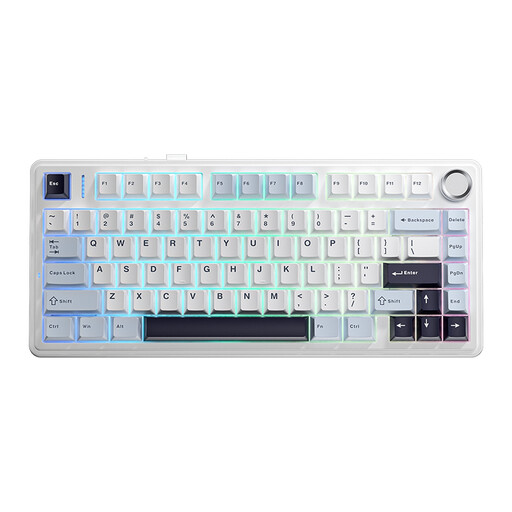 Image unavailable
The 75% layout is an option when desk width matters and you want a choice of connections. Its title specifies wired, Bluetooth and 2.4G modes, RGB backlighting and PBT keycaps. Check the US symbol placement and editing-key positions before choosing it for lesson plans.
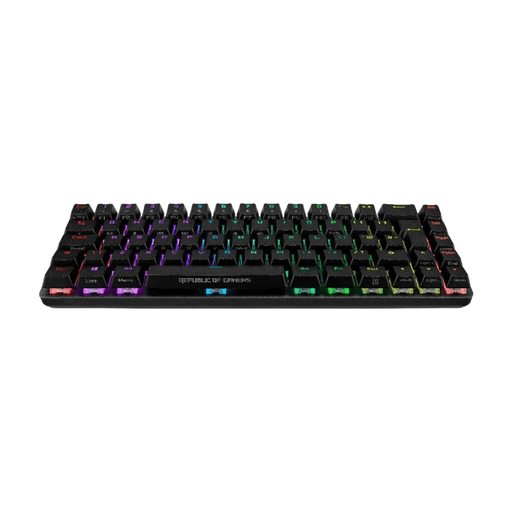 Image unavailable
Consider this compact UK-layout model if familiar regional key placement is important on a restricted desk. Inspect its arrow and navigation-key arrangement, and confirm that its stated connection works with your computer.
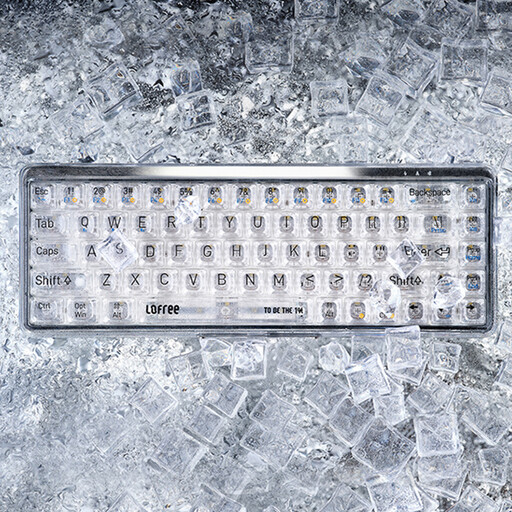 Image unavailable
This 68-key option suits a setup where a smaller keyboard and a choice between Bluetooth 5.1 and wired use matter. Check the US layout, editing-key positions and device-switching behaviour; confirm whether the mouse mentioned in the listing is included.
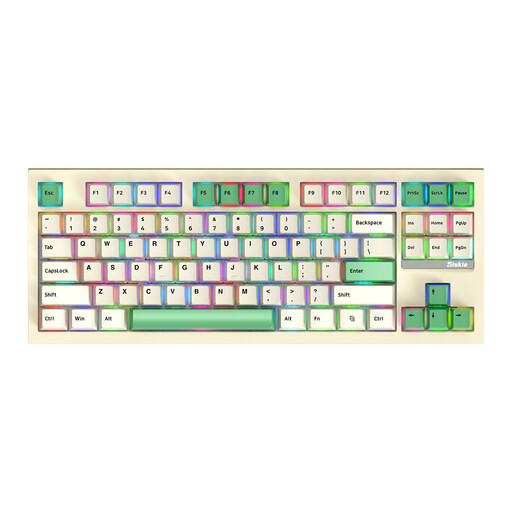 Image unavailable
Consider this 87-key model if you want a keyboard without a number pad while keeping a less reduced layout in mind. Check its dimensions, regional key arrangement and editing-key positions against the space and shortcuts your lesson planning requires.
Choose UK-ISO if you want familiar UK key placement, but check the exact variant rather than relying on a model name. For example, Keychron lists a UK-ISO option for its K3 Version 3; other regional versions may arrange keys differently.
Some models can switch between three devices: Logitech states this for Pebble Keys 2, while HP lists pairing with up to three devices for the HP 350. Check each device’s compatibility and the keyboard’s switching controls before buying.
Leave enough space for the keyboard, mouse and work materials without crowding the area in front of the keys. The Health and Safety Executive advises leaving space there to rest your hands and wrists when you are not typing; follow the chosen model’s own pairing and battery instructions too.
A particular keyboard does not follow automatically from display-screen equipment rules. The Health and Safety Executive says the rules can apply to permanent or long-term home working and hybrid working when someone uses display-screen equipment daily for continuous periods of an hour or more. Where they apply, an individual assessment considers the whole workstation and the risks identified.