Cross-device lesson organisers
If you move files, slides or learning-platform tasks between a computer and another device, switching and shortcuts may matter more than gaming-specific features.


Arrange the screen and lighting to reduce window reflections before choosing a keyboard: the Health and Safety Executive treats glare as a workstation issue. For lesson-resource work, choose around your main need—switching devices, typing for long periods, entering numbers or seeing key legends clearly. Illuminated keys may help with the last of these, but they will not remove reflections from the display.
If you move files, slides or learning-platform tasks between a computer and another device, switching and shortcuts may matter more than gaming-specific features.
If planning, marking or administration involves extended typing, consider keyboard shape and wrist support alongside the rest of your workstation.
If ordinary key markings are difficult to read, compare larger print, stronger contrast and controllable key lighting. This is a different problem from glare on the screen.
At a desk beside a bright window, establish whether reflections are on the screen or the keys themselves are hard to read. Then weigh the keyboard features against the lesson tasks you do most often.
| Concern | What to check | Who this matters to |
|---|---|---|
| Key visibility and glare | Identify screen reflections separately from hard-to-read key legends. For the latter, compare print contrast, legend size or controllable lighting. | If the window makes it difficult to see either the display or the keys, I need to identify which problem to address before buying. Around 36% of consumers put visibility and glare first. |
| Devices and shortcuts | Check switching between your devices, connection methods and whether shortcut software works on the intended system. | When lesson resources move between my devices, I want to avoid repeatedly changing connections or navigating the same tasks. Around 29% of consumers prioritise this workflow need. |
| Long-session comfort | Consider keyboard shape and support alongside desk, chair and pointing-device position. | Extended planning or marking makes me pay attention to how the whole workstation feels, not just the keyboard. For around 21% of consumers, comfort is the primary concern. |
| Desk space and layout | Decide whether you need a number pad and confirm the selected UK or UK-ISO variant if symbol-key placement matters. | I need room for lesson materials, but frequent numerical entry may make a number pad worth the space. Around 14% of consumers put footprint and layout first. |
Key lighting can help you locate keys, but it does not remove reflections from a monitor beside a bright window.
Check whether the difficulty is seeing the keys or seeing the display. For display glare, adjust screen position and lighting; the Health and Safety Executive recommends arranging both to avoid reflections.
A keyboard family may include several national layouts. RNIB describes one illuminated large-print model with a US layout, where some symbol keys differ from a UK keyboard.
Check the selected variant’s physical layout and operating-system compatibility before ordering.
Keyboard shape and palm support are only part of a workstation that also includes furniture, equipment and working conditions.
If discomfort persists, review the wider setup. The Health and Safety Executive advises assessing the whole display-screen workstation for workers covered by its assessment guidance.
RNIB’s illuminated large-print keyboard uses a US layout and is listed for Windows computers only, so visible legends alone do not establish that it fits your setup.
Confirm the intended computer, key layout and relevant seller terms for the exact model.
Productivity and ergonomic keyboards relevant to device switching or extended typing.
Slim keyboards with UK-ISO options in compact and full-size forms.
An option to consider when bold, high-contrast key lettering is the priority.
A large-print option for people who need more visible key legends.
These keyboards offer different starting points for lesson work: a split layout, UK-layout full-size options, or smaller layouts where desk space matters. Check the exact model against your device and the problem you want to solve; none replaces an adjustment to a glare-affected screen.
 No image available
Consider the split layout and padded wrist rest if long planning sessions make keyboard shape a priority; allow for a different typing feel. Confirm the physical key layout and compatibility with your device.
 No image available
A UK-layout Bluetooth option to consider when lesson tasks span devices. If changing light makes the keys hard to read, check how its lighting works and whether it meets your visibility needs; do not rely on it to correct display glare.
 No image available
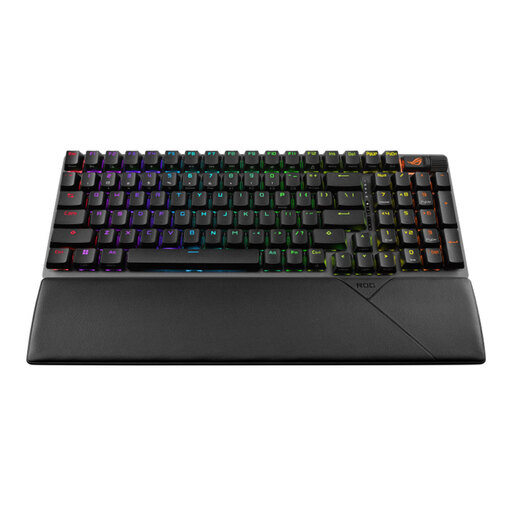
Consider the 96 layout if you want to assess desk footprint alongside UK key placement. Check the exact key arrangement for numerical work; its gaming focus alone does not establish an advantage for lesson administration.
 No image available
A full-size UK-layout option for a desk where keyboard width is acceptable. If key visibility is your main concern, check the legends and lighting of the selected model rather than assuming a full-size layout addresses it.
 No image available
Consider the 75 layout if space beside lesson materials is important. Check whether its keys suit your numerical-entry tasks and intended device; its gaming-oriented features are not, by themselves, a reason to choose it for lesson work.
No: backlighting addresses the keys, not reflections on the display. The Health and Safety Executive recommends arranging screens and lighting to avoid glare; consider illuminated or high-contrast keys separately if the legends are difficult to see.
Choose a UK or UK-ISO variant if you rely on UK symbol-key placement. Check the exact version rather than the model family: RNIB identifies its illuminated large-print keyboard as US layout, with some symbol keys in different positions.
Under Health and Safety Executive guidance, employers must assess workstations for workers who use display screen equipment daily as part of normal work, continuously for an hour or more. The assessment covers the workstation and working conditions, not just the keyboard.
Check your local authority’s electrical-recycling arrangements and any applicable retailer take-back service. UK government guidance places electrical and electronic equipment within the waste electrical and electronic equipment framework, which aims to increase recovery, reuse and recycling.