What matters when choosing a marking keyboard
For a two-screen marking desk, start with your typing position and the tasks you repeat most often. Treat connections to other devices as a separate decision from arranging the two displays.
| Concern |
What to check |
Who this matters to |
| Typing comfort and posture |
Check the keyboard’s height and shape at your desk, and whether it can sit centrally. The Health and Safety Executive advises positioning it just below elbow height. |
If I write lengthy feedback, I need a typing position I can maintain without twisting towards a screen. Around 33% of consumers put comfort and posture first. |
| Repeated marking actions |
Check shortcut support in your operating system and marking application, plus whether any customisation software works with both. |
When comments and rubric entries involve the same actions repeatedly, I want keys that fit that workflow. Around 27% of consumers prioritise faster editing and navigation. |
| Switching host devices |
Count the computers or tablets you actually use, not the screens; check supported connections and switching controls. |
If I alternate between my marking computer and another device, I want to change the keyboard connection without re-pairing each time. Around 20% of consumers put device switching first. |
| UK layout and number entry |
Confirm the selected physical UK layout and decide whether a number pad is worth the desk space. |
For frequent grade entry, I want familiar symbol keys and a number-entry arrangement that suits my routine. Around 20% of consumers prioritise layout and number entry. |
Joybuy keyboards for marking on two screens
These keyboards offer different starting points for the same marking desk: a split layout for extended typing, a full-size format for familiar key spacing, and a 96% format for those considering a more compact arrangement.
 No image available
HP 960 Ergonomic Split Layout Wireless Keyboard with padded wrist rest
For lengthy feedback sessions, consider whether the split layout and padded wrist rest fit your typing position. Confirm the selected physical key layout and check operating-system and marking-application compatibility before relying on custom shortcuts.
View on Joybuy
 No image available
Targus EcoSmart Full Size Wireless Keyboard (UK)
If you prefer a full-size format for marking and grade entry, check that its key arrangement suits your routine and fits centrally on your desk. Confirm the selected physical UK layout, and check remapping support if custom shortcuts are important.
View on Joybuy
 No image available
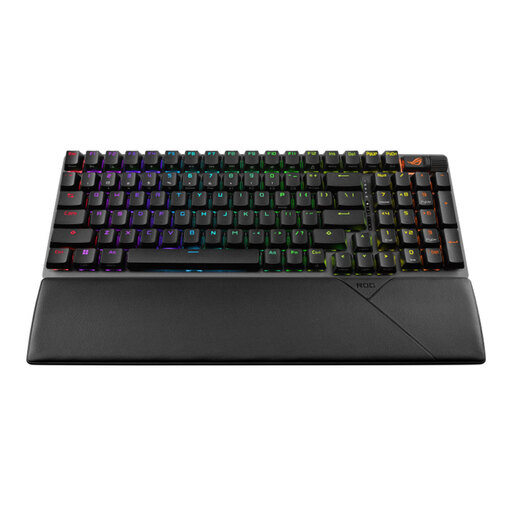
ASUS ROG Strix Scope II 96 Wireless Gaming Keyboard, Black, UK Layout
If you enter grades regularly but want to consider a 96% key arrangement, check that its spacing suits both number entry and extended feedback writing. Confirm the selected switch option and check shortcut-remapping support if your marking workflow depends on it.
View on Joybuy
Frequently asked questions
Do two screens mean I need a multi-device keyboard?
No, not when both displays connect to one computer. Device switching is for moving the keyboard between separate host devices; the computer handles its connected displays.
What should I check before choosing an ergonomic keyboard?
Check the whole desk arrangement as well as the keyboard’s shape. The Health and Safety Executive advises keeping the keyboard central and just below elbow height, with the screen and keyboard in front of you and the mouse in line with your elbow.
Does an ISO keyboard necessarily have UK keys?
No. ISO keyboards can have different regional layouts; Keychron, for example, offers a UK-ISO K10 Pro variant. Confirm the physical layout of the exact version you select.
Will programmable keys work in every marking platform?
Not necessarily: the intended shortcut must work in your marking application, and customisation features may depend on compatible software. Test your frequent actions in the platform and check operating-system support before choosing a keyboard for its programmable keys.
When does an employer need to assess a digital marking workstation?
For workers who regularly use display screen equipment as a significant part of normal work, the Health and Safety Executive says employers must analyse workstations to assess and reduce risks. Its guidance describes this use as daily, continuous periods of an hour or more; ask your employer about an assessment if that describes your marking work.


