For repeated mobile-menu checks in a PC or Mac browser, a wired keyboard is a straightforward choice if its USB connection suits your computer. If you also test on phones or tablets, choose a keyboard that supports each intended device and gives you access to the keys your tests require; an iPad keyboard case must fit the exact iPad model. Whichever you choose, test how focus moves through, activates and leaves the menu—a keyboard alone cannot establish that it works.
Who needs which setup?
Desktop accessibility checker
Checks a responsive mobile menu in a PC or Mac browser and needs physical keys for repeated focus, activation and exit checks. The Department for Work and Pensions Accessibility Manual describes keyboard actions for moving between interactive controls.
Cross-device mobile-menu tester
Moves between a laptop and actual phones or tablets. A keyboard that pairs with the intended devices and offers a workable switching method may suit this workflow better than one kept at a desk.
iPad-specific tester
Checks the menu on a particular iPad. For a keyboard case, the iPad family and generation matter: Apple lists compatibility by model rather than treating its cases as universal.
What matters when choosing?
Start with the device on which you will actually test the menu. Then check the keyboard connection and whether its layout lets you perform the focus, activation and exit actions the test calls for.
| Concern | What to check | Who this matters to |
|---|
| Repeatable desktop checks |
Check access to Tab, Shift, Enter, Space, arrow keys and Escape, plus a connection that suits the testing computer. |
If I run the same menu checks in a desktop browser, I need to move focus, activate controls and leave the menu using physical keys; around 42% of consumers put repeatable desktop checks first. |
| Real-device testing |
Check stated support for each phone, tablet and computer, along with the pairing and switching method. |
When I move from a laptop to a phone or tablet, I need a keyboard I can use with each intended device; cross-device testing is the main concern for around 33% of consumers. |
| iPad compatibility |
For a keyboard case, match the precise iPad family and generation to the maker's compatibility list. |
If my menu check takes place on a particular iPad, a case that fits a different generation will not meet that need; exact iPad compatibility comes first for around 25% of consumers. |
Checks that are easy to miss
-
Assuming a touch test covers keyboard use
A menu that works by touch or mouse may still prevent keyboard users from reaching, activating or leaving its controls. W3C Web Accessibility Initiative guidance calls for functionality to be operable through a keyboard interface.
Use a physical keyboard to open the menu, move through its controls, activate an item, close it and continue to the next page control.
-
Choosing wireless connectivity before checking the host
Bluetooth, USB and keyboard-case connections have different device requirements. Support for one operating system or model does not establish support for another.
Match the selected keyboard variant and connection method to every computer, phone or tablet you plan to test.
-
Treating an iPad keyboard case as universal
Apple lists iPad keyboard compatibility by model family and generation. A similar-looking case cannot be assumed to fit a different iPad.
Identify your iPad model before comparing it with the case's compatibility list.
-
Stopping the test once focus enters the menu
Focus entering a component does not show that it can leave. W3C Web Accessibility Initiative guidance identifies being unable to move focus away using a keyboard as a keyboard trap.
Test the route out of the menu as well as the route in. If leaving requires a non-standard key sequence, check that the method is communicated to users.
Relevant brands for reference
Logitech
Its K120 and Keys-To-Go 2 illustrate different approaches: a wired desktop keyboard and a portable keyboard for compatible devices.
- Logitech describes the K120 as a full-size USB keyboard and Keys-To-Go 2 as supporting Android, ChromeOS, Windows, iPadOS, iOS and macOS, with switching among up to three devices.
- Check the intended host connection; the K120's USB specification does not establish that it can be used with your phone or tablet.
Keychron
The K3 Max is relevant when a compact UK-ISO option and a choice of connection methods matter to the test setup.
- Keychron lists a 75% layout, a UK-ISO option, Bluetooth, wired and 2.4 GHz connections, and Bluetooth connection to three devices for the K3 Max.
- Layout, switch and hot-swappable options vary; check the selected K3 Max configuration rather than assuming every variant is identical.
Apple
Apple's keyboards are relevant when the test is performed on specified compatible iPhone, iPad or Mac hardware.
- Apple lists Bluetooth and Apple-platform system requirements for its standalone Magic Keyboard (USB-C), and model-specific compatibility for iPad keyboard products.
- Check the exact device and, for a case, the iPad generation. Apple-device compatibility does not establish Android support.
Joybuy keyboards for this task
These choices include full-size wireless keyboards and smaller Bluetooth or dual-mode layouts for menu checks on compatible computers or mobile devices. Compare them against your actual testing host and the keys you need; this selection does not establish that any one keyboard suits every device.
 No image available
Hyper® HyperSpace Next Bluetooth Keyboard (UK), White
Consider this for a wireless testing setup if the computer, phone or tablet you intend to use can pair with it.
The named variant has Bluetooth connectivity and a UK designation. Check access to your menu-test keys on each intended device.
View on Joybuy
 No image available
Targus EcoSmart™ Full Size Wireless Keyboard (UK)
Consider the full-size layout for repeated checks at a desk, provided its wireless connection works with your testing computer.
Confirm the connection method and compatibility with any phone or tablet you also intend to use.
View on Joybuy
 No image available
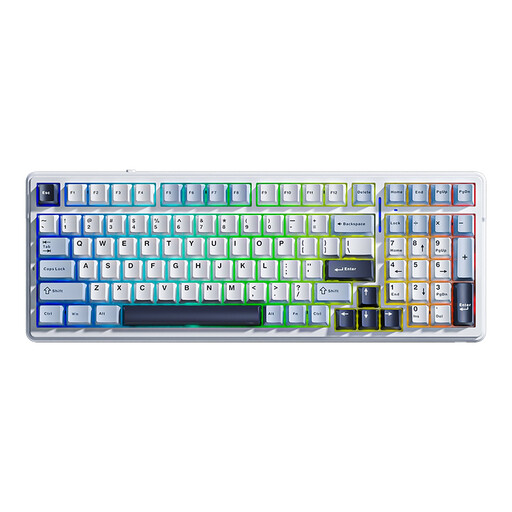
AULA F99 Keyboard, US QWERTY, Light Blue, Reaper Switch
Its named connection options make it worth considering when you alternate between a computer and a compatible mobile device.
The title specifies wired, Bluetooth and 2.4G modes, a US QWERTY layout and Reaper switches. Check which mode your host can use and whether the layout provides convenient access to each test key.
View on Joybuy
 No image available
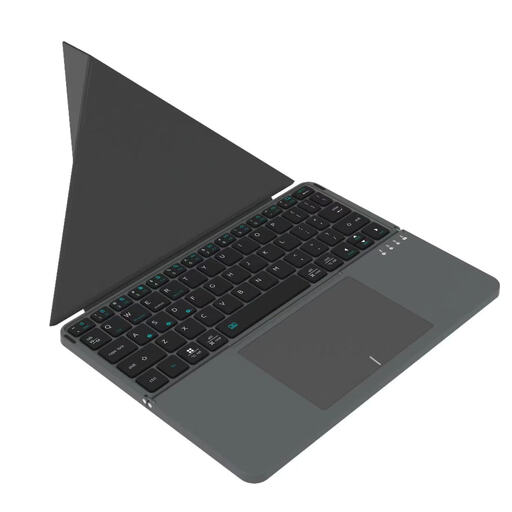
VoxorAI BOX1 Bluetooth Keyboard, Black
Consider it for a mobile-device menu check only after confirming pairing with the particular device you will test.
The product name identifies Bluetooth connectivity. Check how to access Tab, Shift, Enter, Space, arrow keys and Escape on this model.
View on Joybuy
 No image available
Lofree OE907 65% Keyboard, US QWERTY, Jellyfish Switches
Consider the smaller layout if you can still perform every menu-test action on your intended device.
The named variant has 68 keys, a US QWERTY layout, Bluetooth 5.1 and a wired mode. Check host compatibility and how the required keys are accessed before choosing the compact layout.
View on Joybuy
Common questions
Which keys should I use to check a mobile menu?
Use Tab and Shift+Tab to check focus movement, Enter and Space for applicable controls, and arrow keys where the menu's interaction requires them. Check how the menu closes and whether focus can leave it; the Department for Work and Pensions Accessibility Manual describes these keyboard-testing actions, while W3C Web Accessibility Initiative guidance addresses keyboard traps.
Is an external keyboard useful for testing on a phone or tablet?
Yes, if the particular device accepts the keyboard connection and lets you perform the intended checks. W3C Web Accessibility Initiative guidance notes that touchscreen devices can provide a keyboard interface, but you should confirm compatibility and key behaviour on the device you will actually use.
Does a successful keyboard check prove the menu is accessible?
No. It checks keyboard operation, not every aspect of accessibility. The GOV.UK Service Manual advises using both automated and manual accessibility testing; continue with the other testing relevant to your service rather than treating one keyboard pass as a complete assessment.


