What matters when choosing a sharing method?
Decide whether the display must switch before choosing how to move keyboard and mouse control. With separate screens, the main choice is between a physical switch, deliberate device-channel changes and network-based cursor movement.
| Concern |
What to check |
Who this matters to |
| Switching the display too |
Match each computer’s video and USB connections, the monitor count and the required display mode to the exact KVM. |
If my monitors need to show whichever computer I am controlling, moving only the keyboard and mouse will not do. Around 31% of consumers put display switching first. |
| Wired input without software |
Check host and peripheral USB ports, switching controls and any additional power guidance; do not assume a USB switch carries video. |
I want to leave both screens connected and stop unplugging my wired input devices, without depending on network sharing. For around 25% of consumers, that physical input-only route comes first. |
| Manual device switching |
Check pairing capacity and connection methods on both the keyboard and mouse, including whether they must be switched separately. |
If changing devices with a key or button suits my workflow, I can assess multi-device peripherals without adding a switch box. Around 19% of consumers prioritise that deliberate change of control. |
| Cursor movement between screens |
Check software and operating-system support, installation permission and whether the computers can communicate on the local network. |
When I move between separate computer screens frequently, I would rather move the cursor across than press a switch each time. That is the primary need for around 25% of consumers. |
Joybuy keyboard and mouse options
These input-device options are relevant to a two-computer desk with separate screens, not to switching a shared monitor. The HP set contains both a keyboard and mouse; the HOFOTEK and RAPOO products are mice, so they need a separate approach to keyboard control.
 No image available
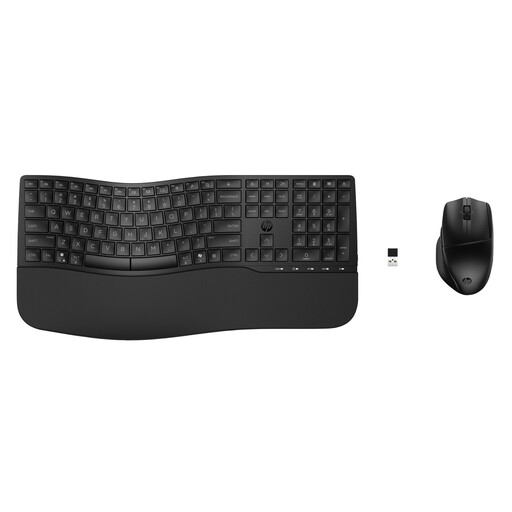
HP 680 CFT Dual-Mode Keyboard/Mouse Combo
Consider this set if you want both input devices together, but check how each one changes between computers and whether they can switch together.
The product name identifies a dual-mode keyboard-and-mouse combo; confirm that its connection methods suit both computers.
View on Joybuy
 No image available
HOFOTEK M311 2.4G+BT mouse, white-grey
For mouse control at a two-computer desk, check this model’s host-switching controls and plan a separately compatible keyboard.
The named variant specifies 2.4G+BT connectivity, adjustable multi-level DPI and a 1xAA battery.
View on Joybuy
 No image available
RAPOO MT760L-LG mouse
For cursor movement between computers with separate screens, check whether this mouse’s described M+ function supports your operating systems. Its cross-computer use calls for driver installation and shared Wi-Fi or Ethernet access, so both must be permitted.
This is a mouse, not a complete keyboard-and-mouse sharing arrangement; confirm how you will share keyboard input.
View on Joybuy
Common questions
Do I need a KVM or just a USB switch?
Choose a display-switching KVM if the monitor image must follow the active computer; choose an input-only USB switch if each computer keeps its own display. Check the exact model: UGREEN says its USB-C switch does not transmit video, while StarTech.com specifies display switching on its dual-monitor HDMI KVM.
Can one Bluetooth keyboard and mouse work with two computers?
Yes, if both peripherals support the required multi-device connections and both computers can use them. Logitech Support documents pairing with up to three computers for supported Easy-Switch keyboard and touchpad products; check the chosen mouse separately and establish whether the two devices must change channels individually.
Can software sharing work across Windows, macOS and Linux?
Synergy states support for Windows, macOS and Linux, provided its requirements are met. The computers must be able to see one another over Ethernet or Wi-Fi, each needs its own screen, and installation must be permitted.
Why might software sharing be unsuitable for a work computer?
Workplace installation or network restrictions can prevent the intended connection. Logitech notes that office network ports can block Flow; Microsoft warns that Mouse Without Borders service mode adds security risk when used for elevated applications or lock-screen control. Check with the relevant administrator rather than bypassing controls.
Does a USB peripheral switch need additional power?
Some setups may need it when higher-power accessories are attached. UGREEN describes an additional Micro USB power input on its USB 3.0 switch for devices such as HDDs and SSDs; check the exact switch’s guidance and included accessories before connecting them.


