Single-computer, dual-screen arrangers
If notation and reference or playback windows share one computer, focus on the keys you use, a familiar layout and a workable keyboard position. Switching the keyboard between devices is optional.


If both screens connect to one computer, choose the keyboard around your preferred layout, access to notation shortcuts and desk setup; device switching will not help the computer run the displays. A multi-device keyboard becomes useful when you move between separate computers or a tablet. For configurable key layers, consider a model with documented customisation, while checking its size, switch feel and compatibility with your system.
If notation and reference or playback windows share one computer, focus on the keys you use, a familiar layout and a workable keyboard position. Switching the keyboard between devices is optional.
If you alternate between separate computers or a computer and tablet, check how the keyboard changes hosts and whether it supports each operating system. Two displays attached to one computer do not create this need.
If repeated notation commands make configurable keys worthwhile, check the exact model’s customisation method, layout variant and connection options before committing to it.
Count computers and tablets before comparing connection features. Then decide which keys your notation application needs within easy reach and whether the keyboard fits your working position.
| Concern | What to check | Who this matters to |
|---|---|---|
| Long-session comfort | Check keyboard height and angle at your desk, and whether you can keep the keyboard central without twisting towards a screen. | If I spend long sessions entering a score, I want the keyboard and displays positioned so I am not reaching or twisting; around 31% of consumers put this need first. |
| Layout and shortcuts | Confirm the exact UK layout variant, the arrow and navigation keys you use, and your notation application’s shortcuts. | When I move repeatedly through a score, I want familiar key positions and ready access to the commands I use; that is the primary concern for around 25% of consumers. |
| Host switching | Count separate computers or tablets, then check the keyboard’s switching method and supported operating systems. | If I move between a workstation and another host, I want to change where my typing goes without changing keyboards; around 25% of consumers prioritise that switch. |
| Key feel and configuration | Check the selected switch variant, acceptable room noise and whether the exact model supports the key configuration you intend to use. | For repeated editing commands, I may value configurable keys or a particular feel, while sharing a room makes sound important; around 19% of consumers put these preferences first. |
Changing the keyboard’s active host does not determine whether a computer or dock can run two displays.
Establish whether both screens connect to one computer. If they do, check that computer’s display support and settings; compare keyboard host switching only if you also use separate devices.
Regional variants can place familiar punctuation and shortcut keys differently, which matters during frequent text and command entry.
Confirm that the exact variant at checkout is labelled UK ISO or British English if that is the layout you need.
Keyboard shape alone cannot correct a position that leaves you reaching or twisting. The Health and Safety Executive advises placing the keyboard just below elbow height and keeping the screen and keyboard central.
Check your chair, display positions and keyboard placement together before deciding that a different key profile will address discomfort.
Switch variants differ in feel and sound, and key customisation depends on the particular keyboard and its configuration system.
Check the selected switch and the exact model’s configuration support against the commands you plan to assign.
These examples show different layout, connection and platform approaches; the details apply to the named models rather than every keyboard from each brand.
The MX Keys S and MX Mechanical lines offer different approaches to low-profile typing and device switching.
The Q6 Max UK ISO is a full-size mechanical route for buyers interested in QMK/VIA configuration.
Apple’s British-English Magic Keyboard with Touch ID and Numeric Keypad is a Mac-focused extended-layout option.
Surface Keyboard (2nd Edition) is a Windows-oriented full-size option.
These keyboards offer different starting points for a two-screen arranging desk: UK-labelled full-size and compact wireless models, plus a US-layout mechanical alternative. Compare the exact layout and keys you need before choosing; none of these keyboards determines whether your computer supports two displays.
 No image available
Consider this if you want a UK-labelled full-size wireless keyboard at a fixed arranging desk. Check the exact key layout and whether its keys can be configured for the notation shortcuts you use.
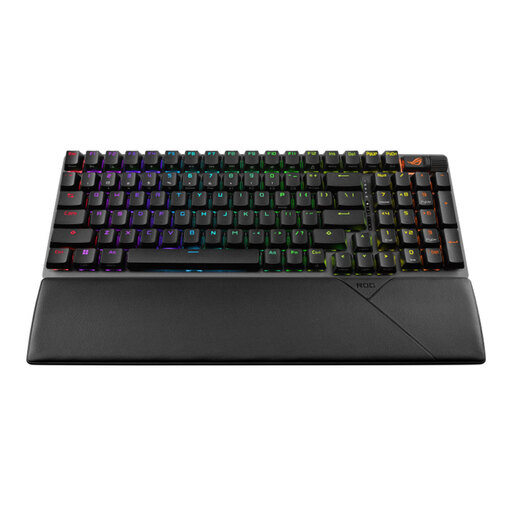 No image available
Consider this UK-layout wireless model if you are comparing alternatives to a conventional full-size board. Confirm its physical keys, selected switch and support for any custom notation commands you need.
 No image available
This UK-labelled Bluetooth keyboard may suit a desk where a wireless connection is the priority. Confirm its physical layout and key feel, particularly if you will use it for extended score-entry sessions.
 No image available
Consider this UK-labelled wireless model if desk space makes a smaller keyboard appealing. Check the exact physical layout against your frequently used navigation and number keys, and confirm the selected switches suit your room.
 No image available
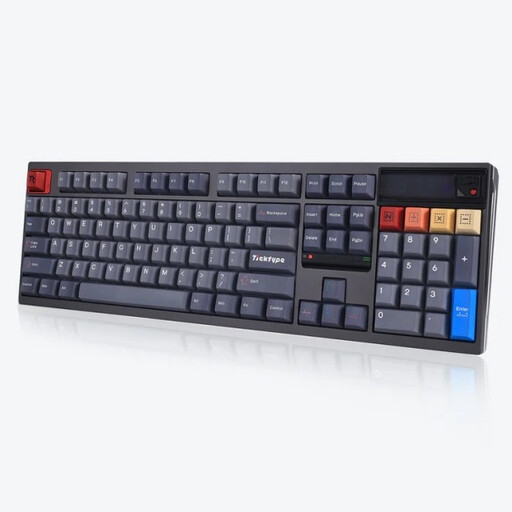
Consider this full-size mechanical model only if a US layout works for your notation shortcuts. Its title specifies 108 keys, a hot-swappable design and Silent Tactile switches; the switch name does not establish how quiet it will seem in your room. Check operating-system compatibility and key-remapping support if either is essential.
No: if both displays connect to one computer, keyboard host switching is not needed to move between them. Check the computer or dock’s display support and settings; choose a multi-device keyboard if you also switch between separate computers or tablets.
A full-size layout is worth considering if you frequently use dedicated navigation keys or a number pad and have room for them. A smaller layout may suit a tighter desk if its available keys and shortcuts still work for your notation application.
Keep it central to your working position and just below elbow height where possible. The Health and Safety Executive advises positioning the screen and keyboard to avoid twisting; arrange the displays around the work you use most rather than expecting a keyboard change to correct their placement.
It may suit a compatible Mac setup if you want its extended British-English layout, but check the host before buying. Apple specifies an Apple-silicon Mac running macOS 15.1 or later for its Magic Keyboard with Touch ID and Numeric Keypad.