What matters when choosing?
Set the standing workstation height and keyboard position first. Then decide which need would most influence your choice: hand position, shortcut control or a familiar keyboard that moves between devices.
| Concern |
What to check |
Who this matters to |
| Hand position while standing |
Check the available keyboard angle and whether its width leaves comfortable room for the mouse. Allow for a position just below elbow height. |
If my hands feel awkward during long map-editing sessions, I want to address the desk setup and assess whether a split layout suits me. Around 42% of consumers put hand positioning first. |
| Shortcuts and map controls |
Check the keys your mapping software uses and whether the exact keyboard and operating system support the customisation you need. |
When I repeat navigation and editing commands, I want those controls within easy reach without giving up keys I rely on. Shortcut access comes first for around 33% of consumers. |
| Familiar layout and device switching |
Confirm the exact key layout, compatible devices and connection method before choosing a board for more than one computer. |
If I move between a mapping workstation and other devices, I want typing to stay familiar and switching to fit my setup. Around 25% of consumers prioritise that convenience. |
Joybuy keyboards for terrain-map work
These keyboards offer split-layout and conventional wireless choices to consider for standing-desk map work. Match the exact key layout and any shortcut-customisation requirements to your own setup.
 No image available
HP 960 Ergonomic Split Layout Wireless Keyboard with Padded Wrist Rest
Consider its split layout if hand positioning remains your priority after adjusting the standing desk. Check the exact key layout and operating-system compatibility before relying on custom shortcuts.
View on Joybuy
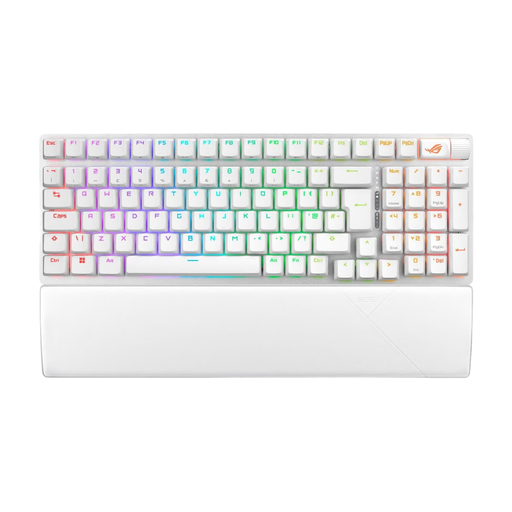 No image available
ASUS ROG Strix Scope II 96 Wireless Keyboard, White, UK Layout
If you want a wireless keyboard for map editing, compare its key arrangement with the navigation and number-entry controls you use. Confirm the exact UK layout and switch variant.
View on Joybuy
 No image available
Targus EcoSmart™ Full Size Wireless Keyboard (UK)
Consider this UK-labelled full-size model if familiar typing takes priority in your map workflow. Check whether it supports shortcut remapping if you plan to customise commands.
View on Joybuy
 No image available
Hyper® HyperSpace Next Bluetooth Wireless Keyboard (UK), White
If you use more than one device alongside your mapping workstation, check whether its Bluetooth connection and key layout fit your equipment. Confirm custom-key support if your workflow depends on it.
View on Joybuy
 No image available
HyperX Alloy Rise 75 Wireless Keyboard UK
If desk space is tight, compare its key arrangement with the navigation and numeric controls your maps require. Confirm the exact regional layout and software compatibility before relying on customised key assignments.
View on Joybuy
Questions about keyboard choice
Do I need a split keyboard because I work standing up?
No: standing alone does not determine the keyboard shape you need. Follow the Health and Safety Executive’s advice on keyboard height and central placement first, then consider a split layout if a straight keyboard still makes hand positioning awkward.
Is a programmable keyboard necessary for terrain mapping?
Not necessarily: it is most relevant if you regularly repeat commands and want to change how you access them. Esri documents default and customisable ArcGIS Pro shortcuts, so check your actual commands and the keyboard’s software compatibility before treating extra programming features as essential.
Should I choose a UK-ISO keyboard?
Choose the key layout you can use comfortably with your typing and shortcuts unless you have a specific reason to change. Check the exact variant rather than assuming every listing for a model has the same punctuation and Enter-key arrangement; Keychron, for example, identifies a UK-ISO version of its Q6 Max.
What should I confirm before ordering a keyboard for this setup?
Confirm the model and regional layout, connection method, accessories included and compatibility with any software you need for key assignments. Check the seller’s return terms and warranty coverage separately, particularly if you are trying a keyboard shape or layout that is new to you.


