Choose a compact monitor with an adjustable stand if fitting the student desk and positioning the screen are your main concerns. A 27-inch QHD display can give you more room for a browser, test tools and notes, but needs more desk space; choose USB-C for a laptop only after checking video support, charging power and cable inclusion. Whichever screen you use, visible focus and keyboard operation must be checked in the webpage or application itself.
Who this setup suits
Keyboard-accessibility coursework testers
If you inspect visible focus, Tab movement and whether focus can leave interactive components, you need a screen you can position comfortably while testing with a physical keyboard. As the W3C Web Accessibility Initiative explains, those focus behaviours belong to the webpage or application, not the monitor.
Students with a small desk
Desk depth and screen position may matter more to you than a larger panel. Measure the space available for both monitor and keyboard; the Health and Safety Executive advises placing the screen about an arm’s length away, with its top at eye level.
Laptop-first multitaskers
If you keep a browser, inspection tools and notes open together, consider the workspace offered by QHD. If you also want a USB-C connection, compare the exact monitor’s video, charging and cable details with your laptop’s requirements: the LG and Lenovo models described by their UK product pages differ on those points.
What matters when choosing
Start with the testing task and the space on your desk, then decide how much window space and laptop connectivity you need.
| Concern |
What to check |
Who this matters to |
| Inspecting keyboard focus |
Check screen position and reflections at your usual viewing distance. Test visible focus and movement out of components with a physical keyboard in the intended browser. |
If I am checking keyboard navigation, I need to see which control has focus and notice when movement gets stuck. Roughly 42% of consumers put inspecting focus first. |
| Desk fit and positioning |
Measure usable desk depth and the stand footprint. Check height adjustment, or whether a separate compatible mount would be practical. |
On a shallow student desk, I need room for the keyboard while keeping the screen at a workable distance and height. For around 33% of consumers, desk fit and positioning take priority. |
| Workspace and laptop connection |
Compare Full HD and QHD for the windows you use. For USB-C, check laptop video output, monitor power delivery and cable inclusion on the exact model. |
When I keep test tools and notes beside a browser, I want enough screen space without relying on a laptop connection that may not meet my needs. Workspace and connectivity come first for roughly 25% of consumers. |
Buying pitfalls
-
Expecting the monitor to establish keyboard accessibility
Screen size or refresh rate cannot tell you whether an interface shows focus or lets keyboard users move out of a component. The W3C Web Accessibility Initiative treats these as properties of the interface.
Set up the screen for comfortable inspection, then use a physical keyboard to check focus visibility and keyboard escape in the intended browser.
-
Assuming every USB-C connection does the same job
LG specifies up to 15W power delivery for its 27U631A-B and says a USB-C cable is not included; Lenovo specifies up to 75W for its L27h-4A. Those details make a difference if you plan to connect and charge a laptop through one cable.
Confirm USB-C video output on the laptop, compare its charging needs with the monitor rating and check the contents of the exact package.
You may need a separate cable or may still need to use the laptop’s charger.
-
Choosing a larger screen before measuring the desk
A 27-inch display needs more physical space than a compact screen. On a shallow desk, positioning it at the distance advised by the Health and Safety Executive may be difficult.
Measure the usable depth and stand footprint. If the stand has limited adjustment, check mount compatibility and whether your desk can accommodate an arm or riser.
A separate arm or riser adds an item to set up and may need space at the desk edge.
-
Treating display-comfort features as an accessibility result
A manufacturer’s display-comfort feature does not establish that an individual will avoid eye strain or that a website meets keyboard-accessibility requirements.
Consider such features as display preferences; judge visible focus and keyboard operation by testing the interface directly.
Relevant brands to consider
Dell
Dell’s P2425H is a specification reference for a compact, adjustable productivity monitor.
- Dell UK lists a 23.8-inch Full HD IPS panel and height, tilt, swivel and pivot adjustment for the P2425H.
- Check the complete model name when comparing listings: P2425H specifications should not be assumed to apply to a P2425.
BenQ
The GW2490T illustrates a compact Full HD route with stand adjustment for study use.
- BenQ UK lists a 23.8-inch IPS display, 110mm height adjustment and HDMI and DisplayPort inputs for the GW2490T.
- Its listed display-comfort features do not establish an individual comfort outcome or keyboard-accessibility compliance.
LG
The 27U631A-B illustrates a 27-inch QHD option for keeping more test material on screen.
- LG UK lists an IPS panel and USB-C display connectivity with up to 15W power delivery for this model.
- LG says the USB-C cable is not included. Check whether 15W meets your laptop’s charging needs.
Lenovo
The L27h-4A illustrates a more laptop-centred 27-inch QHD connection setup.
- Lenovo UK lists USB-C with up to 75W power delivery and four USB-A ports for the L27h-4A.
- Those specifications do not establish video or charging compatibility with every USB-C laptop; check your laptop’s port and power requirements.
Joybuy monitors for this setup
These monitors cover compact study-desk options and a larger QHD option for keeping test materials in view. Choose by desk fit and connection needs; none can establish whether the interface you test is keyboard accessible.
 No image available
ASUS ProArt PA24ACRV IPS QHD
Consider this compact QHD option if you want room for test tools while keeping desk fit in mind.
Check the exact package contents before planning a USB-C setup; cable inclusion can vary.
View on Joybuy
 No image available
ASUS ProArt PA248CNV IPS WUXGA
This is a compact option for a study desk where you also want space for notes beside the test interface.
If you intend to connect a laptop by USB-C, check its video and charging requirements and confirm which cables come with this SKU.
View on Joybuy
 No image available
Dell P2425 24-inch monitor
Consider the P2425 if a compact screen is your priority for a student-room workstation.
Confirm the exact P2425 refresh rate before using it to decide: the product description and technical table give different figures. Do not apply P2425H specifications to this model.
View on Joybuy
 No image available
ASUS ProArt PA278CFRV IPS QHD 100Hz
Consider this larger QHD monitor if you want a browser, test tools and notes visible together and have measured enough desk space.
Check the exact SKU before relying on USB-C: its availability is described as region-dependent.
View on Joybuy
 No image available
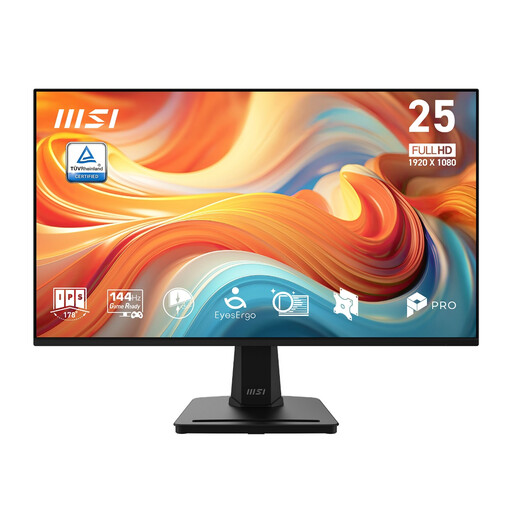
MSI PRO MP251 E14L 24.5-inch Full HD 144Hz IPS Adaptive-Sync
This compact Full HD option may suit a desk where a separate positioning solution is practical.
The included stand adjusts for tilt only. If you need to change screen height, check that a compatible mount or riser will work with your desk.
View on Joybuy
Common questions
Does a better monitor make a website keyboard accessible?
No. The W3C Web Accessibility Initiative explains that focused items need a visible indicator and that keyboard users must be able to move focus away from components. A monitor can help you inspect the interface, but cannot provide those behaviours.
What should I check during a keyboard-navigation test?
Move through interactive items with a physical keyboard and check that you can tell which item has focus. For widgets, dialogs and embedded content, also check that keyboard users can move out using the intended keyboard method.
How should I position a monitor on a student desk?
Aim to place the top of the screen at eye level and the screen about an arm’s length away, following Health and Safety Executive guidance. Measure the desk before choosing a larger panel, and check whether the stand provides the adjustment you need.
Will a USB-C monitor charge my laptop?
Not necessarily. The laptop must support the connection you want, and the monitor’s power-delivery rating must meet its charging needs. For example, LG UK lists up to 15W for the 27U631A-B, while Lenovo UK lists up to 75W for the L27h-4A; check the exact model and cable contents before planning a one-cable setup.


