Long-form review editors
If drafting and proofreading a theatre review takes substantial typing time, key feel, typing noise and access to navigation keys can shape your choice.


Choose the keyboard layout around how you edit: a full-size board keeps a number pad and more dedicated keys, while a compact board leaves more desk room. Two screens call for device switching only if they belong to separate computers. For long writing sessions, weigh key sound and feel against your comfort with the layout, and consider a wave or split keyboard as part of the whole workstation rather than a solution on its own.
If drafting and proofreading a theatre review takes substantial typing time, key feel, typing noise and access to navigation keys can shape your choice.
If your two screens are connected to separate computers, or you alternate between a computer and another device, check how the keyboard changes between them.
If comfort is your main concern during long editing sessions, you may want to try a wave or split layout while assessing the rest of your desk setup too.
For theatre-review editing across two screens, establish whether you use one computer or two before choosing connection features. Then decide which matters most to your typing: sustained comfort, lower distraction from key sound, or direct access to editing keys.
| Concern | What to check | Who this matters to |
|---|---|---|
| Device switching | Count the computers you use and check their connection options, compatibility and the keyboard’s switching method. | If my screens belong to separate computers, I need to move typing between them without repeatedly setting up the keyboard; around 36% of consumers put switching and compatibility first. |
| Comfort and fit | Consider standard, wave and split layouts alongside keyboard height, mouse reach and your wider workstation. | During a long editing session, I want a layout that feels comfortable at my desk, even if a shaped keyboard takes getting used to; roughly 29% of consumers prioritise comfort and fit. |
| Key sound and feel | Check the exact key mechanism or switch variant; do not assume every mechanical version sounds alike. | When I am editing near other people or need fewer audible distractions, the keys’ sound matters as much as their feel; about 21% of consumers make quieter typing their primary concern. |
| Layout and shortcuts | Check the UK key arrangement if you need it, plus arrows, navigation keys, function-row behaviour and number-pad access. | If I navigate and revise text frequently, I need the right keys within easy reach without giving up more desk space than necessary; around 14% of consumers put layout and shortcut access first. |
Two monitors attached to one computer do not create a second device for the keyboard to control.
Map which computer runs each screen. Prioritise switching features only if your work moves between separately paired devices.
A 75% layout uses less desk width but has fewer dedicated keys than a full-size keyboard, which can affect navigation-heavy proofreading.
Inspect the arrow and navigation keys, function-row behaviour, UK layout if required, and whether you use a number pad.
A wave or split layout may take time to learn, while screens, chair, desk and mouse placement remain relevant to comfort. The UK Health and Safety Executive treats the keyboard as one part of a display-screen workstation.
Assess the complete setup rather than judging a shaped keyboard in isolation; follow your employer’s workstation assessment process where applicable.
Switch options differ in feel and sound. Logitech, for example, lists tactile quiet, clicky and linear variants in its MX Mechanical range.
Check the named switch in the exact version you intend to buy, particularly if typing noise matters in your workspace.
Its keyboard range includes low-profile office models and wave or split layouts.
A reference point for compact mechanical layouts and programmable keys.
Its office keyboards include conventional multi-device and shaped-layout options.
Its range includes split-layout and multi-device keyboards relevant to desk-based editing.
These keyboards cover full-size, split and compact layouts for editing at a two-screen desk. Check device-switching behaviour separately if the screens are connected to different computers.
 No image available
Consider this split layout if comfort is a priority during long editing sessions, but allow for how it fits your wider desk setup.
 No image available
This is a conventional full-size option if you want a UK-layout keyboard for desk-based editing.
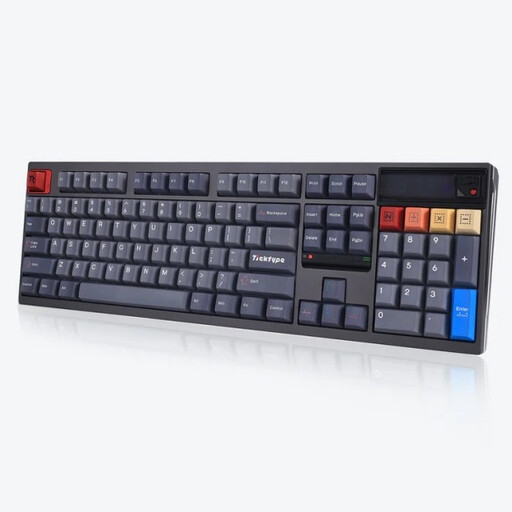 No image available
Consider this full-size mechanical option if you want dedicated keys and are comfortable using its stated US layout.
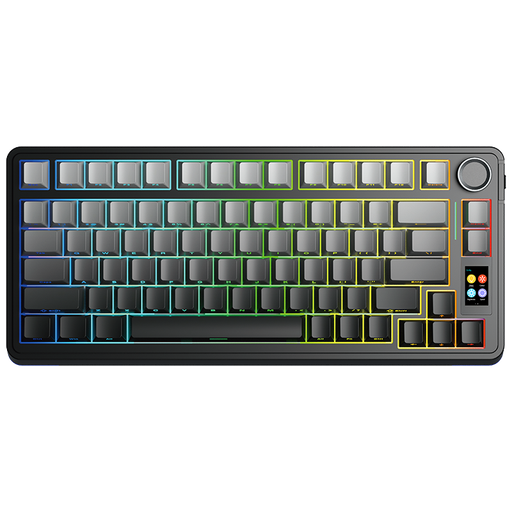 No image available
Consider its 75% layout when desk width matters more than having every full-size key directly available.
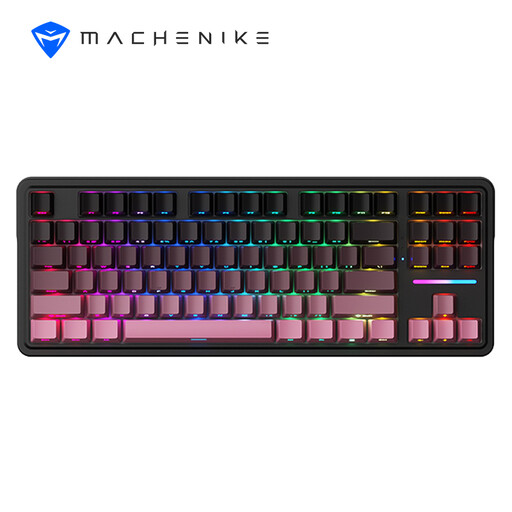 No image available
This 80% mechanical layout is an option if you want a smaller board and its US key arrangement suits your editing habits.
No: if both displays connect to one computer, device switching is not needed just to type across them. Look for switching between paired devices if your review work moves between separate computers or between a computer and a tablet.
A 75% keyboard can suit a desk where width matters, provided its reduced set of dedicated keys works for your editing. Check arrows, navigation keys, function-row behaviour and whether you rely on a number pad.
No; sound varies with the particular switch and keyboard. Logitech lists tactile quiet, clicky and linear options in its MX Mechanical range, so check the exact variant rather than judging sound from the word ‘mechanical’.
Consider one if comfort is your main concern and you are willing to adapt to a shaped layout. Check how it feels with your screen, desk, chair and mouse arrangement rather than expecting keyboard shape alone to resolve discomfort.
Set up the screens, mouse, desk and chair alongside the keyboard. The UK Health and Safety Executive treats these as parts of the display-screen workstation, so assess their arrangement together, particularly for sustained work use.