Dashboard data-entry builders
If you enter figures and move repeatedly through spreadsheets or CRM tables on one computer, compare the physical layout, number-entry keys and navigation controls before choosing a smaller keyboard.


For a sales dashboard running on two screens from one computer, start by checking whether a full-size keyboard gives you the number-entry and navigation keys your work needs. Multi-device switching matters when you control separate computers or tablets; a wave, split or negative-tilt layout is worth considering when long typing sessions make comfort the priority. Whichever layout you choose, the Health and Safety Executive advises keeping the keyboard central and just below elbow height as part of the wider workstation setup.
If you enter figures and move repeatedly through spreadsheets or CRM tables on one computer, compare the physical layout, number-entry keys and navigation controls before choosing a smaller keyboard.
If you build or monitor dashboards for extended periods, compare keyboard shapes alongside the position of your screens, mouse and desk. The Health and Safety Executive advises keeping the keyboard central and avoiding a twisted working posture.
If your work moves between separate computers or a tablet, check how the keyboard pairs and switches between them. Two monitors connected to one computer do not, by themselves, call for multi-device switching.
Start with the tasks and devices in your own two-screen setup: number entry, long typing sessions, switching between computers and the space available for a centred keyboard and mouse can lead to different choices.
| Concern | What to check | Who this matters to |
|---|---|---|
| Number entry and navigation | Compare the physical UK layout, number pad and navigation keys. Check whether any remapping works with your operating system. | If I regularly enter figures and move through CRM fields, I want the keys I use close at hand; around 36% of consumers put entry and navigation first. |
| Comfort during long sessions | Compare keyboard height, angle and shape, then check whether it can sit centrally and just below elbow height. | When dashboard work keeps me at the keyboard for long stretches, I want a layout and desk position I can use comfortably; roughly 29% of consumers make long-session comfort their primary concern. |
| Switching between devices | Count the separate computers or tablets you control, and check their supported connection and switching methods. | If I alternate between separate work devices, I want to switch without moving keyboards; about 21% of consumers place device switching first. |
| Desk space | Measure the space around monitor stands and the mouse. Compare a smaller keyboard with the dedicated keys you would give up. | With two screens sharing a crowded desk, I need room to keep the keyboard and mouse in workable positions; around 14% of consumers prioritise that space. |
Two displays connected to one computer still use one computer. Switching between paired devices addresses a different task.
List the separate computers and tablets you need to control. If there is only one, give layout and desk fit priority instead.
A smaller keyboard can free mouse space but may change access to keys you use for figures, navigation or shortcuts.
Compare the exact key arrangement with your spreadsheet and dashboard tasks, including the number pad, arrows and function row.
The Health and Safety Executive’s display-screen equipment guidance considers screen, keyboard, mouse and desk arrangement together. A different keyboard shape does not remove the need to position them well.
Check that the keyboard can remain central and just below elbow height, with the mouse positioned so you do not have to reach or twist awkwardly.
Getting that position may also require adjusting the desk or monitor arrangement.
Physical layouts, connections and dedicated-key functions vary by model and variant. Microsoft, for example, specifies Windows 10 or Windows 11 for some Ergonomic Keyboard key functions.
Check the exact variant’s physical layout, operating-system requirements, connection method and any software needed for shortcuts before ordering.
Its MX Keys S and Wave Keys for Business represent different choices for this workspace: device-switching productivity controls and a wave-shaped layout.
The B6 Pro is a full-size option to examine if a UK-ISO layout and a choice of connection methods matter to your dashboard work.
Its Balance Full-Size model is relevant to a fixed desk where a low-profile, negative-tilt keyboard is being considered alongside pointing-device placement.
The Ergonomic Keyboard is a wired, split-layout option for a desk where wireless switching is not the main requirement.
These options include full-size, split-layout and wireless keyboards for different two-screen dashboard setups. Check the physical key layout carefully: some listed variants use a US layout rather than a UK layout.
 No image available
Consider this UK-variant, full-size keyboard if you want a desk-based layout for dashboard entry. Check the precise key positions and number-pad arrangement against your workflow.
 No image available
The split layout and padded wrist rest make this a shape to consider for long desk sessions. Confirm the physical UK key layout and how the number-entry keys would fit your desk before choosing it.
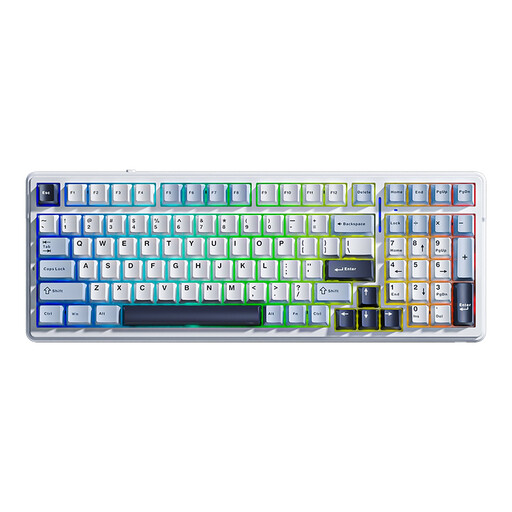 No image available
Consider its wired, Bluetooth and 2.4G connection options if you use separate devices. The listed physical layout is US QWERTY, so choose another variant if UK key positions are essential; also check the navigation-key arrangement for your dashboard tasks.
 No image available
This UK-variant Bluetooth keyboard is an option if that connection suits your computer. Before buying for frequent figure entry, confirm its physical number-entry and navigation-key arrangement.
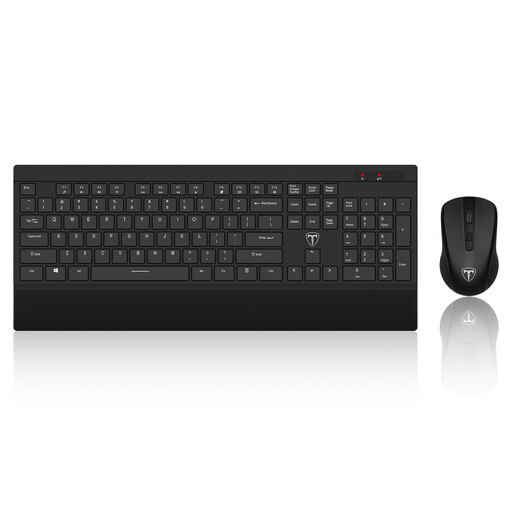 No image available
This 2.4GHz keyboard-and-mouse set is worth considering if you need both devices for a desk setup. Its listed keyboard layout is US rather than UK; check the key positions and whether the bundled mouse suits your workspace.
No: the deciding factor is how many separate computers or tablets you control, not how many displays one computer drives. If you regularly move between devices, check the keyboard’s pairing capacity and switching method.
Keep the keyboard central to your main working position rather than twisting towards a screen. The Health and Safety Executive advises positioning it just below elbow height and arranging the screen and mouse as part of the same workstation setup.
No particular wave, split or negative-tilt model is prescribed by the Health and Safety Executive’s display-screen equipment guidance. Consider keyboard shape alongside your screen position, mouse placement and desk setup; if you use display-screen equipment at work daily for continuous periods of an hour or more, the HSE says its DSE guidance applies.
Check its connection method, power arrangement and compatibility with each device you intend to control. For instance, Logitech lists two AAA batteries and a Logi Bolt receiver for Wave Keys for Business, while Keychron lists wired, Bluetooth and 2.4 GHz modes for the B6 Pro; confirm the details for the exact variant you buy.