For editing slides mainly at one classroom desk, choose a familiar UK-layout keyboard with the function and navigation keys you use, then decide whether a wired connection or a wireless receiver suits the workstation. An integrated touchpad is worth considering when you also need cursor control away from the desk; device switching matters more when you regularly prepare lessons on several computers or tablets. Check the classroom computer’s connections and the exact keyboard layout before buying.
Who needs which setup?
Desk-based slide editors
Teachers and school staff who build or revise presentations at one workstation may want a familiar layout, a straightforward connection and accessible navigation keys. Logitech and HP list full-size wired and receiver-based models suited to comparing these requirements.
Teachers controlling a classroom display
If the computer is connected to a display, moving away from the desk changes the choice: slide-show keys may cover navigation, while selecting on-screen items also calls for pointer control. Microsoft documents PowerPoint presentation shortcuts, and Logitech offers a keyboard with an integrated touchpad.
Multi-device lesson planners
People who prepare slides on a laptop or tablet and revise them on a classroom computer have a reason to check device-switching support. Logitech describes the K780 as supporting switching among up to three devices; connection and layout still need to suit each device used.
What matters when choosing?
Start with where you edit most often, then check whether you also need to control a display from elsewhere in the room or move between devices.
| Concern |
What to check |
Who this matters to |
| Editing at a fixed desk |
Check the UK physical layout and whether the computer has a suitable USB port or supports the chosen wireless connection. Decide whether you use a number pad. |
When most slide work happens at one workstation, I want familiar keys and a connection that fits that computer. Around 40% of consumers put dependable desk editing first. |
| Control away from the desk |
Decide whether slide-show keys are enough or you also need a pointer; check the connection and usable range for the exact setup. |
If I teach beside the display, I need to move through slides without returning to the computer, and I may need cursor control too. For around 30% of consumers, room-mobile control is the primary need. |
| Switching planning devices |
Check how many devices the keyboard can switch between and whether its connection method and layout work with each one. |
Drafting on one device and revising on another makes repeated reconnection inconvenient for me. Device switching comes first for around 30% of consumers. |
Checks that are easy to miss
-
Assuming every physical layout matches familiar shortcuts
Microsoft notes that its published PowerPoint shortcuts refer to a US keyboard layout, so keys on another layout may not correspond exactly.
Confirm that the listing specifies a UK or UK-ISO layout. Check the key photographs and the shortcuts you rely on before ordering.
-
Choosing wireless before checking the classroom computer
A receiver needs a suitable USB port; Bluetooth use needs a compatible computer and permission to pair the keyboard.
Check the computer’s available connections and any school setup restrictions before choosing a connection method.
Battery replacement or charging is an ongoing task for wireless use.
-
Expecting a touchpad keyboard to feel like a full-size desk keyboard
A built-in touchpad can help with cursor control away from the computer, but the layout may not meet a frequent need for a dedicated number pad.
Choose the touchpad arrangement for room-mobile control; if number entry matters at the desk, check the exact key layout before replacing a full-size keyboard.
-
Treating a comfort claim as the whole workstation solution
The Health and Safety Executive advises assessing display-screen workstations and reducing risks; keyboard shape alone does not address the wider setup.
Consider keyboard placement alongside the desk, screen and working pattern, and ask about workplace assessment where applicable.
Brands to consider
Logitech
Its named models cover several distinct approaches to classroom slide work.
- Logitech describes the K120 as a wired USB keyboard, the K270 as a full-size wireless keyboard with a number pad, the K400 Plus as having a touchpad, and the K780 as switching among up to three devices.
- Check the exact model’s physical layout and connection method; these features do not apply to every Logitech keyboard.
HP
Wired models to compare for a classroom computer kept at one desk.
- HP lists the 150 as a USB-A keyboard with Fn shortcuts and the 320K as a reduced-size, three-zone keyboard with an adjustable slope.
- Check the particular model’s size, key layout and available USB-A connection rather than assuming the two models are interchangeable.
Microsoft Surface
A keyboard line to consider when a number pad and Windows-oriented keys are relevant to the computer in use.
- Microsoft lists a built-in number pad for Surface Keyboard (2nd Edition).
- Check compatibility and whether its dedicated keys serve tasks you actually use when editing slides.
Keychron
Compact UK-ISO options for people who specifically want alternative connection modes or configurable keys.
- Keychron lists Bluetooth 5.2 and wired connections for its K2 QMK UK ISO model.
- Check the 75% layout against your need for a dedicated number pad; configuration features may add little to straightforward slide editing.
Joybuy keyboards for these setups
These keyboards cover fixed-desk editing and, for some models, switching between devices. Check the connection and physical layout against the classroom computer; this selection is not a set of touchpad keyboards for controlling a display from across the room.
 No image available
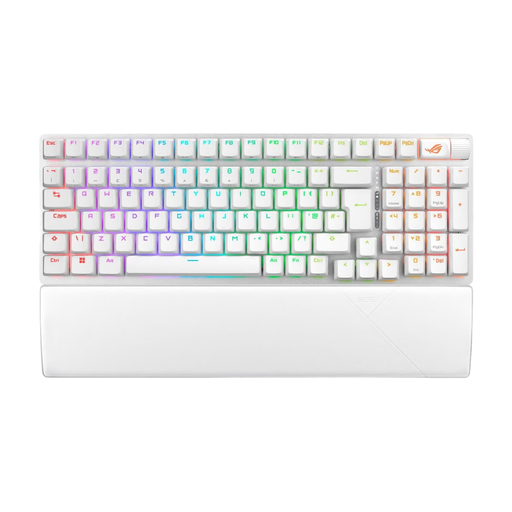
ASUS ROG Strix Scope II 96 Wireless Keyboard, White, UK Layout
Consider this for desk editing if you want a UK-layout wireless keyboard with a 96% form factor. Check that the classroom computer supports the connection you intend to use and that the key arrangement suits your number-entry needs.
View on Joybuy
 No image available
Targus EcoSmart Full Size Wireless Keyboard, UK
A full-size UK keyboard is relevant when familiar desk-editing keys matter and you prefer a wireless arrangement. Confirm which connection the classroom computer permits and how the keyboard is powered.
View on Joybuy
 No image available
Hyper HyperSpace Next Bluetooth Wireless Keyboard, White, UK
This UK keyboard suits consideration when Bluetooth is an available connection for the computers used to prepare slides. Check pairing access on a school-managed device before relying on it in the classroom.
View on Joybuy
 No image available
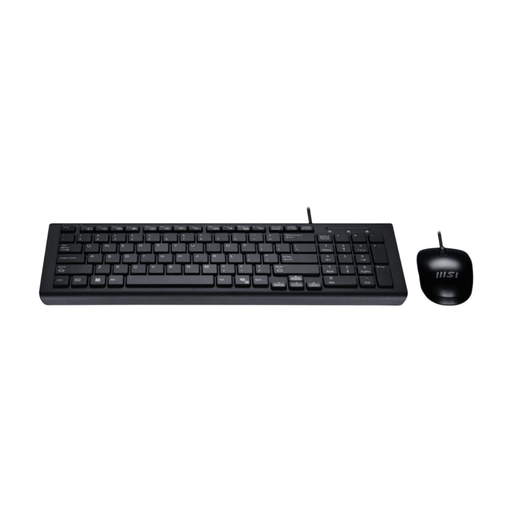
MSI GK-701 Office Keyboard and Mouse Set, USB, UK Layout, Black
A wired keyboard-and-mouse set is a practical arrangement to consider for editing at one classroom desk. It needs a convenient USB connection and cable placement; check any Copilot-key function against the school computer before relying on it.
View on Joybuy
 No image available
HyperX Alloy Rise 75 Wireless Keyboard, UK
Consider this 75% UK wireless keyboard if you prefer a compact arrangement for slide work. Check its exact key layout before choosing it for frequent number entry, and confirm that the classroom computer supports the intended wireless connection.
View on Joybuy
Common questions
Do I need a full-size keyboard to edit classroom slides?
No, but a full-size layout is worth checking if you regularly enter marks, dates or other numbers. A compact layout may suit a smaller desk; compare its actual navigation and number keys with the ones you use.
Can I present PowerPoint slides without a mouse?
Yes, for many slide-show tasks: Microsoft documents F5 to start from the beginning and Esc to end a presentation. If you also need to select items with a pointer away from the desk, consider a touchpad keyboard or another pointing device.
Does a UK keyboard change PowerPoint shortcuts?
Some documented key positions may differ. Microsoft says its PowerPoint shortcut documentation refers to the US keyboard layout, so check the shortcuts important to you on the intended UK-layout keyboard and computer.
Is an ergonomic keyboard enough for prolonged slide editing at work?
No. The Health and Safety Executive says employers must assess qualifying display-screen workstations and reduce risks; consider the keyboard as one part of the wider workstation arrangement and request workplace support where applicable.


