Choose a games console if your child’s play is mainly within one gaming ecosystem; consider a tablet if they also need a wider range of apps and web access. Neither device type makes online play safer by itself: check the child-account route and set up communication, content, time and purchase controls for the platform and services your child will use.
Who is choosing?
Parents prioritising online communication
If a child wants to message, talk or play with others, the first question is which contacts and multiplayer features the parent can manage. Ofcom identifies strangers and bullying behaviour among parents’ concerns about online gaming; the available settings differ by platform.
Parents setting purchase and time boundaries
These households need to check how the child’s account handles downloads, eligible purchases and playtime. Store approvals and time settings can involve different accounts or companion apps.
Families sharing a device
When several people use one console or tablet, it matters whether a restriction applies to the whole device or to the child’s account. Confirm the family setup before relying on a shared adult profile.
What matters when buying?
Start with the child’s main use, then check how the chosen platform manages their account and online features. Ofcom highlights communication risks in children’s online gaming, while Nintendo, PlayStation, Xbox, Apple and Google describe different family-management tools.
| Concern |
What to check |
Who this matters to |
| Online communication |
Check child-account settings for messaging, privacy and multiplayer access. For Nintendo Switch 2 GameChat, confirm the additional child-access setup. |
If my child wants to talk or play with others online, I need to know who can contact them without ruling out every social feature. About 36% of consumers put control of online interaction first. |
| Purchases and playtime |
Check purchase approvals against the intended store and payment route, and confirm how time limits are configured. |
When games offer downloads or in-game purchases, I want approval steps and playtime boundaries I can maintain. Keeping purchases and time under control is the primary need for about 29% of consumers. |
| Console or tablet use |
List uses beyond gaming, then check the app, website and gaming-account settings those uses require. |
If the same device will be used for games and other apps, I need to decide whether that flexibility is worth managing more kinds of access. About 21% of consumers chiefly need to make that console-or-tablet choice. |
| Family-account setup |
Confirm the child-account route, the parent organiser’s role and whether important settings apply to an account or the whole device. |
In a shared household, I want settings that apply where intended without relying on an adult’s profile. A manageable family setup is the main concern for about 14% of consumers. |
Setup mistakes to avoid
-
Choosing hardware before checking the child-account route
The device alone does not set purchase or communication boundaries. Nintendo places eShop restrictions in a supervised family-account setup, while Apple describes a child’s own Apple Account within Family Sharing.
Identify who will manage the family account and check the devices needed to configure it before choosing hardware.
-
Assuming one purchase setting covers every payment
Google says Family Link purchase approvals apply to purchases made through Google Play billing. Other payment routes need their own checks.
Review how the intended games charge, including subscriptions and stored payment methods, and test the applicable approval flow.
-
Using a PEGI rating as the only online-play check
A content rating does not configure the child’s communication, privacy or purchase settings. Online features need separate attention.
Check the game’s online features alongside its rating, then set the relevant controls on the device and child account.
-
Confusing device-level and account-level controls
Nintendo says Switch parental controls apply to everyone using the console, whereas eShop restrictions are managed through a supervised Nintendo Account. That distinction matters on a shared console.
Check which settings affect all users and which follow the child’s account before setting up profiles and PIN access.
Relevant brands to consider
Nintendo
Relevant to families considering Nintendo Switch 2 or Nintendo Switch for portable or shared-console play.
- Nintendo describes content and playtime restrictions through its console controls and linked app.
- Console controls apply to everyone using the console; eShop restrictions require a supervised Nintendo Account in a family group.
PlayStation
Relevant to households considering a PlayStation console with app-based family management.
- Sony Interactive Entertainment describes PlayStation Family app settings for playtime, spending and messaging.
- Check the selected console, child-account setup and parent-device compatibility for the functions you intend to use.
Xbox
Relevant to households planning to manage a child’s Xbox online activity through a family group.
- Microsoft Xbox Support describes family settings for screen time, content, social communication and multiplayer play.
- Xbox notes that some features vary by locale; check the settings available during setup.
Apple
Relevant to families considering an iPad with Family Sharing and a separate child Apple Account.
- Apple describes Screen Time controls for apps, websites, communication and device use, plus Ask to Buy for eligible requests.
- Check the iPad, operating-system version and family setup; Apple says control availability can vary by device, region and child age.
Google
Relevant to Android-tablet households planning to use a supervised child Google Account.
- Google describes Family Link settings for Google Play access and eligible purchase approvals.
- Google Play purchase approvals cover purchases using Google Play billing, not every possible payment route.
Console and tablet selections
These Joybuy selections cover a gaming-focused console and a tablet for broader app use. For either route, check the intended games and child-account controls before online play.
 No image available
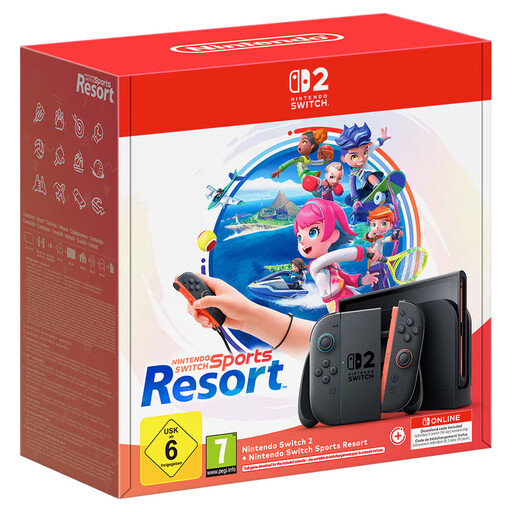
Nintendo Switch 2 Console + Nintendo Switch Sports Resort
A console option for a child whose online play is centred on Nintendo games. Before relying on GameChat or eShop restrictions, check the child’s account, parental-controls app and family-group setup; Nintendo says console-level controls affect everyone using the Switch.
View on Joybuy
 No image available
HONOR X8A Kids 11-inch WiFi 128GB, Space Grey
A tablet option to consider when the child needs games alongside other apps. Its name specifies an 11-inch variant with WiFi and 128GB storage. Confirm the operating-system version, intended game compatibility and how communication and purchase controls work with the child’s account before buying.
View on Joybuy
Common questions
Are parental controls ready to use when I buy the device?
Do not assume they are configured. Nintendo says eShop restrictions require a parent or guardian’s Nintendo Account in a family group, while Apple describes Family Sharing and a child’s own Apple Account for its child-management route. Set up and check the intended controls before online play.
Should my child use my account?
Use the platform’s child or supervised account route where available. Apple describes a separate child Apple Account in Family Sharing, and Nintendo manages eShop restrictions for supervised accounts in a Nintendo Account family group.
Will purchase approval cover every in-game charge?
Do not assume it will. Google says its purchase approvals apply to transactions using Google Play billing. Check the intended game’s payment routes, subscriptions and relevant store settings separately.
Do I still need to review settings after setup?
Yes. Revisit communication, purchase and content settings when your child starts using a new game or feature. Ofcom also advises checking that the child’s correct age is registered so age-related platform settings can apply as intended.


