What should you check before choosing?
Start with where your child’s games are available, then compare the account setup and controls needed for that route.
Games console
Consider it when: Your child will mainly play on a console and you want to manage its family settings through the relevant PlayStation, Xbox or Nintendo tools.
Bear in mind: Controls differ by system: PlayStation and Xbox use family accounts, while Nintendo says standard Switch parental controls apply to the whole console and Switch 2 GameChat has separate settings.
Tablet
Consider it when: Your child’s games run on a tablet and your household can manage an Apple Child Account or a supervised Android account.
Bear in mind: Apple’s family controls depend on the account setup; Google Play purchase approvals cover transactions through Google Play billing, not every possible payment route.
Windows gaming PC
Consider it when: Your child also needs a PC for other activities and you can manage both Windows and the gaming services they use.
Bear in mind: Microsoft Family Safety does not replace Steam Families for Steam account controls; Microsoft’s web filters also depend on a supported browser.
| Priority | What to check | Your needs |
|---|
| Communication |
Check who can send voice or text messages and friend requests. Review settings in the family account, gaming service and individual games; Nintendo says Switch 2 GameChat settings are separate from some other restrictions. |
I want to decide who can contact my child, including within the games they will actually play. |
| Age-appropriate content |
Set up the account with the child’s correct age, then check content restrictions and how an adult approves exceptions. Ofcom advises checking both age registration and platform settings. |
Age settings should reflect my child’s actual age without requiring them to use an adult account. |
| Purchases |
Check approval options, spending settings and every store or payment method the child can access. Google says Google Play approvals apply only to purchases processed through its billing system. |
I want to review purchases before they go through, including purchases made inside games. |
| Playtime |
Look for time limits and activity information on the account or device your child will use. Check whether the relevant platform lets an adult approve extra time. |
It would help to manage gaming time without sharing my own account or removing the usual limits for an occasional exception. |
Which platform controls are relevant?
These platform references describe account controls to investigate when choosing a device; the settings depend on the particular account and service in use.
PlayStation
PlayStation’s family tools are relevant to a child using a PS4 or PS5 account.
- Sony Interactive Entertainment describes controls for playtime, spending, messaging and age-related content.
- Sony says the child must be added to a family before parental controls are set; review any linked services separately.
Xbox
Xbox family settings are relevant when a child plays through an account in an Xbox family group.
- Microsoft Xbox Support describes screen-time limits, age-based content filters and social communication and multiplayer settings.
- Set up the child in the family group and check the settings for the Xbox games and services they will use.
Nintendo
Nintendo Switch parental controls are relevant to families considering Switch or Switch 2 play.
- Nintendo describes app-based restrictions for selected communication features, including options that apply per game or across games.
- Nintendo says standard controls apply to the whole console rather than individual players. Switch 2 GameChat has separate settings and requires a Nintendo Switch Online membership.
Apple
For an iPad, Apple’s Screen Time controls can be managed through a child’s account in Family Sharing.
- Apple Support describes controls for apps, content, communication and when a child uses their device.
- Remote family management requires the child’s own Apple Child Account and Family Sharing setup.
Google
Family Link and Google Play controls are relevant to a supervised Android tablet account.
- Google describes screen limits, app blocking and approvals for eligible Google Play purchases.
- Google Play approvals cover Google Play billing; Google also says its content restrictions do not prevent restricted content appearing in search results or through direct links.
Valve Steam
Steam Families is relevant when a child will use Steam games on a PC.
- Valve Steam Support describes child game-access permissions, Store and chat restrictions, playtime limits and purchase requests.
- Steam Families governs Steam account activity; configure Windows and browser controls separately where needed.
Tablet options on Joybuy
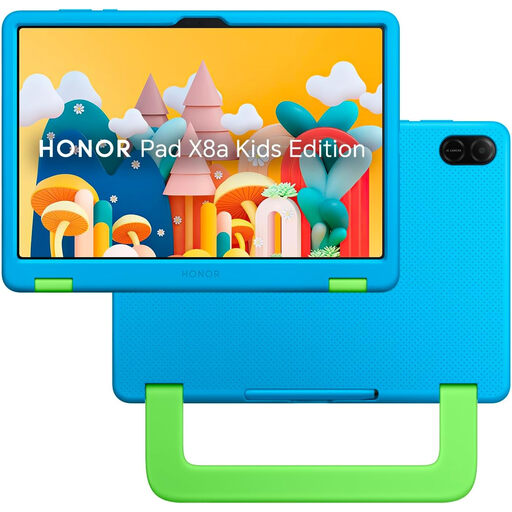
This tablet is an option to assess if your child will play on a WiFi tablet. Check the games they want to use and the model’s child-account, communication and purchase settings before choosing it for online play.
 No image available
HONOR X8A Kids 11-inch WiFi 128GB, Space Grey
For tablet-based play, confirm that your child’s online games run on this model and check whether its child-account setup lets you manage chat and purchases. The listed variant has an 11-inch display, WiFi and 128GB storage.
Joybuy
Common questions
Should my child have a separate gaming account?
Yes, if you intend to use the platform’s child-account controls. PlayStation, Apple and Steam tie their family-management tools to account setup or family roles. Use your child’s correct age: Ofcom says gaming services use age information to restrict certain features, games and content for younger users.
Will one setting block chat in every game?
Do not assume it will. Console and platform communication settings have different scopes, and Nintendo says Switch 2 GameChat settings are separate from some other restrictions. Check voice and text options in each game and linked service your child will use.
Do purchase approvals cover every in-game payment?
Not necessarily. Google says Google Play approvals apply only to purchases processed through Google Play billing; Microsoft and Steam have their own family spending or approval tools. Check the store, game account and payment method involved before relying on an approval setting.
What else does a Windows PC need if my child uses Steam?
Set up Steam Families alongside Microsoft Family Safety. Steam can manage access to Steam games, chat and playtime, while Microsoft provides separate Windows family controls. Microsoft says its web and search filters require supported browsers.
What is needed for a child to use Switch 2 GameChat?
Nintendo says GameChat requires an internet connection and a Nintendo Switch Online membership. For users under 16, parental controls must first be configured in the Nintendo Switch Parental Controls app; check its separate GameChat permissions before allowing use.


