Choose a console, tablet, phone or computer whose family-account controls match the games your child will play and the risks you most want to manage, rather than choosing on gaming capability alone. A console offers a dedicated gaming route, while a tablet, phone or PC also needs checks across its wider range of apps and online features. Whichever route you choose, set up a separate child account and check communication, content and spending controls both on the platform and in each game.
Who is this for?
Parents managing multiplayer contact
If your child’s games have chat, friend requests or content created by other players, check the child account’s communication settings and the controls inside each game. Ofcom identifies contact with strangers and bullying among parents’ online-gaming concerns.
Parents managing game spending
If downloads, subscriptions or in-game items are a concern, look at how purchase requests work before adding a payment method. Xbox, Apple and Google each describe limits to what their respective approval settings cover.
Parents setting content and time boundaries
If age suitability or a regular gaming routine comes first, compare the intended games’ PEGI ratings with the platform’s content and playtime settings. Check whether limits apply to the whole device, a child account or an individual app.
What should you check?
Start with the games your child wants to play, then check whether the device’s account system can manage their online features. Console-wide restrictions and child-account settings work differently, particularly on a device shared by several people.
| Concern |
What to check |
Who this matters to |
| Chat and contact |
Check child-account restrictions and each game’s voice chat, messages, friends and linked services. Restricting chat may also limit social play with known friends. |
If a child plays with other people online, contact with unknown players may be the deciding concern. About 31% of consumers would put communication controls first. |
| Game spending |
Check which purchases require approval, including subscriptions and in-game items, and whether account credit or other payment routes are treated differently. |
When downloads or in-game items are easy to request, I want to know what needs my approval before my child can obtain them. Preventing unplanned spending would be the primary need for about 31% of consumers. |
| Age suitability |
Check each game’s PEGI rating and content descriptors against the platform’s age filter; review online interaction separately. |
A game’s content matters more to some families than the device it runs on. Roughly 23% of consumers would make age-appropriate content their main priority. |
| Playtime |
Confirm whether limits apply to the device, child account or individual game, especially if gaming moves between devices. |
If gaming happens on several devices, I need to understand where a schedule will apply. For about 15% of consumers, managing playtime would come first. |
Common setup mistakes
-
Assuming every control follows the child
Nintendo says Switch parental controls apply to the console rather than each user. PlayStation uses child-account controls, while Microsoft warns that a child with administrator privileges on a Windows PC can change Family Safety settings.
Set up the child account before play, check restrictions while signed in as the child and, on a shared console, consider the youngest player when setting console-wide limits.
-
Treating store approval as a block on all spending
Approval settings have boundaries: Xbox says existing account currency and gift cards do not require purchase approval, while Google’s approvals cover purchases through Google Play billing.
Review stored payment methods, account credit, subscriptions and each game’s purchase flow. Where appropriate, test an eligible purchase request with your child.
Account credit, gift cards or payment routes outside the platform store may still allow spending without the approval prompt you expected.
-
Using an age rating as a chat setting
A PEGI rating helps assess a game’s content; it does not configure its multiplayer communication. Ofcom also identifies contact with strangers and bullying as concerns for parents of children who game online.
Check the rating and content descriptors, then review chat, friends and content created by other players in both the platform account and the game.
-
Leaving settings unchecked after a change
Controls can depend on the account, connected device and software in use. Google describes some content restrictions as device-specific, and Nintendo’s companion-app functions have connection requirements.
Review the child’s settings after adding a device, changing accounts, updating software or enabling a new game feature.
Platforms and brands to consider
Nintendo
Nintendo Switch and Nintendo Switch 2 are console options for families interested in age restrictions, playtime tools and communication settings.
- Nintendo says its parental-controls app provides daily limits and gameplay history.
- Nintendo says Switch restrictions apply to the console, not individual users; eShop controls are managed separately through the Nintendo Account family group.
PlayStation
PS5 and PS4 families can use child accounts to manage access to games and online features.
- PlayStation describes child-account settings for communication, playtime and monthly store spending.
- Each child needs a managed child account; a child using an adult account will not be governed by that account’s child settings.
Microsoft
Microsoft’s family tools are relevant to households considering Xbox gaming or a Windows PC.
- Microsoft documents app and game limits across connected Windows, Xbox and Android devices.
- Microsoft warns against giving a child administrator privileges on a managed Windows PC. Xbox purchase approval does not cover spending existing account currency or gift cards.
Apple
An iPad or iPhone offers portable gaming alongside Apple’s Child Account, Family Sharing and Screen Time tools.
- Apple describes controls for apps, websites and use time, with Ask to Buy for eligible downloads and purchases.
- Apple says Ask to Buy does not request approval for certain actions, including a child redownloading their own purchase, installing an update or using a redemption code.
Google
Google’s supervised accounts and Family Link are relevant when considering Android phones, tablets or Chromebooks.
- Google describes controls for app access and eligible Google Play purchase approvals.
- Google says Play content restrictions do not block restricted content reached through search or a direct link, and purchase approval applies to Google Play billing rather than every payment route.
Joybuy device selections
These devices cover a PlayStation console, a children’s tablet and two Android phones. Compare the account and game settings relevant to your child before choosing among these different routes.
 Image unavailable
Sony PlayStation 5 Slim Digital Edition
Consider this console if your child will play PlayStation games and you can set up a separate managed child account.
This Digital Edition has no disc drive; games are obtained through digital downloads. PlayStation describes child-account controls for game access, communication, playtime and monthly store spending.
Check the current account settings and the chat and payment options in the games your child intends to play.
View on Joybuy
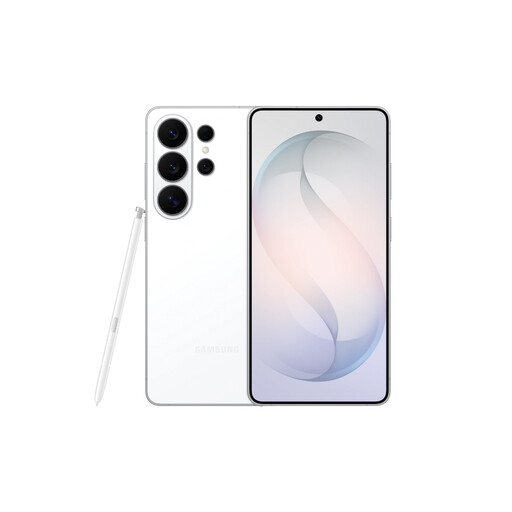 Image unavailable
Samsung Galaxy S26 Ultra 16GB 1TB White
This phone is a general-purpose mobile option if your child’s intended games run on Android.
The product description specifies Android 16, 16GB RAM and 1TB storage. Google describes supervised-account controls for app access and eligible Google Play purchases.
Confirm Family Link setup on this exact model, and check communication features and payment routes in the intended games.
View on Joybuy
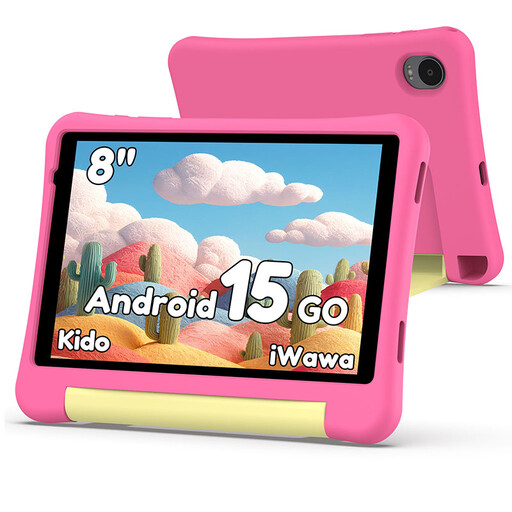 Image unavailable
Alldocube Kido 8-inch Android 15 tablet with pink case
This children’s tablet is worth checking if screen-time and content settings are your starting priorities.
Its listing specifies Android 15, 3GB RAM, 32GB storage and a pink protective case, but no adapter. The seller describes child-lock functions for screen time and content filtering.
Confirm exactly what the child lock controls, particularly for chat and purchases, before relying on it for online games.
View on Joybuy
 Image unavailable
nubia Z80 Ultra 5G Dual SIM
Consider this Android phone if mobile gaming is the intended route and you can confirm a suitable supervised-account setup.
The listing identifies a Snapdragon 8 Elite Gen 5 processor, a 6.8-inch 144Hz AMOLED display and dual SIM support. Those specifications do not establish which parental controls work on the device.
Check its Android version and Family Link compatibility, then review the intended games’ chat and payment settings.
View on Joybuy
Questions parents ask
Is a PEGI rating enough to assess an online game?
No. Use the PEGI rating and content descriptors to assess the game’s content, then check its chat, content created by other players and in-game purchases separately. Device and account settings can help manage those features but do not replace checking the game itself.
Can my child use my adult gaming account?
Use a separate child or supervised account where the platform offers one. PlayStation says each child needs a child account for its online services; using an adult account can leave the child outside the settings intended for them.
Will purchase approval cover every gaming payment?
No. Xbox says spending existing account currency or gift cards does not require its purchase approval, while Google’s approval settings apply to Google Play billing. Check account balances, subscriptions and each game’s payment methods as well as the platform-store setting.
Can I manage gaming controls from my phone?
Several platforms offer a companion app or family-account management, but the available controls and setup requirements differ. Check the functions for the specific console or device and whether they require a linked family account, compatible software or an internet connection.


