Choose a console, computer or tablet by checking whether its family-account controls cover the games, purchases and ways of communicating your child will use—not just whether the device runs games. PlayStation, Xbox and Nintendo Switch handle family settings differently; on a tablet or computer, store and device controls may also need to be combined with settings inside each game. Set up a separate child account and check its content, communication and purchase settings before online play.
Who needs which controls?
The useful starting point is the part of online play you most need to manage, then the accounts and settings that apply to it.
Families concerned about contact in multiplayer games
Compare child-account privacy and communication settings with the chat and friend controls in the games your child wants to play. Ofcom identifies contact with strangers and bullying as concerns for parents of children who game online.
Families managing purchases and content
Look for age-related game and app settings, then check which purchases require approval. Store controls may not cover every balance, payment method or in-game transaction.
Families sharing devices or using several platforms
Check whether a restriction belongs to a child account, a particular device or everyone using a console. That distinction matters when siblings share a device or a child moves between Xbox, Windows and other devices.
What to check before choosing
Start with the child’s intended games and accounts, then compare how each device handles communication, content, purchases and play time.
| Priority | What to check | Your needs |
|---|
| Communication |
Check child-account privacy and chat permissions. Check the intended games’ friend, voice-chat and reporting settings separately; Nintendo UK documents communication restrictions for supported games. |
I want to know who can contact my child before enabling multiplayer, rather than assuming a headset or console setting settles every game’s chat rules. |
| Age-appropriate content |
Check account age settings, game and store restrictions, and each game’s PEGI rating and descriptors. PEGI says its age ratings address content suitability, not difficulty. |
The games need to fit my child’s age and our household rules; I also want to check online features separately from the content rating. |
| Purchases |
Check approvals, spending limits and any existing account balance. Microsoft Xbox Support says purchase approval does not apply when existing currency or Xbox gift cards are used; Google says its approvals cover Google Play billing. |
I want to decide how games and add-ons can be bought, including payments made inside a game. In a May 2018 Ipsos survey across the UK, France, Germany and Spain, 40% of parents of gaming children aged up to 15 said their child spent money in-game, according to PEGI; that measures spending, not parental concern. |
| Play time |
Check whether limits apply to a game, account or device, and whether activity can be reviewed. Microsoft Support documents app and game limits across connected Windows, Xbox and Android devices. |
A schedule or game limit would help me manage play across the devices my child actually uses. |
| Shared-device setup |
Check whether each child needs an account and whether guest access is restricted. Nintendo UK says Switch 2 parental controls apply to the console rather than to each user. |
When children share a console, I need settings that still make sense for the youngest player and cannot be sidestepped through an adult login. |
| Game compatibility |
Confirm that the intended games run on the exact device and that their online features work with the planned child account. Check game-specific settings as well as device and store controls. |
I would rather check the games my child expects to play before choosing between a dedicated console and a broader-use tablet or computer. |
Common setup mistakes
-
Choosing a device before checking the games’ chat features
A platform communication setting may not work identically in every game. Nintendo UK, for example, documents controls for communication features, while Xbox and PlayStation manage communication through family-account settings.
List the games and ways your child expects to communicate, then check the relevant platform and game settings before buying a headset or enabling online play.
-
Assuming purchase approval covers every payment route
Microsoft Xbox Support says existing currency and Xbox gift cards do not require purchase approval. Google says its purchase approvals apply to Google Play billing, not every possible way to pay.
Check the store, account balance, gift cards and in-game payment options your child could use; set approvals or limits where the relevant service offers them.
-
Letting a child play through an adult account
Family controls depend on the account being used. Sony Interactive Entertainment describes PlayStation controls for child accounts and warns that unsecured account access can let children avoid restrictions.
Create a separate child account with the correct date of birth, connect it to the family manager and protect the adult account.
-
Using a PEGI rating as the whole online-play check
PEGI says its age rating describes content suitability rather than game difficulty. A rating alone does not tell you how a particular game handles chat or purchases.
Check the rating and descriptors for each game, then review its online interaction and payment settings separately.
Platform and brand references
These are control ecosystems to compare, not a list of devices available in the product selection below.
PlayStation
A dedicated-console route for families using PS4 or PS5 child accounts and the PlayStation Family app.
- Sony Interactive Entertainment describes family settings and mobile management of children’s play time.
- Use a distinct child account and protect the family-manager account; Sony warns that unsecured account access can undermine restrictions.
Xbox / Microsoft
An option to examine when a child may use both Xbox and Windows.
- Microsoft documents family communication settings and app and game limits across connected devices.
- Microsoft says web filtering requires a supported browser and account sign-in; Xbox purchase approval excludes existing currency and gift cards.
Nintendo
A portable and home-console route using Nintendo Switch parental-control tools.
- Nintendo UK documents restrictions for communication features in supported games.
- On Switch 2, Nintendo says console parental controls apply to everyone using that console, rather than separately to each user.
Apple
An iPad, iPhone or Mac may be relevant when the device will also serve uses beyond gaming.
- Apple Support describes Screen Time controls for apps, websites, communication and device use.
- Check the settings available on the intended device and software version, as well as the games’ own controls.
Google / Android
A supervised-account route to examine for an Android tablet or Chromebook.
- Google documents app controls, Google Play content restrictions and purchase approvals.
- Google says purchase approval applies to Google Play billing; check other stores and individual games separately.
Joybuy tablet option
This children’s Android tablet is an option to consider if you are choosing a broader-use device for games. Check the intended games and their account, chat and purchase settings before deciding whether it meets your family’s needs.
 No image available
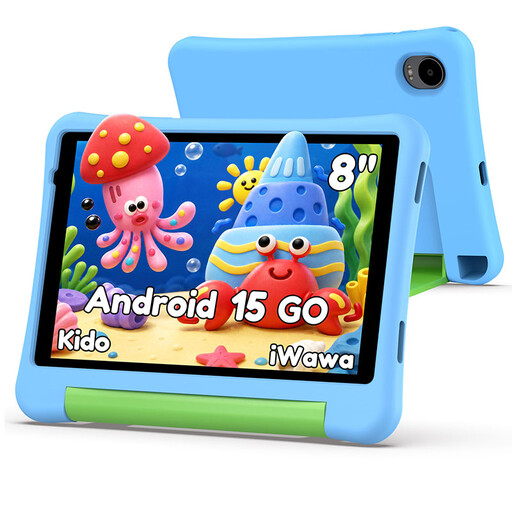
Alldocube Kido 8-inch tablet with blue protective case
Consider this tablet if a child-focused Android device fits your plans, but confirm that the intended games run on it and check their communication and purchase settings. Its listing describes Child Lock content filtering and screen-time management; those descriptions do not establish controls for multiplayer chat or spending.
The listed configuration is Android 15, Unisoc T310, 3GB RAM, 32GB storage and a 5000mAh battery. The title says no adapter is included, so check what adapter the tablet requires.
View on Joybuy
Questions parents ask
Does my child need a separate gaming account?
Use a separate child account linked to the family manager where the platform offers one. Sony Interactive Entertainment describes PlayStation controls for child accounts, while Microsoft documents settings managed for Xbox family members; register the child’s correct age so age-related settings can apply.
Will parental controls stop all unwanted contact?
No single platform setting should be treated as a check of every game’s communication features. Set the child account’s permissions, then review the intended game’s chat, friend and reporting options before enabling multiplayer or buying a headset.
How do I choose purchase controls?
Match the control to the store and payment method the child will use. Microsoft Xbox Support says approval does not apply to existing currency or gift cards; Google says Google Play approval applies to Google Play billing. Check account balances and in-game payments alongside any approval setting.
Does a PEGI rating tell me whether online play is suitable?
A PEGI rating helps you assess a game’s content suitability, not its difficulty or every aspect of online interaction, according to PEGI. Check the game’s rating and descriptors, then examine its chat and purchase settings separately.


