Parents setting up a first online gaming account
Set up a separate child account with the correct age and link it to an adult-managed family group. Check what that arrangement lets you manage before enabling multiplayer, chat or purchases.


Choose around the games and accounts your child will use, then check how that ecosystem links a separate child account to an adult-managed family group. A console suits play centred on its platform, a tablet suits app-based games, and a PC calls for attention to both device and game-service accounts. No route removes every online risk: Ofcom advises parents to check account ages and platform settings and keep talking with children about online play.
Set up a separate child account with the correct age and link it to an adult-managed family group. Check what that arrangement lets you manage before enabling multiplayer, chat or purchases.
Find out whether restrictions follow each child’s account or apply to everyone using the device. Nintendo UK Support says core Nintendo Switch parental controls apply to the console, not to individual users.
Check communication permissions and purchase controls on the platform and in any separate game account. A setting in one place may not govern another service’s chat or checkout.
Start with the games and accounts the child will use, then compare how each device route handles supervision and shared use.
Consider it when: The household’s intended games and multiplayer contacts are centred on Xbox, PlayStation or Nintendo.
Allow for: Account rules differ by platform; Nintendo UK Support says core Switch restrictions apply to everyone using the console.
Consider it when: The child mainly plays apps managed through an Apple Child Account or a Google account supervised with Family Link.
Allow for: Store approval does not necessarily cover other billing systems or chat inside a third-party game.
Consider it when: The intended games or a family’s Steam library call for a computer and an adult can manage multiple accounts.
Allow for: Windows family settings and separate launchers or publisher accounts need their own checks.
| Priority | What to check | Your needs |
|---|---|---|
| Child accounts | Check whether each child needs a separate account, how it joins the adult’s family group and which account is signed in on a shared device. | I want rules attached to my child’s own account, rather than relying on an adult login. |
| Chat and multiplayer | Check platform permissions for contact and multiplayer, then voice and text settings in the intended game account. Check headset compatibility separately. | Who can contact my child matters as much as whether the device runs the game. |
| Games and content | Check the account’s age restrictions and the PEGI classification and descriptors for each game. A rating does not configure online interaction. | I need to decide which games can be accessed without treating an age rating as a chat setting. |
| Downloads and spending | Check approvals and limits for the store actually used, plus any publisher checkout. Google says Family Link purchase approval applies to Google Play billing. | Before my child downloads or buys something, I want to know which account handles the request. |
| Shared use and playtime | Check whether limits apply per child or to the whole device, and whether schedules cover the devices used. Nintendo UK Support says core Switch restrictions are console-wide. | Different children may need different rules, so I need to know what happens when they share a device. |
A device can run games without giving access to the child’s intended games, contacts or existing accounts on the expected platform.
List the games, accounts and multiplayer contacts involved, then check how the chosen platform manages a separate child identity.
Controls can depend on the browser, store billing system or publisher account. Microsoft’s web filtering requires a supported signed-in browser; Google Play approval does not extend to another billing system.
Check the child account’s platform settings and the settings inside each game or service before enabling chat or purchases.
Adult-account use can bypass the child-specific restrictions and approvals the family intended to apply. Shared-device rules may also affect siblings differently.
Create separate child accounts where the platform supports them. On a shared Nintendo Switch, account for Nintendo UK Support’s console-wide parental-control restrictions.
PEGI classifications help inform a game-content choice; they do not set chat, spending or playtime permissions.
Check the game’s classification and descriptors, then configure the child’s platform and game-account controls separately.
These account systems matter when the child uses the corresponding platform; they do not all manage the same devices or game services.
Relevant to Xbox consoles and Windows PCs using a Microsoft family group.
Relevant when each child plays through a PlayStation account managed by a family manager.
Relevant to households sharing a Nintendo Switch or Nintendo Switch 2.
Relevant to app-based play on an iPad or iPhone using a Child Account in Family Sharing.
Relevant to eligible Android tablets and Chromebooks supervised with Family Link.
These consoles represent the Xbox route for families whose intended games and accounts are on that platform. Microsoft Xbox Support describes family controls for content, communication, multiplayer and screen time; set up the child’s own adult-linked account and check individual game settings as well.
 No image available
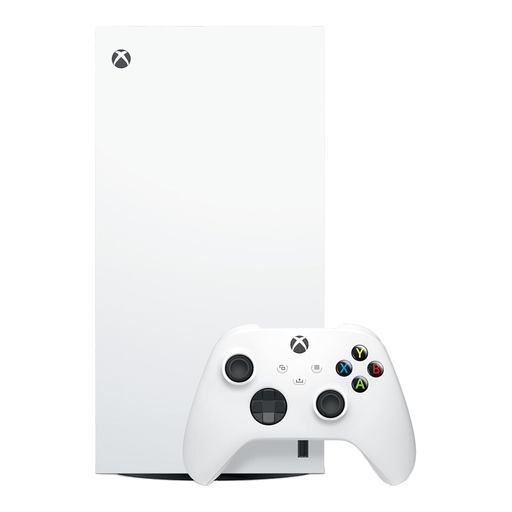
For a household choosing the Xbox family-account route. This is the 1TB Digital Edition in white; check that digital game access suits the games your child intends to play. Set up a separate child account and review any game-specific chat and purchase settings.
 No image available
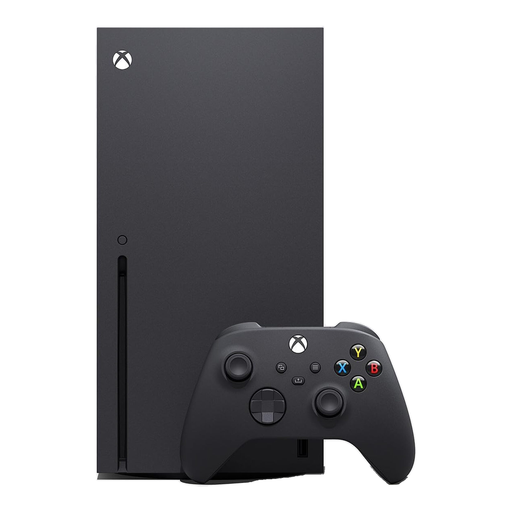
For a household choosing the Xbox family-account route. This is the black 1TB Series X console; check the format and compatibility of the games the family intends to use. Give the child a separate adult-linked account and review controls in any separate game service.
 No image available
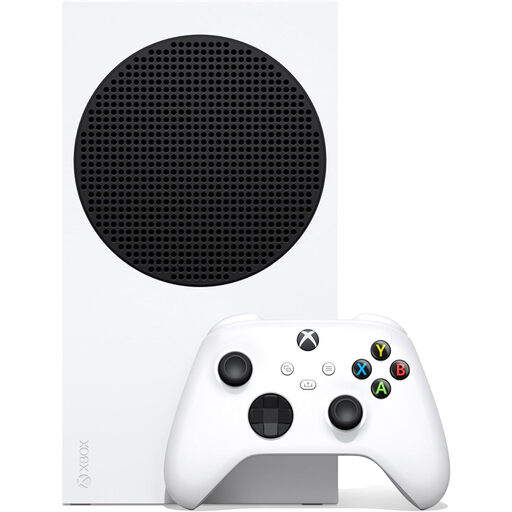
For families whose child will play through an Xbox account. This Series S has 1TB storage; check that the intended games and access arrangements suit this model. Xbox family settings require the child’s own adult-linked account, while separate game accounts may need further controls.
 No image available
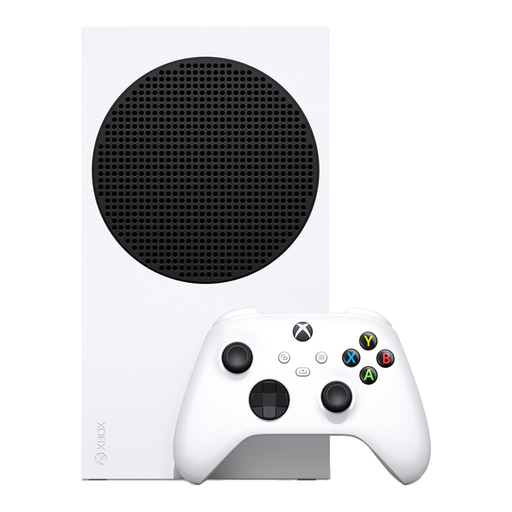
For a family using Xbox child-account controls. This white Series S has 512GB storage; check the space needed for the intended games. Set up the child’s own account and check communication and purchase settings in each game service used.
Use a separate child account linked to an adult-managed family group where the platform supports it. PlayStation asks family managers to create an account for each child; Apple calls for each family member to have their own Apple Account; and Xbox requires a qualifying child account to be linked to an adult account for its services.
No. Controls set boundaries but cannot remove every online risk. Ofcom advises parents to check platform settings and account ages and to talk regularly with children about the games and people they encounter.
Choose according to the controls available for the child’s intended games and accounts, not the device category alone. Xbox and PlayStation describe family-level communication controls; Apple’s communication settings do not configure every game’s chat. Check the game or publisher account too before enabling voice chat.
Not necessarily. Google says Family Link purchase approval applies to Google Play billing, so check which store or game account processes a purchase. Review saved payment methods and the available approval, limit or checkout controls for each route used.
Check that the headset connects to the selected console, tablet or PC, then check whether the child’s platform and game accounts permit voice chat. A compatible headset does not itself manage who can speak to your child.