What matters when choosing?
Check the school’s required tasks and accounts before deciding on a device type. Then consider where it will be used, who will share it and how its controls work in practice.
Laptop or Chromebook
Consider it when: Schoolwork involves extended typing, documents or browser-based learning.
Bear in mind: On a managed Chromebook, school administrators decide which school-account services are available; Google also warns that guest access or added users can leave Family Link settings unapplied.
Tablet
Consider it when: Touch input and portable reading, video or app use fit the child’s school tasks.
Bear in mind: Confirm that the required school work can be completed without a keyboard or other input method the child needs.
Smartphone
Consider it when: The child needs portable communication or access while away from home.
Bear in mind: Do not assume a personal phone can handle the household’s typing and school-platform requirements.
Games console
Consider it when: Shared gaming is the main purpose and schoolwork can be done on another suitable device.
Bear in mind: Nintendo UK says its Switch parental-control settings apply to everyone using the console, which matters when siblings need different rules.
| Concern |
What to check |
Who this matters to |
| Schoolwork and accessibility |
Ask the school about its platform, account and required input method; check any individual accessibility or assistive-technology needs. |
If school tasks require particular software, typing or accessibility support, I need those requirements to decide the device route. About 33% of consumers would put schoolwork compatibility first. |
| Accounts and controls |
Check child-account options and which signed-in browsers, stores and purchase routes the intended controls cover. |
I want to manage what my child can access without assuming one setting covers every app or purchase. Account and control management would be the primary need for about 27% of consumers. |
| Sharing between family members |
Check separate sign-ins, guest access and whether restrictions differ by user or apply to the whole device. |
When siblings take turns, I need to know whose settings remain active at each handover. For about 20% of consumers, workable sharing rules would decide the choice first. |
| Leisure and communication |
Identify which video, games or communication activities must happen on this device, and check the relevant age and time settings. |
If gaming or keeping in touch is the main reason for this device, I still need another workable route for any school tasks it cannot handle. Roughly 20% of consumers would prioritise leisure or communication fit. |
Joybuy device selections
These laptops and tablets offer two routes for schoolwork and online leisure: a keyboard-equipped device for typing-led tasks, or a touch-first device where the child’s school requirements allow it. Check school compatibility and household account arrangements for the particular device before choosing.
 Image unavailable
ASUS Vivobook 14 X1407QA-LY003W, Snapdragon X, 16GB RAM, 512GB SSD
Consider this laptop for typing-led school tasks if its Windows setup meets the school’s platform and account requirements. The named configuration has a Snapdragon X processor, 16GB RAM and a 512GB SSD. If using Microsoft Family Safety web filters, check the child’s browser and signed-in account.
View on Joybuy
 Image unavailable
Acer Chromebook Plus 514 CB514-5H, Core 5 120U, 8GB RAM, 512GB SSD
Consider this Chromebook for typing and browser-based school tasks once the school’s account and service requirements are confirmed. This variant is named with a 14-inch WUXGA (1920 × 1200) display, Intel Core 5 120U, 8GB RAM and a 512GB SSD. If the household plans to use Family Link, check guest and additional-user settings before sharing it.
View on Joybuy
 Image unavailable
Acer Chromebook Plus 514 CB514-5H, Core i3-1315U, 8GB RAM, 256GB SSD
This is another Chromebook configuration to consider for typing and browser-based learning, subject to the child’s school-account requirements. Its named specifications are a 14-inch WUXGA (1920 × 1200) display, Intel Core i3-1315U, 8GB RAM and a 256GB SSD. On a shared Chromebook, check whether guest access or additional users could bypass the intended Family Link settings.
View on Joybuy
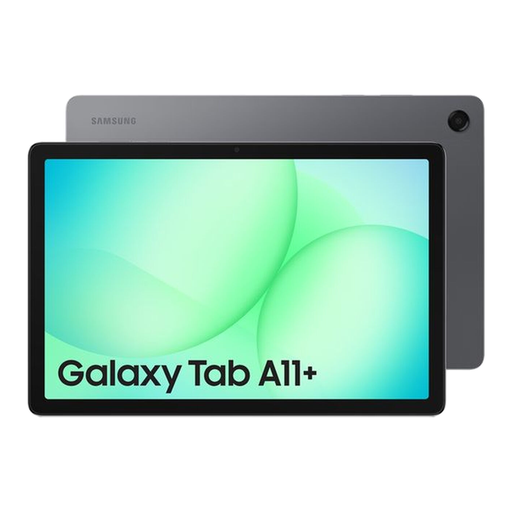 Image unavailable
Samsung Galaxy Tab A11+ 8GB 256GB WiFi, Gray
Consider this tablet for touch-first activities if the school confirms that a tablet can handle the child’s work. The named WiFi variant has 8GB RAM and 256GB storage. Check the child-account and parental-control setup you intend to use, as well as whether the package has the charging equipment you need.
View on Joybuy
 Image unavailable
Xiaomi Pad 8, 8GB RAM, 128GB Wi-Fi, Gray
This tablet is a touch-first option for online activities where the child’s school tasks can be completed on a tablet. The named variant has 8GB RAM, 128GB storage and Wi-Fi. Before sharing it, confirm the school workflow, the family-account controls you need and the package contents.
View on Joybuy
Frequently asked questions
What should I ask the school before buying a device?
Ask which learning platform, account, browser or app the child must use, what input method the work requires and whether they need accessibility support or assistive technology. Department for Education guidance emphasises matching devices to educational use and accessibility needs; confirm the child’s particular requirements with the school.
Should children share one family login on a shared device?
Use separate child accounts or profiles where the chosen platform supports them rather than assuming one shared login gives each child suitable controls. Apple advises a separate Apple Account for each child, and Google warns that Chromebook guest mode or added users can allow use without Family Link settings applying. Test sign-in and handover rules before regular use.
Do Microsoft Family Safety web filters work in every browser?
No. Microsoft says its web and search filters require a supported browser and a family member signed in to a Microsoft account. Check the browser the child will actually use before relying on those filters.
Can siblings have different parental-control rules on one Nintendo Switch?
Not for the console-wide parental-control settings. Nintendo UK says those settings apply to everyone using the console, although some account-related restrictions can be managed through Nintendo Accounts. Consider how one shared set of rules will work for children of different ages.
Are parental controls enough on their own?
No. UK government online-safety guidance says parental controls can help but cannot fix everything. Set up and test the controls that apply to the child’s accounts and services, alongside household rules and regular conversations.


