Families managing independent access
Parents and carers who want to approve downloads or purchases and set boundaries around apps, websites and screen time before a child uses a tablet on their own.


Choose the account and app setup before comparing screens: an iPad suits a family prepared to use a separate child Apple Account and Family Sharing, while an Android tablet is an option if the exact device supports the Google account and supervision setup you need. An Amazon Fire Kids configuration puts a managed child profile and protective case together, but check that the child’s school services and entertainment apps fit. Whichever route you take, confirm accessories, subscription terms and the exact model’s update policy before relying on it for long-term use.
Parents and carers who want to approve downloads or purchases and set boundaries around apps, websites and screen time before a child uses a tablet on their own.
Families who need to check whether lessons, reading, documents or note-taking will work alongside the child’s entertainment apps. The school’s required services and any input accessories matter as much as the screen.
Parents and carers who would rather start with a child profile, age-related content settings and a protective case, provided the configuration also accommodates the child’s required apps.
Start with the child’s account and required school apps, then decide how much screen space, protection and day-to-day management the household needs.
Consider it when: Your family wants to manage a child’s app requests and restrictions through Apple’s Family Sharing and Screen Time.
Plan for: A separate child Apple Account and any compatible Pencil or keyboard needed for school tasks.
Consider it when: The child’s required apps work on the chosen tablet and the family wants supervision through a managed Google Account.
Check: Google says Family Link settings can vary by device, and settings for the child’s account do not cover other unsigned-in profiles.
Consider it when: A managed child profile, protective case and Amazon’s Parent Dashboard suit the household’s routine.
Check: Confirm school-service availability and the terms for Amazon Kids+ after its included period.
| Concern | What to check | Who this matters to |
|---|---|---|
| Accounts and parental controls | Check how the child signs in and whether approvals, content restrictions and time limits apply to every profile they will use. | Before my child uses the tablet independently, I need the app and screen-time rules to work through our family accounts. About 33% of consumers put that control setup first. |
| Schoolwork usability | Confirm the school’s apps work on the operating system; assess screen size and whether a compatible keyboard or stylus is needed. | If lessons involve reading documents or writing notes, I need a screen and input setup my child can use for those tasks. For about 27% of consumers, that learning workflow is the primary concern. |
| Child-focused entertainment | Check the available child profile, required entertainment apps and whether the chosen configuration includes a case. | For a younger child, I want manageable content and a protected tablet without building the whole setup from scratch. That child-focused arrangement comes first for about 20% of consumers. |
| Accessories and renewals | Check the box contents and any continuing subscription terms, including whether the family needs a charger or input accessory. | I need to know which extras and subscriptions the tablet will call for as my child keeps using it. About 20% of consumers make those ongoing requirements their main concern. |
A shared adult account or unmanaged profile may not provide the approvals and restrictions the household intends to use.
Decide who will manage the child’s account and check the account setup for your chosen ecosystem before ordering.
Google says available controls vary by device; Family Link settings for a child’s account do not extend to other profiles that are not signed in with that account.
Check the exact tablet, its Android version and how the child will sign in to each profile they can access.
Amazon’s Fire HD 10 Kids Pro listing includes an initial Amazon Kids+ period, after which the subscription renews unless managed.
Check the current renewal and cancellation terms, and whether the child will use the included catalogue.
Apple presents Pencil and keyboard options for the iPad (A16), while Lenovo describes the Tab M11 pen as optional and recommends a compatible USB Power Delivery charger.
Check the exact bundle for the case, charger, stylus or keyboard your child will actually need.
The iPad route combines a general-purpose tablet with Apple’s Family Sharing and Screen Time controls. Apple lists an 11-inch display and 128GB starting storage for the iPad (A16).
Lenovo presents the 11-inch Tab M11 as an Android option for viewing material and working across split screens.
Amazon’s Fire Kids configurations focus on child profiles, Parent Dashboard controls and a bundled protective case. Amazon positions its Fire HD 10 Kids and Kids Pro configurations for different age ranges; those ranges are a starting point, not a suitability rule.
These child-oriented configurations cover an 11-inch option for families considering more screen space and smaller tablets for managed or supervised use. Check each model’s school apps and controls against your household’s account setup.
 No image available
Consider this child-oriented configuration if an 11-inch screen is part of the learning and entertainment plan. The listing describes parent-approved apps, screen-time limits and content filtering; check how those controls work with your child’s account and required apps. Confirm the exact model’s software-update policy if continued support matters to your choice.
 No image available
This smaller Android configuration is worth assessing when a child-focused case and an 8-inch screen suit the household. Its title lists Android 15, 3GB RAM, 32GB storage and a 5000mAh battery; the listing describes a child lock, which you should check against the controls and school apps you need. The product name says no adapter is included, so check your charging setup.
 No image available
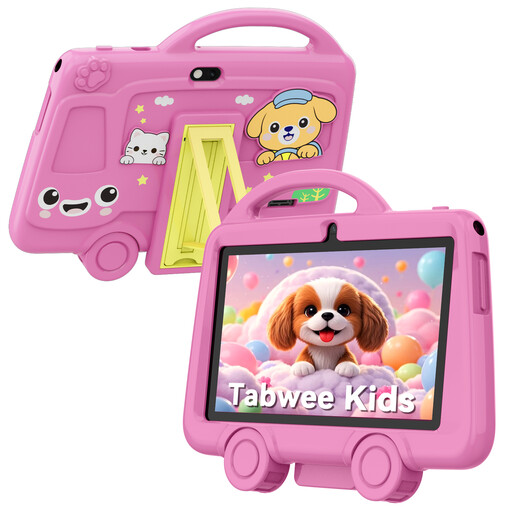
Consider this compact tablet for activities carried out with adult supervision rather than assuming it meets an independent child-account setup. Its product name lists a 7-inch screen, 2GB RAM, 32GB storage and a 3000mAh battery. Check the required learning apps and parental-control arrangements before choosing it for schoolwork; the listing says it is not suitable for children under 3.
For Apple’s family-control setup, Apple Support says the child should have their own Apple Account within Family Sharing. On Android, Google says Family Link settings apply when the child signs in with their managed Google Account. Check the account arrangement before relying on controls for either route.
The available controls depend on the ecosystem and its account setup. Apple describes approvals and restrictions through Family Sharing; Google lists app and screen-time controls through Family Link; and Amazon describes limits and app requests through Parent Dashboard. Check the exact tablet and profile you plan to use.
No. UK Government Kids Online Safety guidance says parental controls can help but cannot address everything. Check that the chosen settings work, and keep talking with the child about what they encounter online.
Review the apps, profiles and restrictions as schoolwork and entertainment needs change, then test the settings again. Apple says its updated family-control experience requires current software across the family devices; Google notes that Family Link settings can vary by device.