Families sharing one tablet with a primary-age child
If adults will also use the tablet, plan separate account settings for the child. Check the apps needed for video, games and learning, along with purchase controls and a case that fits the device.


Choose a child-oriented tablet if its stated age range fits and you want a child-use bundle with a case and straightforward content and time controls. A standard iPad or Android tablet makes more sense when adults also need to use it, provided you set up a separate child account and check the required apps, purchase controls and protective accessories. Parental controls help manage access, but they do not make online use risk-free.
Decide who will sign in and which home activities the tablet needs to support before choosing a child-focused bundle or a standard device.
If adults will also use the tablet, plan separate account settings for the child. Check the apps needed for video, games and learning, along with purchase controls and a case that fits the device.
A child account avoids routine use of an adult’s sign-in. Apple and Google describe different family-management tools, so check the setup and controls on the platform you intend to use.
An included case and child-focused controls may simplify the initial setup. Check the bundle’s stated age range, what is included and whether its apps suit the child’s activities.
Consider it when: A child within the product’s stated age range will be its main user, and an included case and child-focused setup matter to you.
Check the limits: Included content, account features and controls vary by product; a child profile still needs setting up and reviewing.
Consider it when: The household also wants to use the iPad and is prepared to manage a separate child Apple Account through Family Sharing.
Check the limits: Apple’s standard iPad specification is not a child-protection bundle; check for a compatible case and configure the child’s controls separately.
Consider it when: The household needs Android apps and can set up a supervised Google child account; Samsung also describes child-account and Samsung Kids options.
Check the limits: Confirm which family controls work on the exact device and software version, rather than assuming every Android tablet has the same settings.
Once the route is clear, check the child’s actual apps and the account and accessory setup needed for that device.
| Priority | What to check | Your needs |
|---|---|---|
| Video, games and apps | Check that the required video, game, learning and communication apps work on the exact platform. Compare screen size and storage with how the household will use the tablet. | I want the child’s usual activities to work on this device. In Ofcom’s 2026 research, 89% of UK children aged 8–17 who went online watched video online and 72% played games online; those figures describe activities, not tablet requirements. |
| Accounts and purchases | Set up a child account or profile and check app access, download requests and purchase approvals. Google says Family Link purchase approvals apply to purchases through Google Play’s billing system. | If adults share the tablet, I want the child’s settings kept separate from an adult account and I need to know which purchases require approval. |
| Controls and privacy | Review time limits, web and app restrictions, and communication settings on the chosen account and device. The Information Commissioner’s Office advises checking location, privacy and advertising settings in each new app or game too. | Someone in the household needs to be able to maintain the settings as the child’s apps change; I do not want to rely on a single control for online safety. |
| Physical protection | Confirm whether the exact bundle includes a case. For a separate case or screen protector, check the tablet model and generation; read any stated damage-cover terms and exclusions. | A child will handle this tablet at home, so I want protection that fits the device rather than assuming a case for a similar screen size will do. |
Adult and child app access and purchases can become mixed together. Apple advises giving a child their own Apple Account rather than sharing a family member’s account.
Create the child account before routine use, connect it to the relevant family-management tools and test download and purchase requests.
UK government guidance says controls can help manage content and time online, not guarantee safety. The Information Commissioner’s Office also advises checking privacy, location and advertising settings separately.
Review the settings on each app the child uses and keep supervision and conversations appropriate to their use.
Amazon lists a child-friendly case with its Fire HD 10 Kids Pro bundle, while Apple’s standard iPad specification does not describe a child-protection bundle. Cases can also be specific to a model and generation.
Check the exact bundle contents and match any separate case to the tablet’s model and generation.
Google says Family Link purchase approval settings apply only to purchases made through Google Play’s billing system.
Check how the child’s likely games, subscriptions and apps take payment before relying on that approval setting.
These platform examples explain different setup routes; they do not indicate which brands appear in the Joybuy product selection below.
A standard-iPad route for a household that wants to share the device while giving the child a separate Apple Account.
An Android route for households considering Samsung child-account tools alongside Google Family Link.
A child-oriented route for families considering a bundle with child-focused content and physical protection.
These child-oriented tablets are options for home video, games and learning. For a device adults will also share, check its child-account setup and app compatibility as well as the hardware.
 No image available
The 11-inch screen and 128 GB storage are worth considering for a home tablet used for video and apps. Before sharing it with a child, confirm how child accounts, purchase controls and the required apps work on this model, and check whether a protective case is included.
 No image available
This child-oriented option lists an 8-inch screen, Android 15 and a blue protective case. Its title says no adapter is included. Check that the required apps work and confirm the child-account and purchase-control settings before use.
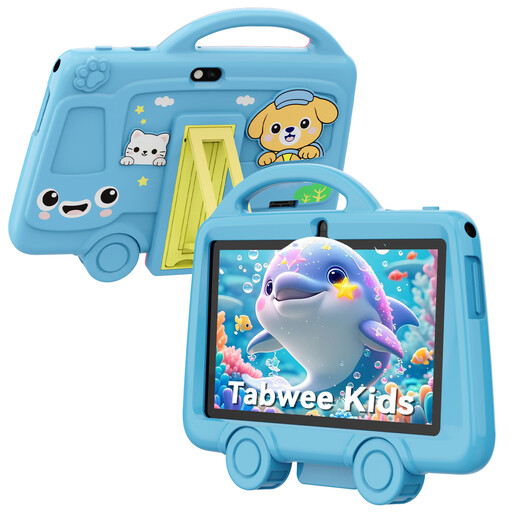 No image available
The 7-inch size and listed 285 g weight may suit a household seeking a smaller tablet for supervised home use. Confirm this variant’s RAM before buying: its title states 3 GB, while its detailed specifications state 2 GB. Check the intended apps, child-account settings and purchase controls; the detailed specifications advise adult supervision and say it is unsuitable for children under 3.
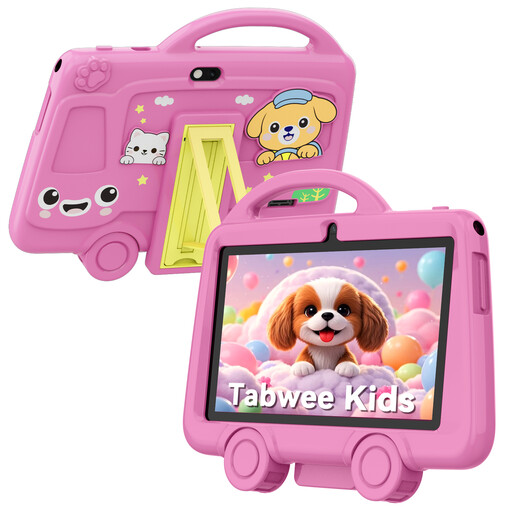 No image available
This smaller K8 variant lists 2 GB RAM, 32 GB storage and a 3.5 mm headphone jack. Check that the child’s apps work and that its account and purchase settings meet your needs. The detailed specifications advise adult supervision and say the tablet is unsuitable for children under 3.
No. Apple advises giving a child their own Apple Account rather than sharing another family member’s. Add that account to Family Sharing before setting up the child’s controls.
Google describes settings for Search, Google Play, Chrome, screen time and app permissions when a child signs in on an Android device. Check the settings available on the exact device; Family Link purchase approvals apply only to purchases through Google Play’s billing system.
No. UK government guidance says controls can help manage unsuitable content and time online. The Information Commissioner’s Office advises checking privacy, location and advertising settings separately for new apps and games, alongside ongoing adult involvement.
Match the case to the exact tablet model and generation. Fire HD 10 case listings show that compatibility can be limited to particular releases, so screen size alone is not enough to establish a fit.