If you need the display and USB peripherals to switch together, choose a two-host KVM that explicitly matches both computers; a conventional dock or USB-C hub is for connecting one laptop and does not automatically switch between two hosts. If only the picture needs to change, monitor inputs and separate peripheral connections may be enough. Check video outputs, USB connections, charging requirements and work-device policy before buying.
Who this setup suits
Frequent whole-desk switchers
You want the screen, keyboard and mouse to move together between a work laptop and personal computer. A user account on Overclockers UK Forums describes wanting to share monitors and peripherals without unplugging everything.
One-cable laptop users
You mainly want to connect a work laptop to desk displays and USB devices, and possibly charge it, while leaving the personal computer connected separately. Dell and Anker product specifications illustrate different single-laptop connection options.
Users with work-device or software restrictions
Your work device may restrict peripherals or software installation, which can rule out an otherwise suitable switching or software-dependent display arrangement. Check your employer’s actual policy; restrictions do not apply to every work laptop.
What to check before buying
For a shared desk, decide whether the keyboard and mouse need to switch with the display, then check the video and USB connections each computer can use. Treat laptop charging and employer permissions as separate requirements rather than assuming they follow from a connector’s shape.
| Concern |
What to check when buying |
Who this matters to |
| Display compatibility |
Check each computer’s video output, supported external-display configuration, cables and adapters against the switch or dock and monitor. StarTech.com specifies USB-C DisplayPort Alt Mode for the laptop host on its SV221HUC4K. |
If I am unsure whether both computers can drive the intended screen, I want to check their video outputs before choosing a switch. Around 36% of consumers put display compatibility first. |
| Whole-desk switching |
Check for two host connections and confirm which USB peripherals switch with the picture. Video-input selection alone does not establish that a keyboard or mouse will switch too. |
If I want the display, keyboard and mouse to change computers together, I need a device that explicitly switches those connections. Around 29% of consumers prioritise whole-desk switching. |
| Laptop connections and power |
Compare the laptop’s charging needs with the device’s stated host-power capability and any required charger or cable. Check that its display and USB ports suit the devices you plan to connect. |
If I mainly need to connect and charge my work laptop at the desk, I want the dock or hub to match that laptop’s requirements. Around 21% of consumers prioritise laptop connections and power. |
| Work-device policy |
Check whether your employer permits shared peripherals and any required application or driver. The UK National Cyber Security Centre advises organisations to assess the risks of connecting devices through external interfaces. |
If my work laptop is managed, I need to know whether its policy allows the proposed peripherals or software before choosing a setup. Around 14% of consumers put work-device permissions first. |
Buying pitfalls
-
Buying a single-host dock to switch between two computers
A dock that expands one laptop’s connections is not necessarily a switch for two computers. Dell’s SD25TB4 is listed as a dock, while StarTech.com explicitly specifies two hosts and switching for the SV221HUC4K.
Before buying, check that the exact product supports two host connections and switching if the display and USB peripherals need to move together.
-
Assuming every USB-C port carries video and power
A matching connector shape does not confirm that a computer supports the video mode a particular KVM or dock requires. Charging can also depend on the host and power supply.
Check the computer’s documented video output and power needs against the exact device, adapter and cable. StarTech.com specifies USB-C DisplayPort Alt Mode for the laptop input on its SV221HUC4K.
-
Assuming monitor input selection also switches peripherals
Changing the picture source does not by itself show that a monitor will switch the keyboard or mouse between computers.
Check that the exact monitor revision explicitly includes KVM functionality and has the required USB host connections. GIGABYTE specifies integrated KVM on the M27Q X Rev. 1.0.
-
Choosing a software-dependent display route without checking permissions
Plugable states that its DisplayLink-based Mac display products require DisplayLink Manager to be installed, permitted and running. Employer controls may also affect whether peripherals can be connected.
Check your work-device policy and any application requirements before choosing that setup.
Relevant brands to consider
These examples cover different shared-desk approaches. The specifications apply to the named models or product lines, not to every product from each brand.
StarTech.com
Relevant when a two-host KVM needs to connect a laptop and a desktop using different host connections.
- StarTech.com specifies USB-C DisplayPort Alt Mode for the laptop host and HDMI plus USB for the desktop host on the SV221HUC4K.
- That model specifies one shared HDMI monitor and does not establish laptop charging. Its separate C2-H46-UC2-PD-KVM is for two USB-C laptops; the stated host charging requires dedicated USB-C power adapters that are not included.
GIGABYTE
Relevant if you are choosing a monitor with switching built in.
- GIGABYTE specifies integrated KVM functionality on the M27Q X Rev. 1.0.
- Check the exact revision and required connections; this feature should not be assumed across the brand’s monitor range.
Dell
Relevant when connecting a single laptop to desk displays and peripherals through a dock.
- Dell specifies display, USB and host-power capabilities for its SD25TB4 Thunderbolt 4 dock.
- Dell lists up to 130W host power for Dell systems and 96W for non-Dell systems. These model-specific figures do not establish two-host switching or performance for every laptop configuration.
Anker
Relevant when one laptop needs a compact USB-C hub rather than a two-computer switch.
- Anker lists HDMI, USB and pass-through charging connections for its 553 hub.
- Anker states that 85W pass-through charging requires a 100W PD charger and USB-C cable. Confirm the single-display 4K refresh rate for the exact purchase if that specification matters.
Plugable
Relevant to a software-dependent, multi-display dock route where the host and workplace permit the required application.
- Plugable says its DisplayLink-based Mac display products require DisplayLink Manager to be installed, permitted and running.
- That requirement applies to the specified DisplayLink-based products, not every Plugable dock or operating system. Check work-device permissions before choosing this route.
Joybuy monitor options
These monitor options list multiple video connections for setups where each computer can connect to a separate display input and peripherals are managed separately. They do not all establish integrated KVM switching, so check each monitor’s connections and the computers’ video outputs before choosing.
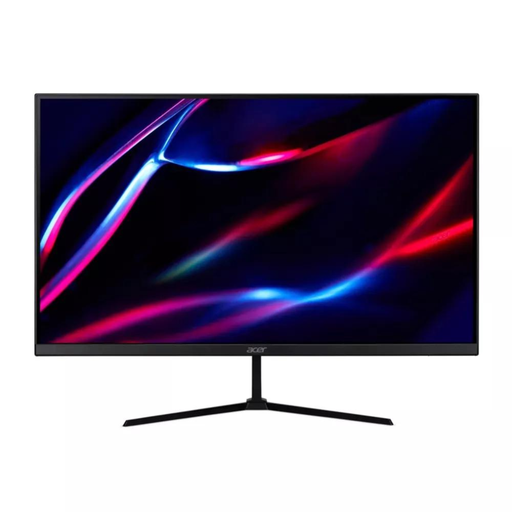 No image available
27-inch QHD IPS monitor, 180Hz
Consider this if both computers can connect to separate video inputs and you plan to manage peripherals separately.
Specifications listed: two HDMI connections and DisplayPort; one HDMI cable and one DisplayPort cable are listed.
View on Joybuy
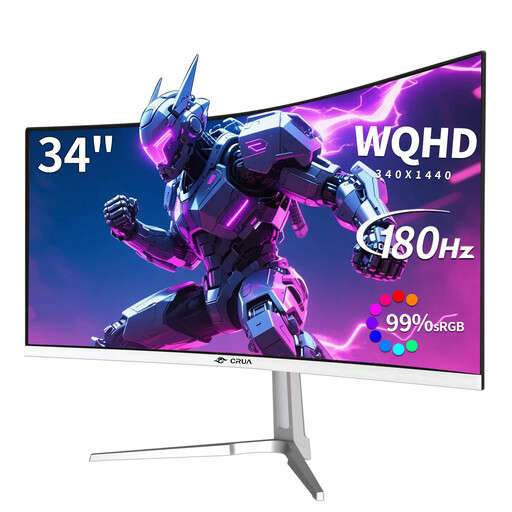 No image available
CRUA CR340QA-B 34-inch UWQHD curved monitor
Consider this if both computers can use separate monitor inputs and you want to manage keyboard and mouse connections separately.
Specifications listed: PBP, two HDMI and two DisplayPort connections, and a 180Hz refresh rate.
View on Joybuy
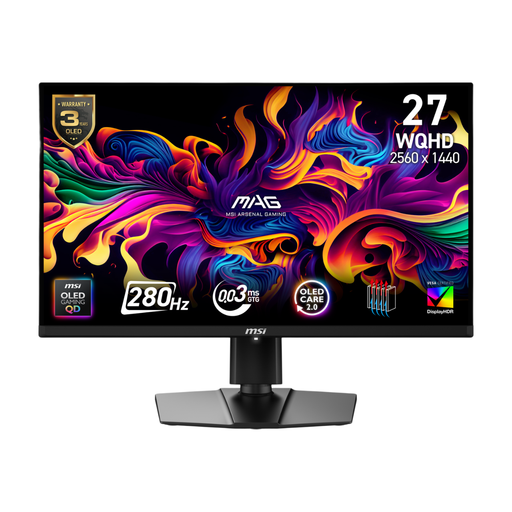 No image available
MSI MAG 271QP QD-OLED X28 27-inch QHD monitor
Consider this if the computers can connect through separate display inputs and you will handle peripherals separately.
Listed connections include DisplayPort 1.4a, HDMI 2.1 CEC and USB-C with 15W Power Delivery.
View on Joybuy
 No image available
CRUA 49-inch DQHD curved ultrawide monitor
Consider this if both computers can connect to separate display inputs and you plan to manage peripherals independently.
Specifications listed: 5120 × 1440 resolution, 165Hz, two HDMI 2.1 and two DisplayPort 1.4 connections. The product description says moving the panel requires at least two people and a desk deep and structurally rated enough to support it.
View on Joybuy
 No image available
MAG 274QP QD-OLED X24 27-inch QHD monitor
Consider this if you can connect each computer to a separate display input and are prepared to manage the peripherals separately.
The listed connections are two HDMI 2.1 and one DisplayPort 1.4a. The product specifications state that KVM is not supported.
View on Joybuy
Frequently asked questions
Can a normal laptop dock switch my keyboard, mouse and display between both computers?
Do not assume that it can. Check whether the exact product specifies two host connections and switching: Dell describes the SD25TB4 as a dock, whereas StarTech.com explicitly specifies two hosts and switching for the SV221HUC4K.
What should I check if the external display stays blank?
Check the computer model’s external-display capability, the cable or adapter, the selected monitor input and the switching device’s required video mode. A USB-C-shaped connection alone does not establish compatibility with a product that requires USB-C DisplayPort Alt Mode.
Could a work-laptop restriction prevent a dock or KVM setup?
It could, depending on your employer’s actual controls. The UK National Cyber Security Centre recommends that organisations assess and manage the risks of peripheral interfaces. For a DisplayLink-based product on a managed Mac, Plugable also specifies application and permission requirements, so check the relevant policy before choosing that route.
What UK after-sales rights apply if a purchased device is faulty or unsuitable?
Faulty or misdescribed goods may have statutory remedies, and eligible distance-sale customers can cancel under applicable rules. GOV.UK guidance says customers can notify the seller within 14 days of receiving an eligible item that they want to cancel, followed by a further 14 days to return it. A device that works as described but does not meet an unchecked port requirement is not automatically faulty; check the listing and applicable cancellation terms.


