For a shared desk, choose a KVM or a monitor with built-in KVM when you want the same display and USB controls to switch between computers; choose a conventional laptop dock when your main need is connecting the work laptop and you can handle the personal computer separately. Before buying, map each computer’s video and USB connections, the monitor inputs and your charging needs. StarTech.com’s SV221HUC4K, for example, is specified for one USB-C DisplayPort Alt Mode host and one HDMI-plus-USB host, while Lenovo’s G0AA0135UK is a laptop dock; neither example establishes compatibility with an unidentified work laptop.
Who this setup suits
Frequent computer switchers
You keep both computers at the desk and want the same display, keyboard and mouse to change hosts without repeatedly reconnecting them. StarTech.com and BenQ describe KVM configurations for sharing controls between computers.
One-cable laptop users
Your main inconvenience is reconnecting the work laptop to its display, USB accessories and suitable charging. A laptop dock may help with those connections, while switching to the personal computer remains a separate decision.
Existing-monitor reusers
You want to check whether your current monitor’s inputs, USB upstream connection or built-in KVM can serve both computers before adding another device. BenQ’s instructions show why the exact monitor model and its connection layout matter.
What to check before buying
Laptop docking station
Choose when: the laptop needs a convenient connection to a display, USB accessories and charging, and you can switch the personal computer separately.
Trade-off: a single-host dock does not, by itself, switch peripherals between two computers; confirm the laptop supports the dock’s required video connection.
KVM switch
Choose when: you want to switch a shared monitor, keyboard and mouse between the work and personal computers.
Trade-off: a one-monitor KVM will not serve a two-monitor setup; StarTech.com also specifies driver installation for its cited dual-host KVM dock.
Monitor with built-in KVM
Choose when: your monitor has an actual KVM feature and its host connections suit both computers.
Trade-off: KVM capability is model-specific; multiple video inputs or an ordinary USB hub do not establish that peripherals will switch too.
Compatible cables
Choose when: the existing display or switching equipment is suitable and you need the right video, USB or charging connection to complete the setup.
Trade-off: a cable cannot add video-output support to a computer port or make a non-switching hub act as a KVM.
| Concern |
What to check when buying |
Who this matters to |
| Switching shared controls |
Match both computers’ video and USB connections to the KVM inputs, and check how many monitors it supports. |
I want one action to move the monitor, keyboard and mouse between both computers instead of reconnecting them. Around 36% of consumers prioritise shared-control switching. |
| Connecting and charging the laptop |
Check the laptop’s USB-C video capability, required charging and the dock’s display outputs. |
At my desk, the work laptop is the device I most need to connect and charge conveniently. About 28% of consumers prioritise a straightforward laptop connection. |
| Reusing monitor switching |
Confirm the exact monitor has KVM, then map its video and USB upstream connections for both computers. |
Before adding another device, I want to know whether my monitor’s own switching fits both computers. Roughly 22% of consumers prioritise reusing monitor switching. |
| Keeping the setup simple |
Check each cable’s video, data and power capabilities, and whether separate USB switching is still needed. |
I would rather keep suitable equipment and add only the connections the setup needs. Around 14% of consumers prioritise minimal-change cabling. |
Buying pitfalls
-
Assuming a dock switches between two computers
A laptop dock can connect one computer to desk accessories, but that does not mean it will also switch those accessories to a second computer.
Draw both computers and every shared display and USB device before choosing a single-host dock or a two-host switch.
If the dock serves only the laptop, a separate switching method may still be needed.
-
Treating a USB-C connector or dual-display label as proof of compatibility
The laptop must support the required video connection and display arrangement. For Anker’s A210B, the manufacturer says the two external displays mirror each other on macOS.
Check the exact laptop, operating system, dock and intended display mode together.
-
Overlooking cables, charging accessories or software
Some setups depend on accessories or software beyond the dock itself. Anker says its A210B requires a 100W charger and cable for its stated 85W laptop charging, and that these are not included; StarTech.com specifies driver installation for its cited dual-host KVM dock.
Check the included accessories and software requirements for the exact model before choosing.
A compatible charger or additional cables may be needed, and a software-dependent dock adds an installation step.
Relevant brands to consider
StarTech.com
Its cited UK products cover hybrid KVM switches and dual-host KVM docks for different computer and display arrangements.
- StarTech.com specifies that the SV221HUC4K pairs one USB-C DisplayPort Alt Mode host with one HDMI-plus-USB host and supports one HDMI monitor.
- Its distinct 129UE-USBC-KVM-DOCK supports two laptop hosts and two DisplayPort monitors, but StarTech.com states that Windows or macOS driver installation is required.
Lenovo
Lenovo’s cited USB-C docks connect a laptop to desk peripherals and displays.
- For G0AA0135UK, Lenovo specifies DisplayPort, HDMI, USB ports, a power adapter and a host cable.
- Lenovo states that its docks require a host supporting USB-C Alt Mode or Thunderbolt; it also documents functional limitations for some other dock models used with non-Lenovo computers.
BenQ
Some BenQ monitors include KVM switching, but the feature and connection layout must be checked for the exact model.
- BenQ lists KVM, USB-C and USB-B upstream connections for the PD2705U, and describes connecting one computer by USB-C and another by video plus USB upstream.
- BenQ specifies 65W USB-C power delivery for the PD2705U; these features should not be assumed for every BenQ monitor with a USB hub.
Anker
Anker’s cited A210B is a USB-C multiport hub for laptop-side display and peripheral connections, not evidence of two-computer KVM switching.
- Anker specifies two HDMI outputs for the A210B.
- Anker says the two external displays mirror on macOS and that reaching its stated 85W laptop charging requires a 100W charger and cable, which are not included.
Joybuy product choices
These Joybuy listings focus on USB-C laptop docks and adapters, plus one monitor listed with Multi-Control. Treat a dock or adapter as a laptop-connection option, not as proof of two-computer switching; check the exact host compatibility and monitor connections for your setup.
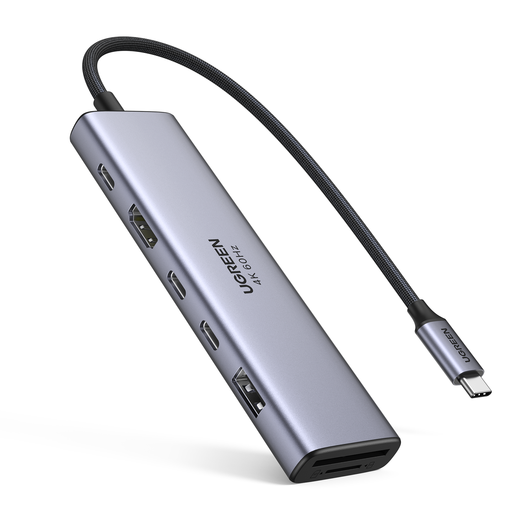 Image unavailable
UGREEN 7-in-1 USB-C Docking Station
Its listed connections may suit a laptop desk needing HDMI and USB connections, but do not establish two-computer switching.
HDMI; 2x USB-C 3.2; 1x USB-A 3.2; SD/TF slots; PD.
View on Joybuy
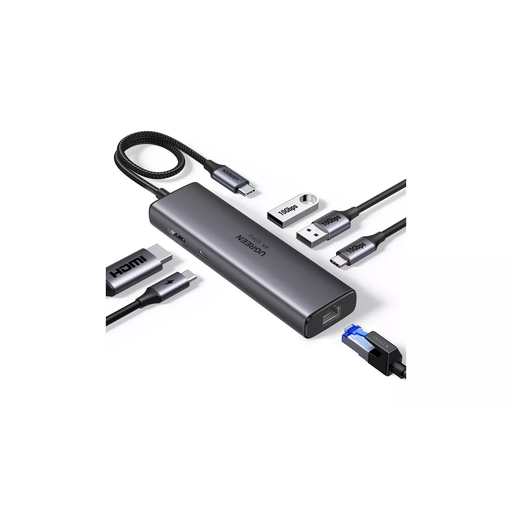 Image unavailable
UGREEN USB-C Docking Station with HDMI and RJ45
Consider it if your laptop setup needs the listed display, USB and wired-network connections; check the laptop’s video support and the display arrangement you need.
HDMI; 2x USB-A 3.2; 1x USB-C 3.2; RJ45; PD.
View on Joybuy
 Image unavailable
MSI MD272UPSW 27-inch 4K UHD Smart Monitor
If you are considering a monitor-led setup, check the model’s Multi-Control instructions and host connections before relying on it to switch peripherals.
27-inch; 4K UHD; USB-C 65W; Multi-Control.
View on Joybuy
 Image unavailable
Targus USB-C Universal Dual HDMI 4K Docking Station, 100W PD Pass-Through
Its listed dual HDMI outputs may suit a laptop setup using two displays; check host compatibility and the power arrangement before choosing it.
Dual HDMI 4K outputs; 100W PD pass-through. The product description specifies an external 100W+ adapter as the power source.
View on Joybuy
 Image unavailable
V7 V7UC-U3CRJ45HDVG-BLK USB-C Adapter
Consider it for a laptop arrangement with one display plus wired networking and USB connections; the product description specifies a single-display setup.
4K HDMI; VGA; Gigabit Ethernet; 100W PD; 2x USB 3.0.
View on Joybuy
Frequently asked questions
Will any USB-C port run a dock’s external monitor?
No; the connector shape alone does not confirm video support. Check the laptop’s specifications against the dock’s requirements: Lenovo states that its cited dock needs a host supporting USB-C Alt Mode or Thunderbolt, and VESA describes DisplayPort video over USB-C. Also check the laptop’s supported number of external displays.
How do I connect two computers to a monitor with built-in KVM?
Follow the instructions for the exact monitor model. For BenQ’s specified compatible models, its example uses USB-C for one computer and a video cable plus USB upstream cable for the other. Check that both computers can make the required connections.
Can a dock that needs DisplayLink software be installed on a work laptop?
Do not assume it can. StarTech.com specifies Windows or macOS driver installation for its cited dual-host KVM dock, and DisplayLink documents administrator-managed deployment methods. Whether a particular work laptop permits installation depends on that device and its management settings.
Does a USB-C hub’s stated charging figure include the charger and cable?
Check the exact product’s power requirements and included accessories. For the A210B, Anker says that reaching its stated 85W laptop charging requires a 100W power-delivery charger and cable, which are not included.
What UK rights apply if an online purchase is unsuitable?
For an applicable UK online distance sale, GOV.UK says customers can cancel up to 14 days after delivery without giving a reason. Remedies for faulty goods are separate, so check the circumstances of the purchase and the seller’s return instructions.


