What to check before buying
Decide whether the screen must switch with your controls, then check work-device permission, additional USB needs and laptop power.
KVM switches
Choose when: you want one control to switch compatible display connections and wired keyboard and mouse between computers.
Trade-off: the video ports, display count and rated resolution and refresh rate must suit both computers and screens; do not assume a KVM also charges a laptop.
Monitor inputs
Choose when: you can select each computer’s video input on the monitor and switch keyboard and mouse separately.
Trade-off: changing an ordinary monitor’s input does not itself switch USB peripherals; built-in KVM is model-specific.
Multi-device keyboard and mouse
Choose when: you need to move keyboard and mouse use between computers, but not switch the screen or other wired accessories with them.
Trade-off: switch the monitor input separately and check whether Bluetooth or a receiver is permitted on the work computer.
USB-sharing switches
Choose when: you want to switch wired USB devices and can change the monitor input separately.
Trade-off: the cited UGREEN USB switch does not transmit video, so it cannot replace a KVM when screen and controls must switch together.
Docking with separate display switching
Choose when: a compatible dock handles a laptop’s connections and the monitor or another device manages the second computer’s display.
Trade-off: a single-host dock is not automatically a two-host switch; check driver requirements, charging in each state and work-laptop installation rules.
| Concern |
What to check when buying |
Who this matters to |
| Switching screen and controls together |
Check the number and type of video ports on both computers, display count, USB connections and the exact model’s resolution and refresh-rate rating. |
If I want one action to move the screen, keyboard and mouse together, I need the connections to match on both computers. Around 29% of consumers put whole-desk switching first. |
| Work-computer permission |
Ask IT about USB devices, Bluetooth, receivers, docks and any required drivers before connecting them. |
If I use a managed work computer, I need to know which peripherals and software my employer permits before choosing a setup. About 22% of consumers prioritise work-device permission. |
| Keyboard-and-mouse-only switching |
Check that both computers can connect to the chosen input devices and that you can change the monitor input separately. |
If each computer can use the same input devices and I can select the screen input myself, I may not need video switching. Around 21% of consumers prioritise switching keyboard and mouse only. |
| Sharing wired USB devices |
Count the devices to share, check suitable USB connections and distinguish data ports from charging ports. |
If I need to move permitted wired accessories such as a keyboard or mouse between computers, with video handled separately, this is my main concern. About 14% of consumers prioritise sharing wired peripherals. |
| Laptop docking and power |
Check each laptop’s charging requirement, video-capable ports, dock host support and any required drivers. |
If I want to consolidate laptop connections or account for charging while sharing the desk, I need to check power and docking together. Around 14% of consumers prioritise docking and power. |
Joybuy products
These Joybuy listings relate to sharing a desk through a KVM-equipped display, separate monitor inputs or multi-device keyboard and mouse switching. Check the exact model and your computers’ connections before choosing.
 No image available
Acer X Predator X49X 49-inch curved QD-OLED gaming monitor
The listing describes an integrated KVM for switching between connected machines; check that its connection plan suits both computers.
49-inch, 32:9 QD-OLED display; HDMI, DisplayPort and USB-C; 240Hz and 0.03ms as stated in the product name.
Joybuy
 No image available
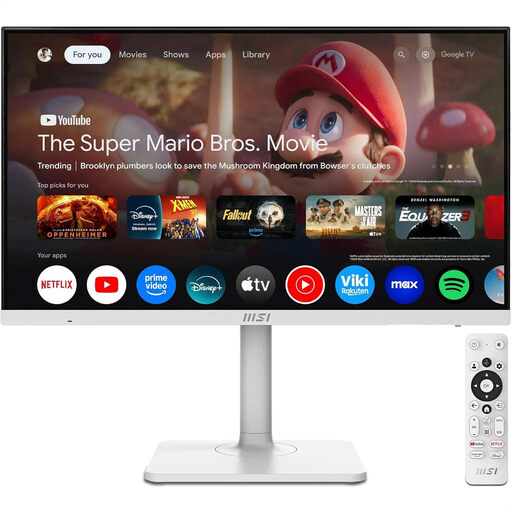
MSI 27-inch 4K UHD MD272UPSW Smart Monitor
The listing describes Multi-Control for using one keyboard and mouse with two devices; check that this suits your setup and work-device rules.
27-inch 4K UHD IPS display with USB-C 65W Power Delivery, as stated in the product name.
Joybuy
 No image available
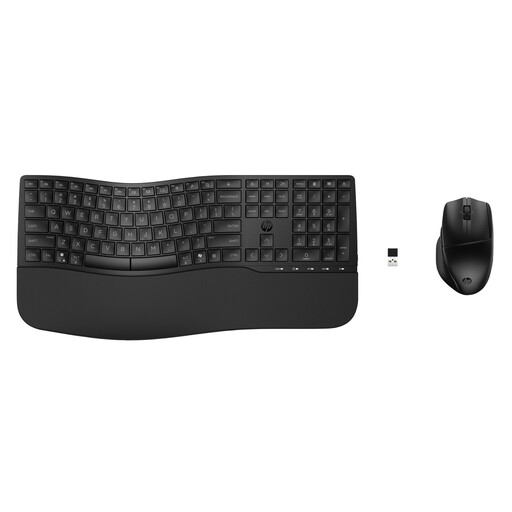
HP 680 CFT Dual-Mode Keyboard/Mouse Combo
The listing describes connections to up to three devices, which may suit input-only switching when display video is handled separately. Check whether Bluetooth or a receiver is permitted on your work computer.
Joybuy
 No image available
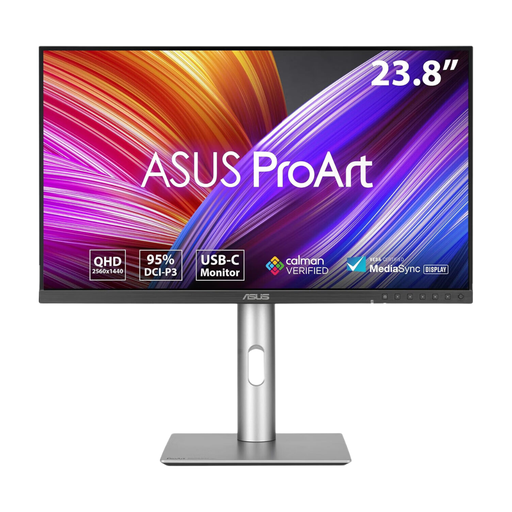
ASUS PROART PA24ACRV IPS QHD
A monitor option for a setup where each computer can use a listed display input and keyboard-and-mouse switching is handled separately. Check the required connections for both computers.
Joybuy
 No image available
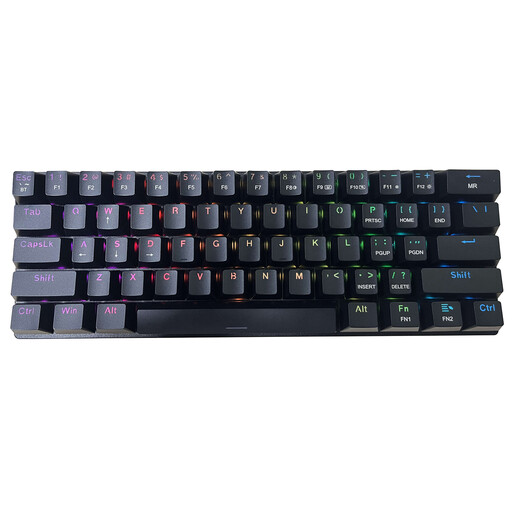
Free Gift Mouse ET 60% Tri-Mode Mechanical Keyboard, US QWERTY, 61 Keys
The listing describes pairing the keyboard with up to three devices and switching between them, for setups where monitor video is handled separately. Check which connection type your work computer permits.
Tri-mode; US QWERTY layout; 61 keys, as stated in the product name.
Joybuy
Frequently asked questions
Will any 4K KVM preserve my monitor’s refresh rate?
No single refresh rate follows from a “4K” label. StarTech.com rates its cited mixed-port KVM for 4K/60Hz displays, while ATEN states up to 4096 × 2160/60Hz for its dual-HDMI model. Check the exact output mode and connection plan for both computers.
When can I use a multi-device keyboard and mouse without a KVM?
You can use one when both computers can connect to the input devices and you do not need them to switch monitor video or other wired accessories. A shared monitor can use separate video inputs, which you select independently.
How should I plan the connections for a shared setup?
Map each computer’s video output and USB connection before choosing a switch. For the BenQ models covered by its instructions, one computer connects by USB-C and the other by video plus USB upstream. If several devices connected to a UGREEN USB-sharing switch disconnect, UGREEN recommends considering its optional external power input.
Can I connect my own KVM or Bluetooth devices to a UK work computer?
Check your employer’s policy before connecting them, as permission is not universal. The UK National Cyber Security Centre advises organisations to manage risks from USB, Bluetooth and other peripheral interfaces; ask about receivers, docks and any required drivers too.
What should I check about extra costs and returns?
Before ordering, check whether the setup needs additional cables, adapters or a separate charging arrangement, and read the applicable returns terms. For qualifying UK distance purchases, GOV.UK says customers must be told they can cancel up to 14 days after delivery; check the terms and any applicable exceptions.


