If you already own an A4 printer, Click & Drop supports A4 sticky-label and plain-paper formats; a dedicated label printer may suit you better when repeatedly cutting and attaching labels is the main inconvenience. Before choosing either route, match the format to the printer and its supplies, check how orders will reach the device, and keep the finished barcode clear and readable.
Who these setups suit
Regular peel-and-apply dispatchers
If you prepare parcel labels repeatedly, a ready-to-apply label can reduce the cutting and attaching steps. Royal Mail Click & Drop supports a 6 x 4 label-printer format, but check the exact printer and compatible stock.
Existing A4-printer users
If your home or office printer already handles documents, A4 sticky sheets or plain paper offer a way to print parcel labels without adding dedicated hardware. Royal Mail Click & Drop provides these formats.
Multi-device order managers
If you move between a computer and a mobile device, or import marketplace orders, check the complete route from order to print. Royal Mail Click & Drop guidance covers marketplace connections and desktop automation; a printer’s connection options alone do not confirm that your intended setup will work.
What to prioritise when choosing
Start with whether your existing A4 printer and label-handling routine meet your needs; then check the Click & Drop format, supplies and route from order to print. Royal Mail Click & Drop Help Centre guidance describes the supported label formats and the need for clear, readable labels.
| Concern |
What to check when buying |
Who this matters to |
| Repeated label handling |
Check the Click & Drop 6 x 4 template, the exact printer’s printable area and the label roll it accepts. |
If I dispatch parcels regularly, I want labels ready to apply rather than repeatedly cutting and attaching A4 output. Around 33% of consumers prioritise reducing label handling. |
| Existing equipment and supplies |
Check whether your current printer suits A4 label sheets or plain paper, and identify the exact replacement labels or cartridges the chosen model accepts. |
If I already use an A4 printer, I want to avoid adding another device and understand which supplies my label workflow requires. Around 25% of consumers put existing equipment and supply flexibility first. |
| Device and order workflow |
Check the order connection, printer driver or app, operating system, and whether you intend to print PDFs manually or use Desktop Auto Print. |
When I manage orders across devices, I need a workable path from the order to the printer, not just a wireless connection. Around 25% of consumers prioritise device and order-workflow fit. |
| Barcode legibility |
Use the intended label size, inspect the printed text and barcode, and avoid covering them with tape or glue. |
If parcels will be handled in transit, I want the attached label and barcode to remain readable. Around 17% of consumers put print legibility and label handling first. |
Buying pitfalls to avoid
-
Choosing by “thermal” or “wireless” alone
The label format, printable width, accepted stock and route from an order or PDF to the printer all need to suit your intended setup. Wireless features also vary by model and configuration.
Check the full model identifier, supported label stock and the steps you will use to send a label to print before buying.
An unsuitable roll or a connection accessory may add extra steps to the workflow you intended to simplify.
-
Assuming similar thermal rolls are interchangeable
Some models restrict which labels they accept. DYMO says the LabelWriter 5XL works exclusively with DYMO-branded labels; Brother’s UK supply listing marks the DK-11241 102 × 152 mm roll discontinued for the QL-1110NWBc.
Check the dimensions and format of a roll accepted by the exact model, and whether it is currently obtainable.
-
Resizing a label or covering its barcode
Royal Mail warns that resizing output or changing contrast can interfere with scanning. Tape or glue over a barcode can also make the attached label harder to read.
Use the intended template size and inspect the printed label before attaching it, keeping text and barcode unobscured.
-
Paying for desktop automation before checking eligibility
Royal Mail Click & Drop Desktop Auto Print requires an Online Business Account and a supported computer; it is a separate workflow from manual PDF printing.
Check your account, computer requirements and installation permissions before relying on Desktop Auto Print.
Setup time can be wasted if the account or computer cannot use the intended automation workflow.
Relevant brands to consider
Brother
The QL-1110NWBc is a direct-thermal shipping-label option for sellers comparing wired, network and mobile-device printing.
- Brother specifies USB, Ethernet, Wi-Fi and Bluetooth, with a 101.6 mm print width for this model.
- Check the exact app and a currently obtainable compatible roll. Brother’s UK supply listing marks the DK-11241 102 × 152 mm roll discontinued.
DYMO
The LabelWriter 5XL is a 4 × 6-inch direct-thermal option for a USB or LAN desktop workflow.
- DYMO specifies automatic label recognition for the model.
- DYMO says the LabelWriter 5XL works exclusively with DYMO-branded labels. Check label availability and that your intended software workflow is supported.
Zebra
The ZD421 series includes configurable four-inch desktop printers for sellers with specific media or connection requirements.
- Zebra lists direct-thermal and thermal-transfer variants, 203 or 300 dpi options, and optional wireless configurations.
- These features depend on the variant. Check the full model details to identify the printing method and connections supplied.
Epson
The WorkForce WF-2930DWF is an A4 inkjet option when parcel labels are one of several home-office printing tasks.
- Epson specifies A4 multifunction printing, Wi-Fi, Wi-Fi Direct and mobile-app features for this model.
- It uses replacement ink and an A4 label workflow rather than dispensing individual thermal shipping labels.
HP
The LaserJet M234sdw is a monochrome laser document-printer option for sellers who also need copying and scanning.
- HP specifies monochrome laser printing for this multifunction model.
- HP states that dynamic security affects cartridge acceptance. Check the A4 label media and replacement-toner terms for the exact printer.
Joybuy product choices
These choices cover portable thermal printing for parcel labels, including a 4-inch label printer and an A4-format thermal printer. Check the exact Click & Drop format and device workflow before choosing either.
 No image available
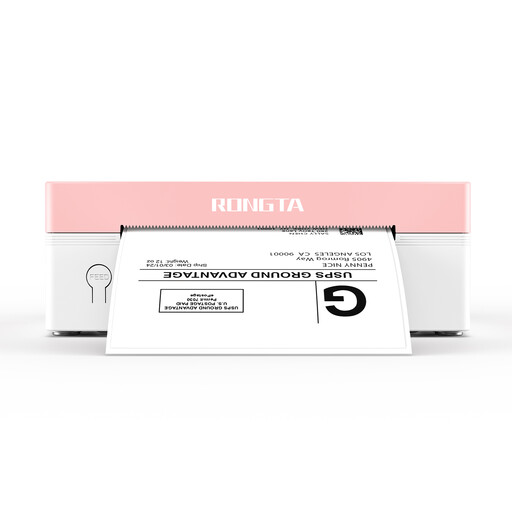
Rongta RP425 Portable 4-inch Thermal Label Printer, Pink
For regular parcel dispatch where a dedicated shipping-label printer suits your workflow. The product information describes support for 2 to 4-inch labels, drop-in loading and an external roll holder.
It also describes mobile printing through the RT ELabel app, with iOS, Android and tablet support. Check that the exact Click & Drop format and your intended device-to-print steps work with this model.
Shop on Joybuy
 No image available
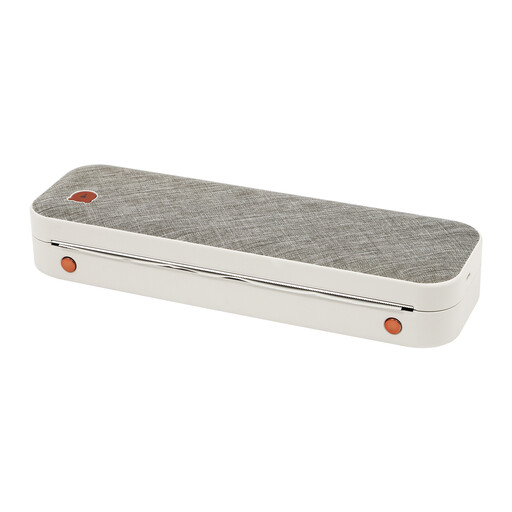
Cordless A4 Thermal Printer, 203 DPI, White
For sellers considering an A4-format printer that also lists shipping-label printing. The product information states support for standard A4 folded paper and a 203 DPI resolution.
Bluetooth and USB connections are listed for phones and laptops respectively. Check that the chosen Click & Drop format and your intended device workflow suit this printer.
Shop on Joybuy
Frequently asked questions
Can I print Royal Mail Click & Drop labels without a thermal printer?
Yes. Royal Mail supports A4 sticky-label sheets or plain paper with a home or office printer. If you use plain paper, attach it so the label text and barcode remain unobscured and readable.
Does Click & Drop require a 6 x 4 label?
No. Royal Mail’s format guidance includes A4 as well as 6 x 4 and 4 x 3 separate-label choices. Match the setting to your printer and stock; an integrated label and despatch note is A4-only.
Can I automatically print orders from my phone or marketplace account?
Order importing and automatic printing are separate parts of the workflow. Royal Mail Click & Drop Desktop Auto Print requires an Online Business Account and a supported Windows or macOS computer; check a phone’s app and PDF workflow separately.
What should I do if a barcode prints faintly or at the wrong size?
Check the selected Click & Drop format and printer settings, then inspect the text and barcode before attaching the label. Royal Mail warns that resizing labels or applying custom contrast settings may affect barcode scanning.
What should I check about replacement labels, ink or toner?
Identify the exact supplies your chosen model accepts and check whether the labels or cartridges you need are obtainable. DYMO says the LabelWriter 5XL accepts only DYMO-branded labels, while HP discloses cartridge-related dynamic security for the M234sdw.


