Quick drawer organisers
If you have a small set of drawers and need short, repeatable names, a built-in keyboard lets you enter labels at the printer rather than set up a phone or computer.


For short tool-drawer labels, choose a printer with a built-in keyboard if you want to type and print without a phone or computer; choose a connected model if designing consistent layouts on another device matters more. Measure the drawer fronts and check the printer’s tape widths, compatible consumables and the tape’s stated surface conditions before buying.
If you have a small set of drawers and need short, repeatable names, a built-in keyboard lets you enter labels at the printer rather than set up a phone or computer.
If you want to prepare matching labels on a phone or computer, a connected workflow gives you a way to work on layouts before printing. Check that the exact printer and its software support the features you intend to use.
If drawer fronts are textured or powder-coated, the tape’s stated surface suitability becomes as important to the choice as the printer’s controls.
Measure the space available for each label and identify the drawer-front finish, then choose a printing workflow and confirm that the printer accepts a suitable tape.
| Concern | What to check | Who this matters to |
|---|---|---|
| Printing at the drawer | Look for a built-in keyboard and display; check the supported tape widths and power arrangement. | If I only need brief names on a few drawers, I would rather type them directly than open an app. Around 42% of consumers put standalone operation first. |
| Consistent layouts | Confirm compatibility with your phone or computer and check which layout features its software offers. | When I am preparing a matching set of labels, I want to arrange the text before I print. For roughly 33% of consumers, connected design is the primary need. |
| Surface adhesion | Identify the drawer-front finish and check both the tape’s stated surfaces and its compatibility with the printer. | If my drawer fronts are textured or powder-coated, keeping labels attached matters more to me than changing their layout. About 25% of consumers put adhesion first. |
Tape width and consumable family depend on the model. Brother UK lists widths up to 12 mm for the PT-D210VP and up to 24 mm for the P-touch CUBE Plus; that difference matters if the visible part of a drawer front is narrow.
Measure the label area, choose a suitable width and tape type, then confirm that the exact printer accepts both.
DYMO specifies D1 standard labels for most clean, flat surfaces, while Brother specifies its TZe-S131 strong-adhesive tape for surfaces including rough, textured and powder-coated finishes. Neither tape choice applies automatically to every printer.
Inspect and clean the intended label area, then check the tape’s surface guidance and printer compatibility.
GOV.UK guidance directs consumers to take electrical waste and batteries to an appropriate recycling collection point rather than putting them in household rubbish.
Use a suitable electrical-waste or battery collection route when the printer or its batteries reach the end of their useful life.
Brother UK’s P-touch range includes keyboard-operated and connected models relevant to drawer labelling.
DYMO’s LabelManager range includes models with different maximum label widths and connection options.
NIIMBOT presents portable B-series printers and M-series thermal-transfer models on its UK-facing site.
This selection is relevant if you want to prepare labels on a computer. Check the available label rolls against your drawer dimensions and finish before choosing a model.
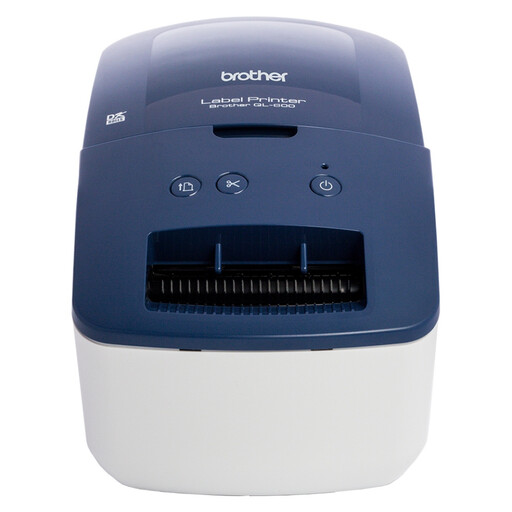 Image unavailable
For drawer labels prepared on a computer, consider whether this model’s wired USB workflow suits your setup. Before buying, check which compatible DK roll dimensions fit your drawer fronts and whether the labels suit their finish.
Choose a width that fits the flat, visible area of the drawer front, then check that the printer accepts it. Brother UK lists 3.5 mm, 6 mm, 9 mm and 12 mm labels for the PT-D210VP, while the P-touch CUBE Plus supports tapes up to 24 mm; a wider label is not necessarily useful on a shallow drawer.
Consider tape specified for that finish rather than assuming standard tape will suit it. DYMO describes D1 standard labels for most clean, flat surfaces; Brother specifies TZe-S131 for surfaces including rough, textured and powder-coated ones. Confirm that the chosen tape works with your printer.
Choose by workflow as well as power arrangement: Brother’s P-touch CUBE Plus offers connected design and USB charging, while its PT-D210VP has a built-in keyboard and uses six AAA batteries. If you mainly print short labels at the drawers, decide whether direct typing or designing on another device matters more to you.
Take unwanted electrical equipment and batteries to an appropriate recycling collection point rather than putting them in household rubbish, in line with GOV.UK guidance. Check the collection point’s instructions for the printer and its battery type.