Who is each option for?
Start with the work that must run on the device, then decide which shape is practical to carry between locations.
Workers using required desktop applications
If your employer specifies desktop software, browser settings, file processes or peripherals, confirm its supported operating systems before comparing laptops by size. The National Cyber Security Centre includes functionality, portability and security among work-device selection considerations.
Workers who type and use touch
A 2-in-1 is worth considering when typed work is essential but touch, handwritten notes or tablet-style presentation handling would also be useful. Check the exact keyboard arrangement and whether your employer supports the device configuration.
Workers with a web-first workflow
A Chromebook or keyboard-equipped tablet may suit email, meetings and cloud documents if every required app, sign-in method and management control works on its operating system. Check its update arrangements as well as its carrying setup.
What should you check before choosing?
Establish the employer-approved workflow first; then compare the device format, update coverage and accessories needed at each work location.
Conventional laptop
Consider it: When required work depends on a supported desktop operating system and sustained keyboard use.
Trade-off: A standard laptop offers less tablet-style handling than a convertible; its operating system still needs ongoing support.
2-in-1 laptop
Consider it: When you need a laptop workflow alongside touch input or tablet-style use.
Trade-off: The keyboard arrangement varies by device; Microsoft describes the keyboard for its Surface Pro as optional.
Tablet with keyboard
Consider it: When your employer confirms that the intended tablet supports your web and mobile-app workflow.
Trade-off: Adding a keyboard does not make desktop-only applications or employer security tools compatible.
| Priority |
What to check |
Your needs |
| Work compatibility |
Ask for the supported operating systems and versions. Test the exact applications, browser features, meeting tools, sign-in methods and file processes required for your role. |
I need to finish my work without depending on a mobile substitute for a required desktop application. A Chromebook is an option only if my employer supports the full ChromeOS workflow. |
| Security updates |
Check the installed Windows version and upgrade eligibility, or the exact Chromebook Auto Update Expiration date. Microsoft Learn states that Windows 11 Home and Pro feature releases receive 24 months of support; Google says Chromebooks receive 10 years of automatic updates, with the model’s expiration date indicating its remaining coverage. |
Will this device continue to receive relevant updates during the period I expect to use it for work? Its purchase date alone does not answer that question. |
| Carrying and typing |
Compare the device’s stated size and weight with your journey. Confirm the exact keyboard, pointing method, charging connections and any required dock or display support. |
I move between locations but still need a workable setup for documents, calls and desk connections. Touch input matters only if it helps with tasks I actually do. |
| Personal-device rules |
Get written confirmation of permitted devices, required security controls, available support and any reimbursement. Ask how work data and removable storage must be handled. |
Before I buy my own device, I need to know whether I can use it for work and who will help if access, updates or the device itself cause problems. |
Relevant brand references
These examples help identify platform questions to ask; a brand name alone does not establish compatibility with your employer’s systems.
Microsoft
Relevant to Windows-based work and Surface Pro for Business 2-in-1 devices.
- Microsoft describes its Surface Pro for Business, 13-inch (12th Edition) Intel model as a Windows 11 Pro Secured-core PC; its Surface Pro keyboard is optional.
- Confirm employer approval, the exact processor configuration and any required keyboard or accessories for the model you intend to buy.
Apple
Relevant to macOS laptops and iPad workflows using compatible keyboards.
- Apple lists Touch ID for MacBook Air and describes iPad keyboard features including a function row and pass-through charging on the relevant accessory.
- Check your employer’s macOS or iPadOS requirements, the exact accessory fit and current support information for your chosen model.
Google
Relevant to Chromebooks where an employer approves browser-based work on ChromeOS.
- Google says Chromebooks receive 10 years of automatic updates and directs buyers to the model’s Auto Update Expiration date to assess remaining coverage.
- Check desktop-only applications, sign-in methods and employer management tools before choosing ChromeOS.
Samsung
Relevant to selected Galaxy tablets used with compatible keyboard accessories.
- Samsung describes DeX use with selected keyboard accessories for a PC-like interface.
- DeX does not establish compatibility with desktop applications. Confirm the exact tablet, keyboard, available updates and employer-supported apps.
Lenovo
Relevant to selected Windows business laptops in the ThinkPad range.
- Lenovo describes Secured-core PC configurations within its business-device offerings.
- Check the security configuration, update support and employer compatibility of the particular ThinkPad model rather than assuming they apply across the range.
Joybuy device options
These Joybuy options cover conventional laptops, a 2-in-1 and a Chromebook for approved web-based work. Choose a device only after checking your employer’s requirements for its operating system, applications and security controls.
 No image available
ASUS Vivobook 14 X1407QA-LY003W, Snapdragon X, 16GB RAM, 512GB SSD
A conventional laptop to consider for typed work between locations. Check that required applications and employer security tools work with this Snapdragon X configuration before buying.
View on Joybuy
 No image available
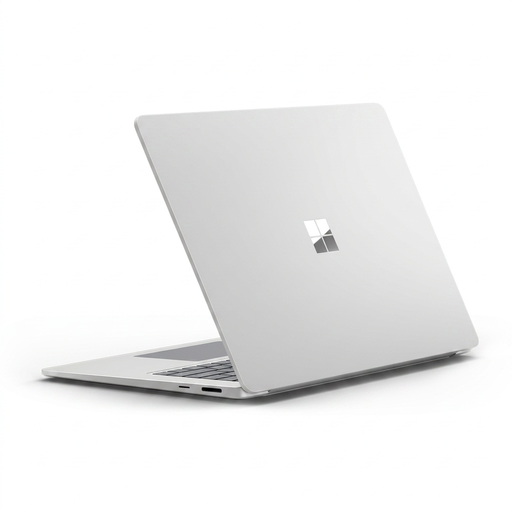
Microsoft Surface Laptop 7 15-inch, Snapdragon X Elite, 16GB RAM, 256GB SSD
The 15-inch PixelSense touchscreen offers a larger laptop screen for work across locations. Confirm that required desktop applications and employer management tools support this Snapdragon X Elite configuration.
View on Joybuy
 No image available
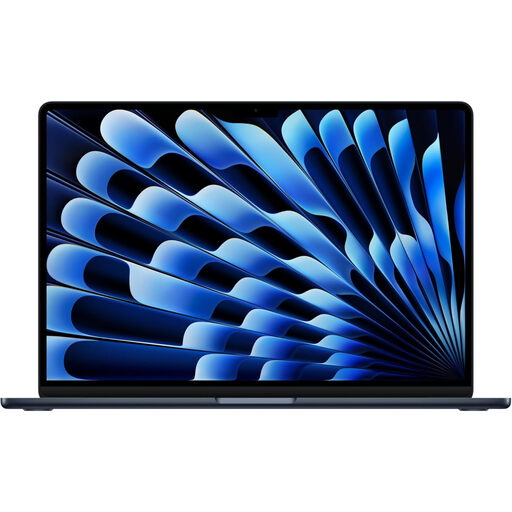
Apple 13-inch MacBook Air (2026), M5 10-core CPU and GPU, 24GB, 1TB SSD
A laptop option for mobile typed work where macOS is employer-approved. This Midnight configuration lists a 10-core CPU, 10-core GPU, 24GB of memory and a 1TB SSD; confirm required app and security-tool compatibility.
View on Joybuy
 No image available
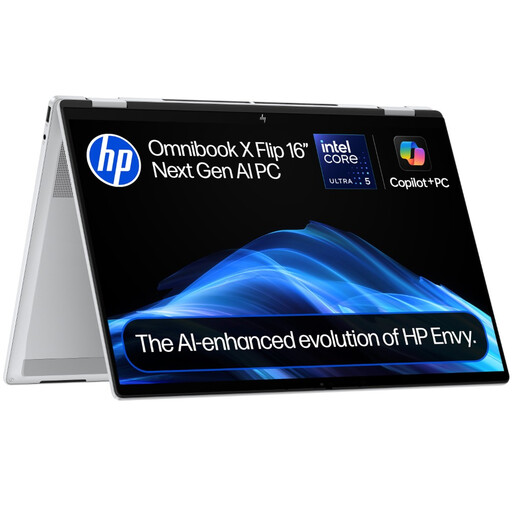
HP OmniBook X Flip 16-as0004na, 16-inch, Core Ultra 5 226V, 16GB RAM, 512GB SSD
A 2-in-1 to consider when typed work and touchscreen use both matter. Its listed configuration includes Windows 11 Home; check employer compatibility and whether the 16-inch format suits your regular journeys.
View on Joybuy
 No image available
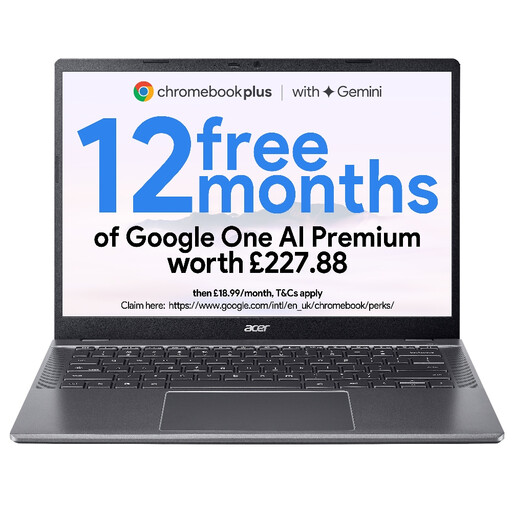
Acer Chromebook Plus 514 CB514-5H, 14-inch WUXGA, Core i3-1315U, 8GB RAM, 256GB SSD
A keyboard-equipped option for browser-based work if your employer supports ChromeOS. The listed display is 1920 × 1200; check the exact model’s Auto Update Expiration date and every required app and sign-in method.
View on Joybuy
Common questions
Can I use a personally bought laptop or tablet for work?
Only if your employer permits the device and confirms how it must be secured and supported. The Information Commissioner’s Office advises organisations using personal devices to address software updates, passwords and the storage of work-related personal data; its guidance is not automatic permission to use any device.
What should I ask my employer before choosing a device?
Ask which operating systems, versions, applications, sign-in methods and security controls are supported, and whether personal devices are allowed. Also confirm who provides licences and support, whether reimbursement is available, and which file-storage and removable-media rules apply.
Can a tablet with a keyboard replace my work laptop?
It can cover a confirmed web-based or mobile-app workflow, but the keyboard alone cannot replace required desktop software. Check each work app, browser feature, authentication method, file process and employer security control on the intended tablet operating system.
Will a Windows 11 laptop receive updates for its whole working life?
Not automatically. Microsoft Learn states that Windows 11 Home and Pro feature releases have 24 months of support, so check the installed version and whether the laptop can move to a supported release. Microsoft also states that Windows 10 version 22H2 reached end of updates on 14 October 2025.
How do I check a Chromebook’s remaining update coverage?
Look up the Auto Update Expiration date for the exact model. Google says Chromebooks receive 10 years of automatic updates, but the model’s platform release date—not the day you buy it—determines the relevant schedule.


