Who is this setup for?

Long-session laptop workers

If you spend sustained periods working on documents and taking calls, screen position and separate typing controls may matter. The Health and Safety Executive recommends considering a separate keyboard and mouse so a laptop screen can be raised independently. If you are an employee and the display-screen-equipment assessment process applies to you, check it before treating an identified change as a personal purchase.

Call-heavy home workers

If meetings are the main challenge, identify whether the problem is hearing colleagues, sending clear speech or appearing well framed on camera. A headset and a webcam address different parts of a call, so start with the issue you want to fix.

Multi-device desk reconnectors

If you regularly reconnect a laptop to displays and peripherals, check its exact video support, operating system and any restrictions on software installation. These details can affect whether a dock or hub will work in your setup.

Which accessory should you prioritise?

Concern What to check when buying Who this matters to
Screen space and position Check desk fit, laptop video output, monitor input and whether you need charging through the display. The Health and Safety Executive advises considering separate controls when positioning a laptop screen for prolonged work. If I spend hours switching between documents and calls, I want enough screen space and a position that is not tied to the keyboard; around 29% of consumers put screen space and position first.
Call audio and listening Check the connector, microphone position and wearing style. Consider whether the issue is hearing other people or sending your own speech. If I work in a shared room, I want to hear colleagues or have them hear me more clearly; around 23% of consumers prioritise call audio and listening.
Connections and repeatable setup Check host video support, display count, charging requirements and any required charger or software. Apple notes that external-display support depends on the Mac model and display settings. If I reconnect my laptop to a display and several peripherals regularly, I want a setup that handles those connections; around 18% of consumers put repeatable connections first.
Camera position and picture Check the current camera’s position before replacing it, then consider mounting, connection and whether any optional software is permitted on a work laptop. If my meeting picture or framing is the problem, I want to address the camera rather than the sound; around 12% of consumers prioritise camera position and picture.
Separate typing and pointing controls Check desk space, keyboard layout, connection type and available laptop ports. A separate keyboard and mouse let you position the screen independently of the typing controls. If I want to raise my laptop screen without raising my typing position, separate controls address that need; around 18% of consumers put typing and pointing controls first.

Buying pitfalls to avoid

  • Assuming any USB-C socket will run a monitor and charge a laptop

    USB-C connectors do not by themselves establish that a laptop supports video output or the charging arrangement you need. A hub’s charging rating also does not confirm that it suits a particular laptop.

    Check the exact laptop specifications, the monitor or hub’s video method, charging requirements and any included power equipment before buying.

  • Counting dock display sockets instead of checking supported displays

    Supported display arrangements depend on the computer and operating system. macOS does not use MST for separate extended displays, and a DisplayLink route requires compatible software and permissions.

    Check your exact computer model, operating system, display arrangement and any work-device rules before choosing a dock.

  • Choosing the wrong accessory for a meeting problem

    A headset and a webcam address different parts of a call; neither fixes every sound or picture issue.

    Before choosing, identify whether the problem is your picture, the speech you send or the audio you hear, then select the relevant accessory.

  • Paying personally for an assessment-identified workstation change without checking

    Where the home-working display-screen-equipment rules apply and an assessment identifies necessary action, the Health and Safety Executive says workers cannot be charged for that action, such as providing equipment.

    If you are an employee and think those conditions apply, ask your employer about the assessment and provision process before buying.

Relevant brands to consider

Dell

Consider the P2425HE when one adjustable external display and desk connections fit your laptop workflow.

  • Dell specifies a 23.8-inch Full HD panel, an adjustable stand and up to 90 W power delivery for this model.
  • That power-delivery rating does not establish that every laptop supports video and charging through one cable.

Anker

Consider the 565 USB-C Hub when you need a repeatable connection for a display and peripherals.

  • Anker lists HDMI, DisplayPort and up to 85 W pass-through charging for this hub.
  • Anker says a charger is required for pass-through charging and is not included; dual-display output depends on the laptop’s DisplayPort capability.

HP Poly

Consider the cited Blackwire 3220 USB-C configuration if you want a corded headset with a boom microphone.

  • HP lists a USB-C cord, a tethered USB-A adapter, inline controls and a flexible boom for this configuration.
  • Check the exact connector and bundle; audio descriptions are manufacturer claims, not independent test results or features guaranteed for every Blackwire variant.

Logitech

The Brio 500 range addresses webcam needs, while the MK540 is a separate keyboard-and-mouse option.

  • Logitech lists the Brio 500 as Full HD with auto-framing.
  • Auto-framing requires Logi Tune. The MK540 uses a USB receiver, so check for a compatible port and the keyboard layout you need.

Jabra

Consider the Evolve2 40 SE line if a corded meeting headset and passive isolation suit your workspace.

  • Jabra describes passive ear-cushion isolation and identifies a Teams-certified variant.
  • Check the exact connector, variant, fit and meeting platform; the brand’s isolation language does not establish how it will perform in every room.

Joybuy products for laptop workstations

This selection covers common fixes for laptop meetings and longer desk sessions: call audio, display space, connections, camera framing and separate typing controls.
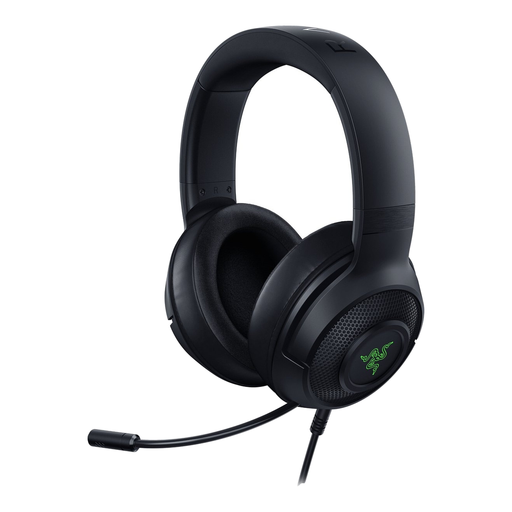
Razer Kraken V3 X headset in black

Razer Kraken V3 X Headset

Consider a headset when hearing colleagues or sending speech is the meeting problem. Check that its connection suits your laptop.

Joybuy
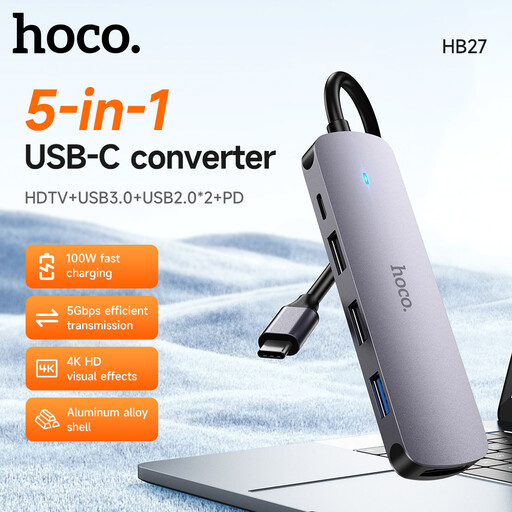
HOCO HB27 USB-C Hub in metal grey

HOCO HB27 USB-C Hub

Consider a hub when you regularly reconnect a display and peripherals. HDMI video output requires a host device that supports DP Alt Mode.

Joybuy

MSI MD272UPSW 27-inch 4K UHD Smart Monitor

MSI MD272UPSW 27-inch 4K UHD Smart Monitor

Consider a separate monitor when laptop-screen space or position is the issue. The product name specifies USB-C with 65 W power delivery; that rating alone does not confirm compatibility with your laptop.

Joybuy

HP 680 CFT Dual-Mode Keyboard and Mouse Combo

HP 680 CFT Dual-Mode Keyboard/Mouse Combo

A separate keyboard and mouse can help when you want to position a laptop screen independently of the typing controls. Check the layout, connection type and available desk space.

Joybuy

Targus 2K Webcam with Auto Focus

Targus 2K Webcam with Auto Focus

Consider a webcam when the meeting picture or framing is the issue. The product name specifies 2K and autofocus; check its connection and any work-device rules for optional software.

Joybuy

Frequently asked questions

Do I need a dock to use an external monitor?

Not necessarily. Check your laptop’s video-capable port and the monitor’s input first; a compatible direct cable may be enough for one screen. A dock is more relevant when you also need repeatable peripheral connections, supported additional displays or charging.

Will two sockets on a dock give my Mac two separate extended displays?

Not automatically. Apple says the number of external displays depends on the Mac model and display settings. macOS does not use MST for separate extended displays; a DisplayLink option requires compatible software and permissions, which may be restricted on an employer-managed device.

Should I buy home-workstation equipment before speaking to my employer?

If you are an employee using display screen equipment daily for continuous periods of an hour or more and the home-working rules apply, ask about your employer’s assessment process. The Health and Safety Executive says workers cannot be charged for action identified as necessary by that assessment, such as providing equipment. This does not mean every home-working accessory is employer-funded.

How should I set up the screen and controls for prolonged laptop use?

The Health and Safety Executive advises considering a separate keyboard and mouse so the laptop screen can be raised, or using a separate display. Adjust the workstation as a whole and include breaks or changes of activity; buying another screen does not replace those steps.

What if an online accessory arrives unsuitable or faulty?

For covered UK distance purchases, government guidance says customers must be told they can cancel up to 14 days after delivery without giving a reason; remedies for faulty goods are a separate matter. Check the seller’s stated returns arrangements and the exact item and bundle before ordering.