For prolonged laptop work, start with the screen and input positions: pair a laptop riser with a separate keyboard and mouse, or consider an external monitor when you need more screen space. A dock or USB-C hub is useful when it connects the devices you need, but its display and charging functions must match your laptop and operating system. A compact stand-and-input setup is easier to move between desks; a monitor-and-dock arrangement calls for more desk space and connection checks.
Who these setups suit
Workers using only a laptop at their desk
If you work at a laptop for long sessions, raising its screen also raises its built-in keyboard and trackpad. The Health and Safety Executive advises using a separate keyboard and mouse for prolonged laptop work so the screen can sit on a riser or similar support.
Workers who need more screen space
If documents, calls and other windows compete for space, an external monitor may help you arrange them. Check the display connections and supported external-display count for your exact laptop before choosing a screen or dock.
Hybrid workers who pack away their setup
If you move between desks, consider what you can carry and set up alongside a separate keyboard and mouse. A compact arrangement may be easier to move, while a fixed monitor and dock need less repeated assembly once connected.
What to check before buying
Decide whether screen position or extra screen space is the immediate problem. Then check whether your laptop can connect and power the devices you intend to use.
| Concern |
Buying checks |
Who this matters to |
| Screen and input position |
Check the stand’s laptop size and weight limits, adjustment and stability; allow space for a separate keyboard and mouse. |
If I raise my laptop for long desk sessions, I still need to type and use a mouse at a workable position. Around 36% of consumers put screen and input positioning first. |
| More screen space |
Check the laptop’s supported external-display count and video output, then match the monitor input and cable or adapter. |
Keeping documents and calls visible together matters more to me than changing how I carry my setup; roughly 29% of consumers prioritise added screen space. |
| Connected devices |
Match the laptop’s video-capable port, charging requirement and operating system to the exact hub or dock. |
If I regularly connect a display and peripherals at one desk, I want those connections to work together. About 21% of consumers make connection consolidation their main concern. |
| Portability |
Check carrying size and weight, stand adjustment and the keyboard and mouse connection methods. |
Moving between home and another workplace makes packing and setting up my accessories the deciding factor; around 14% of consumers put portability first. |
Common buying mistakes
-
Raising the laptop but continuing to type on it
A riser raises the built-in keyboard and trackpad along with the screen. For prolonged laptop use, the Health and Safety Executive advises separate input devices when elevating the screen.
Make room for a separate keyboard and mouse before choosing a riser for long desk sessions.
-
Assuming every USB-C port has the same functions
A hub’s display and charging functions depend on the connected laptop and operating system. Anker specifies different dual-display behaviour on Windows and macOS for its A210B hub.
Compare your exact laptop model, port capabilities, charging requirement and intended displays with the specification for the hub or dock you plan to buy.
Depending on that connection, completing the setup may require a compatible cable, adapter or power supply.
-
Using an HDMI splitter for two independent screens
Microsoft explains that a splitter duplicates a display signal rather than creating two independent extended displays.
For separate workspaces, check that the laptop and chosen connection support the required number of independent displays.
-
Treating a dock’s display specification as a laptop guarantee
A dock’s listed display modes do not establish what every connected laptop can drive. Microsoft and Apple both direct users to check their computer’s display support.
Match the dock’s specifications to the exact laptop’s supported display count, ports and intended display mode.
Brands to consider for these accessories
Kensington
Kensington offers laptop risers and docking accessories for desk setups.
- Its SmartFit Laptop Riser K52783WW has four height settings and can accommodate a compatible Kensington universal dock underneath.
- That riser is specified for laptops up to 15.6 inches and 7.7 lb; check other stands against their own limits.
Logitech
Logitech’s keyboard and mouse ranges include wired, wireless, Bluetooth and multi-device options for separate input at a laptop desk.
- The range gives you different connection and device-switching options to compare.
- Bluetooth and USB-receiver requirements vary by model, so match the chosen device to your laptop’s available connections.
Dell
Dell offers docks for desk setups where charging and external-display connections need careful matching.
- Dell lists display modes and power delivery for its SD25TB4 Thunderbolt 4 dock, including up to 130W for applicable Dell systems and 96W for non-Dell systems.
- Those figures describe that dock under its stated conditions; the laptop’s ports and display support still determine the usable arrangement.
Anker
Anker offers USB-C hubs and docks for connecting displays and other desk devices.
- Its A210B hub lists two HDMI outputs and up to 85W output, subject to its host-connection requirements.
- Anker states that this model handles dual displays differently on Windows and macOS and does not recommend it for MacBook users seeking two different external displays.
Joybuy accessories for laptop desk setups
These choices cover external screens, a USB-C dock and separate input devices for laptop desk work. If you raise the laptop screen, plan for a separate keyboard and mouse rather than typing on the elevated laptop.
 No image available
Targus USB-C Universal Dual HDMI 4K Docking Station, 100W Power Delivery Pass-Thru
Consider this dock if you want to connect HDMI displays and other desk devices through a USB-C setup.
It is listed with dual HDMI 4K output and 100W Power Delivery pass-through; your laptop must support the required video and charging arrangement. Check whether the external power adapter needed for your setup is included.
Joybuy
 No image available
UPERFECT 14-inch 60Hz Portable Touchscreen Monitor with VESA Mount and Adjustable Stand
Consider this portable screen when you need another display that can move between work locations.
The title specifies a 14-inch touchscreen, VESA compatibility and a stand adjustable through 180°. Check your laptop’s video connection and touch support; a separate power supply may be needed if your device cannot support a one-cable setup.
Joybuy
 No image available
AOC Q32V4 31.5-inch IPS Monitor with Built-in Speakers
Consider this monitor for a desk where a larger external screen is the priority.
The listed 31.5-inch display has an IPS panel and built-in speakers. Check that your laptop supports the intended video connection and display mode, and confirm the positioning options if stand adjustment matters to you.
Joybuy
 No image available
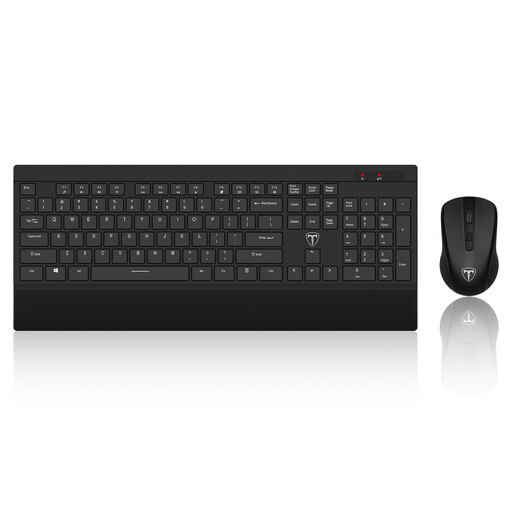
ET Silent Wireless Keyboard and Mouse Set, 2.4GHz, US Layout
This set provides separate typing and pointing devices when you want to position a laptop screen independently of its built-in controls.
It uses a wireless receiver and has a US keyboard layout. Check that your laptop has an available compatible USB port and that the key layout suits you.
Joybuy
 No image available
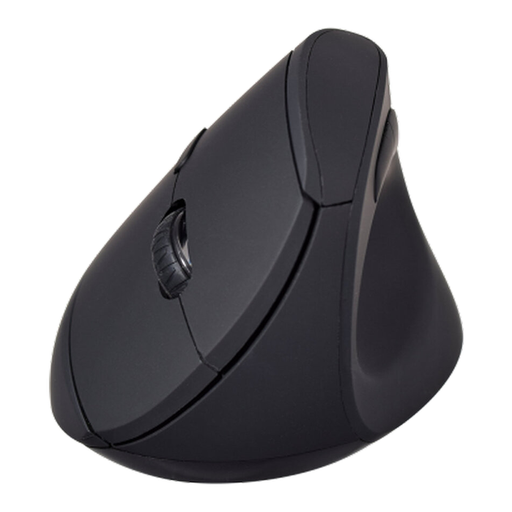
V7 MW500BT Bluetooth Vertical Mouse, 2.4GHz Dual-Mode, Six Buttons
Consider this separate pointing device if you prefer a vertical mouse shape for laptop desk work.
The title specifies Bluetooth and 2.4GHz modes, six buttons and an adjustable sensor up to 1600 DPI. Check which connection method your laptop can use; a mouse alone does not provide a separate keyboard or raise the screen.
Joybuy
Questions about laptop desk accessories
Should I use a separate keyboard and mouse with a laptop riser?
Yes, for prolonged laptop work with the screen raised, the Health and Safety Executive advises separating the keyboard and mouse from the laptop. Make sure your desk has room for both before choosing a riser.
Will any USB-C hub run two independent external monitors?
No: the result depends on the hub, laptop and operating system. For example, Anker says its A210B hub can show different content on each external monitor in Windows Extended Mode but mirrors the same content across them on macOS; check the exact product’s host-port and display requirements.
How can I check whether my Windows laptop supports another monitor?
Check the laptop or graphics-adapter manufacturer’s supported display count and video outputs. Microsoft notes that an adapter may support one external monitor but not additional monitors, while an HDMI splitter duplicates a signal rather than creating independent extended screens.
How can I check which monitors my Mac supports?
Look up Display Support or Video Support for your exact Mac model, then match its ports and a suitable cable or adapter to the display. Apple says the number and type of supported external displays depend on the Mac model and its ports.


