Buying priorities
Choose the accessory route around the way you work, then confirm that your laptop, desk connections and employer arrangements support it.
| Priority |
What to check |
Your needs |
| Screen and input position |
Check whether the laptop screen can be raised. If it is raised, consider a separate keyboard and mouse. Decide whether a stand is enough or whether an independent external display is needed. |
I want the screen, keyboard and mouse to work together for sustained laptop tasks, rather than treating the laptop as a fixed desktop screen. |
| External display support |
Confirm the exact laptop model’s display count, resolution and refresh-rate limits. Check the video port, cable or adapter path. A splitter duplicates one signal rather than creating two independent extended displays, according to Microsoft Support. |
I need enough workspace for regular multi-window tasks without buying a monitor setup that my laptop cannot drive. |
| Dock and charging compatibility |
Match USB-C, Thunderbolt or DisplayPort Alt Mode capability to the dock. Compare Power Delivery with the laptop’s charging requirement. Count the USB, Ethernet, audio and display connections needed at the desk. |
I want one desk connection for my monitor and peripherals while keeping the laptop charged, without losing an essential port. |
| Call equipment |
Check the available USB or Bluetooth connection. Confirm the meeting platform and any employer IT requirements. Consider camera placement when the laptop is raised or used beside an external monitor. |
I need a webcam or headset only if the built-in camera, microphone, speakers or privacy arrangement do not suit my regular calls. |
Joybuy product options
These Joybuy options cover separate input devices, external-display connections and docking routes for a home or hybrid laptop desk.
 No image available
HP 680 CFT Dual-Mode Keyboard/Mouse Combo
A separate keyboard and mouse route for a raised-laptop or external-display setup, with stated Bluetooth or USB-receiver connections for up to three devices.
Stated features include quiet keys, a built-in wrist rest, negative tilt, programmable controls and an ergonomic mouse. Check whether Bluetooth is permitted at work or whether a USB-A receiver port is available; confirm the keyboard layout before purchase.
Joybuy
 No image available
V7 V7UC-U3CRJ45HDVG-BLK USB-C Adapter
A compact route for connecting one external display and wired desk peripherals through an Alt Mode-capable USB-C laptop.
The listing states HDMI or VGA output, Gigabit Ethernet, dual USB 3.0 ports and 100W Power Delivery pass-through, with single-display SST operation. Confirm USB-C DisplayPort Alt Mode support, charging requirements and whether a suitable charger is included.
Joybuy
 No image available
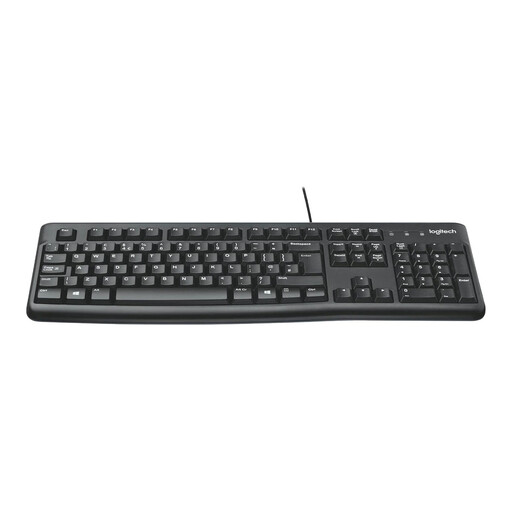
Logitech MK120 Wired Keyboard and Mouse Combo
A separate-input option for a stable Windows desk where the laptop screen is raised and two wired USB connections are practical.
The listing specifies a full-size UK English QWERTY keyboard, adjustable tilt, spill resistance and an ambidextrous optical mouse. Its stated compatibility is Windows 7, 8, 10 or newer; route the two cables so they do not obstruct the desk.
Joybuy
 No image available
CRUA 32-Inch Curved QHD Monitor
An external-monitor route for a fixed home desk that needs more room for regular multi-window work.
The listing states a 32-inch 2560×1440 display, dual HDMI and dual DisplayPort inputs, VESA 100×100 mounting and tilt adjustment. Allow for desk or VESA-mount space and mains power, and confirm the laptop’s output capability and cable path for the intended resolution and refresh rate.
Joybuy
 No image available
Targus USB-C Universal Dual HDMI 4K Docking Station
A dock route for repeatedly connecting monitors, input devices and a wired network connection at one desk.
The listing states two HDMI 2.0 ports, USB-A ports, Gigabit Ethernet, SD and microSD readers, plus up to 100W Power Delivery pass-through. Confirm the laptop’s USB-C video support, operating-system display limits, intended monitor modes and the required external power adapter.
Joybuy
Frequently asked questions
Does an employee who works regularly from home have to buy their own monitor, dock or keyboard?
Not automatically. The Health and Safety Executive says that, where display screen equipment requirements apply, an individual assessment helps the employer decide what is needed for the worker’s circumstances. Check the employer’s equipment process before buying accessories for work use.
When can Great Britain display screen equipment requirements apply to home workers?
The Health and Safety Executive states that the regulations can apply to people working at home permanently or long term, or routinely splitting time between home and the workplace. It identifies display screen equipment users as workers who use it daily for continuous periods of an hour or more, while occasional or short-period home use is treated differently.
Can any USB-C dock add two extended monitors?
No. A USB-C connector alone does not establish dual-monitor capability. Check the laptop model, display-output support, dock host requirements, operating system and cable or adapter specification; Microsoft Support notes that a splitter duplicates one signal, while Apple says supported display count varies by Mac model.
Should a laptop stand be used without an external keyboard and mouse?
For prolonged laptop use, the Health and Safety Executive identifies separate keyboard and mouse use so the screen can be elevated on a laptop riser or similar support. A stand can be useful, but screen height, keyboard position and pointing-device use should be considered together.
What should be checked before buying a webcam or headset for work calls?
Check the work laptop’s available USB or Bluetooth connection, the meeting software used, employer IT or security requirements, and whether approved equipment is already supplied. Also consider camera placement if the laptop will be raised or used beside an external display.


