For regular laptop work, start with the problem you need to solve rather than buying a full set of accessories: the Health and Safety Executive advises using a separate keyboard and mouse when raising the laptop screen for prolonged use. Add a monitor if display space is the main constraint, or consider a dock if several connections need to work together—but check the laptop’s capabilities first. In Great Britain, if a workstation assessment identifies DSE equipment that is needed, the Health and Safety Executive says the employee cannot be charged for it, so check your employer’s arrangements before buying it yourself.
Who needs which setup?
Workers using a laptop for long sessions
If the laptop screen sits too low or its built-in keyboard and trackpad dictate the working position, consider a stand together with separate input devices. The Health and Safety Executive describes this arrangement for prolonged laptop use.
Workers short of display space
If one laptop screen limits the work you need to view, a separate monitor may address that need. Check the laptop’s video output and the monitor connection before choosing one.
Workers connecting several desk devices
If you regularly connect displays, USB devices, charging or Ethernet at a home desk, a dock may simplify the setup. Its suitability depends on the exact laptop, required connections and dock model.
What should you check first?
For regular home or hybrid laptop work, identify your primary need before choosing accessories; a stand, monitor and dock solve different parts of the workstation setup.
| Concern |
What to check |
Who this matters to |
| Screen position and separate input |
Check that a stand holds the laptop securely at a useful height and that a separate keyboard and mouse can connect. |
If I raise my laptop for long work sessions, I still need a practical place to type and use a mouse. Around 45% of consumers put screen position and separate input first. |
| Display space |
Match the laptop’s video output to the monitor input, including any cable or adapter needed. |
When one laptop screen limits what I can keep in view, a separate display is my main priority. Roughly 33% of consumers put display space first. |
| Desk connections |
Check the exact laptop’s display and charging support against the dock’s host requirements and required ports. |
Repeatedly connecting displays and peripherals makes a consolidated desk connection more useful to me. Around 22% of consumers prioritise those connections. |
Buying pitfalls
-
Assuming a USB-C-shaped port can run any dock
Display output, charging and operating-system support vary by laptop and dock. Kensington also states that USB-A laptops using its SD4781P need a separate power source.
Check the laptop’s exact model and supported functions, then compare them with the dock’s host requirements, display capabilities and power arrangement.
A separate power source may be needed for the intended setup.
-
Raising the laptop but keeping its built-in controls
An elevated screen can leave the built-in keyboard and trackpad impractical to use. The Health and Safety Executive pairs a raised laptop screen with a separate keyboard and mouse for prolonged use.
Plan the stand and input devices as one setup, checking their connections and where each will sit on the desk.
-
Buying work equipment before checking employer arrangements
In Great Britain, the Health and Safety Executive says an employee cannot be charged for DSE equipment identified as needed by a workstation assessment. That does not mean every accessory a worker chooses is covered.
If you are an employee addressing a work-related workstation need, check your employer’s DSE process and any assessment findings before buying.
-
Expecting a monitor to solve every workstation issue
A separate display addresses a display need; it does not by itself replace separate input devices or provide a dock’s connections.
Decide whether screen space, laptop positioning or several connected devices are the main constraint, then choose the accessories that address it.
Brands to consider
Logitech
A reference point for separate keyboards and mice, including models intended for use with multiple compatible devices.
- Logitech says its MX Keys S keyboard can switch among up to three devices.
- Check the exact model’s layout and connection requirements; a keyboard and mouse do not add display or dock ports.
Kensington
Relevant when considering a dock for displays, USB devices and laptop charging.
- Kensington lists support for up to two external 4K displays at 60Hz on its SD4781P dock.
- The SD4781P’s suitability depends on the host laptop; Kensington says USB-A use needs a separate power source.
Dell
Relevant for comparing Thunderbolt docks with model-specific display, data and charging capabilities.
- Dell’s dock listings specify connection and power capabilities by model.
- Dell lists different charging values for Dell and non-Dell systems on one dock, so check the exact laptop and dock rather than relying on the brand name.
Joybuy product choices
These monitors, input-device sets and dock correspond to different home-desk needs. Choose the type of accessory first, then check the selected model against your laptop and intended setup.
 No image available
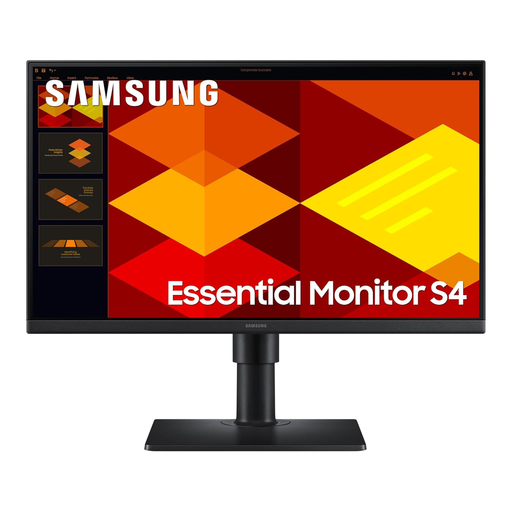
Samsung S40GD LS22D400GAUXXU 22-inch Full HD monitor
Consider this separate display if screen space is your main need. Check your laptop’s supported video output and the connection required.
View on Joybuy
 No image available
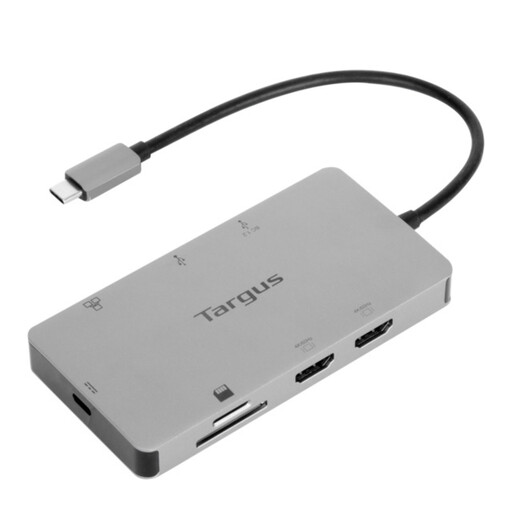
Targus USB-C Universal Dual HDMI 4K dock with 100W Power Delivery Pass-Thru (Retail Packaging)
Consider a dock if you need to connect several desk devices through the laptop. Confirm the laptop’s required display support and whether the external power adapter needed for your setup is included.
View on Joybuy
 No image available
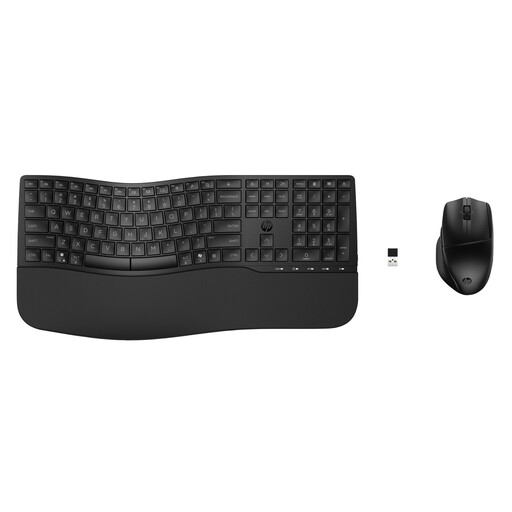
HP 680 CFT Dual-Mode keyboard and mouse combo
This separate keyboard-and-mouse set is relevant if you plan to raise the laptop screen. Check the keyboard layout and the connection method you need for your devices.
View on Joybuy
 No image available
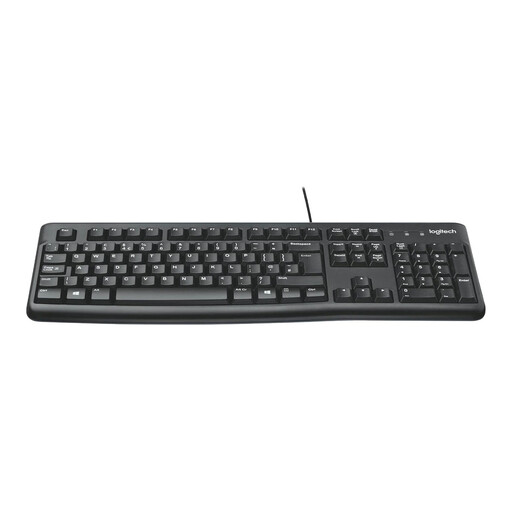
Logitech MK120 wired keyboard and mouse combo, black
A wired separate-input option for a laptop desk setup. Check that your laptop has suitable connections and that the keyboard layout meets your needs.
View on Joybuy
 No image available
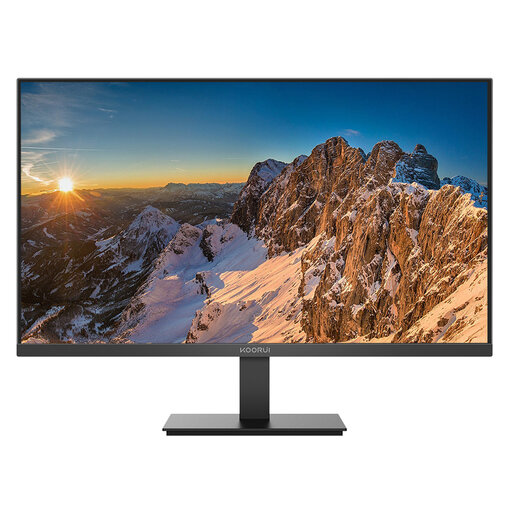
KOORUI E2412F 24-inch FHD monitor
Consider this separate screen when display space is the main constraint. Confirm your laptop’s video output and the connection needed; check the available adjustments if screen positioning matters to you.
View on Joybuy
Common questions
Do I need a monitor, stand, keyboard, mouse and dock for home work?
No; choose accessories for the limitation in your own workstation. The Health and Safety Executive identifies separate input devices and an elevated laptop screen for prolonged use, while a separate display is another option—not a reason to buy every accessory.
Should I ask my employer before buying work accessories?
Yes, if the purchase is intended to address a work-related DSE need, check the assessment and equipment arrangements first. In Great Britain, the Health and Safety Executive says an employee cannot be charged for DSE equipment identified as needed by a workstation assessment; this does not establish that every personal accessory purchase will be reimbursed.
When is a dock more useful than a monitor connection?
A dock is worth considering when you need several supported functions through one laptop connection, such as displays, USB devices and charging. If you only need a separate screen, check whether the laptop can connect to the monitor directly before adding a dock.
Does the same DSE guidance apply across the UK?
Use the guidance for the worker’s location. The Health and Safety Executive covers Great Britain and says DSE rules can apply to long-term home workers; the Health and Safety Executive for Northern Ireland says its separate DSE regulations can also apply to permanent, long-term and hybrid home workers.


