What to prioritise when choosing laptop accessories
For UK workers who use display screen equipment (DSE) daily as part of their normal work, continuously for an hour or more, the Health and Safety Executive says employers must assess the workstation. Use that assessment alongside these practical accessory checks.
| Concern |
What to check when buying |
Who this matters to |
| Screen position and workspace |
Stand adjustment and desk footprint; laptop video output and supported display count. |
If I need room to view documents beside other material, I would prioritise a separately positioned display that fits my desk. Consumers who put screen workspace first make up around 33%. |
| Separate screen and inputs |
Space for a separate keyboard and mouse; riser adjustment and fit for your laptop. |
If I want to raise my laptop screen, I also need to position the keyboard and mouse separately. Consumers who prioritise independent screen and input positioning make up around 27%. |
| Connections and charging |
Your laptop’s video and power support, matched to the display and charging requirements. |
If I reconnect a monitor and desk peripherals, I want the hub’s connections to match my exact laptop. Consumers who put connection compatibility first make up around 20%. |
| Call equipment |
What your current camera and audio setup provides; device connections and any required software. |
If calls are part of my home-working day, I would add a separate camera or audio device only when my current setup leaves a specific need unmet. Consumers who prioritise call equipment make up around 13%. |
| Task visibility and reflections |
Existing room light and whether a proposed lamp could reflect on your screen. |
If lighting is an issue at my desk, I would check the room light and screen reflections before adding a task lamp. Consumers who put task visibility first make up around 7%. |
Joybuy product choices
These Joybuy choices cover laptop connections, separate displays, call equipment, mouse input and laptop-screen positioning for a home-working desk. Choose by the need your current setup leaves unmet.
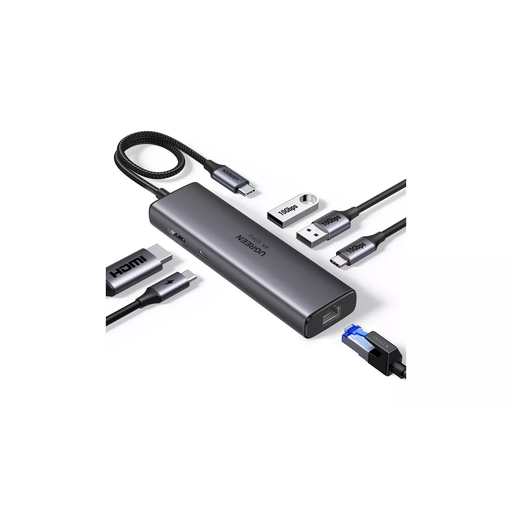 Image unavailable
UGREEN USB-C Multi-function Docking Station
Consider this dock when your desk setup needs additional display and peripheral connections.
The product name lists HDMI, 2× USB-A 3.2, 1× USB-C 3.2, RJ45 and PD, with HDMI up to 4K/60. Check your laptop’s video support and the power requirements of the complete setup; a USB-C connector alone does not confirm display compatibility.
Joybuy
 Image unavailable
MSI MD272UPSW 27-inch 4K UHD Smart Monitor
Consider a separate monitor if your work setup calls for a display positioned independently of the laptop screen.
The product name specifies 27-inch 4K UHD and USB-C 65W power delivery. Check your laptop’s USB-C video support and whether the stated power delivery suits your setup.
Joybuy
 Image unavailable
Targus 2K Webcam with Auto Focus
Consider a separate webcam if your existing camera does not meet a specific need in your home-working setup.
The product name specifies 2K resolution and autofocus. Check that the connection suits your computer and work requirements.
Joybuy
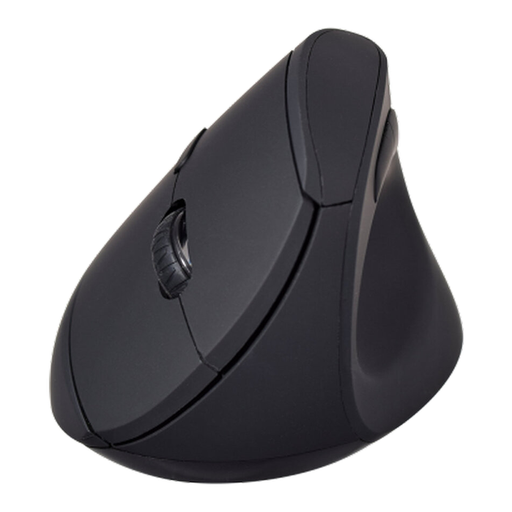 Image unavailable
V7 MW500BT Bluetooth Vertical Mouse
Consider a separate mouse if it suits the way you want to arrange laptop inputs at your desk.
The product name specifies Bluetooth and 2.4 GHz dual-mode connectivity, six buttons and an adjustable 1600 DPI sensor. Check which connection works with your computer.
Joybuy
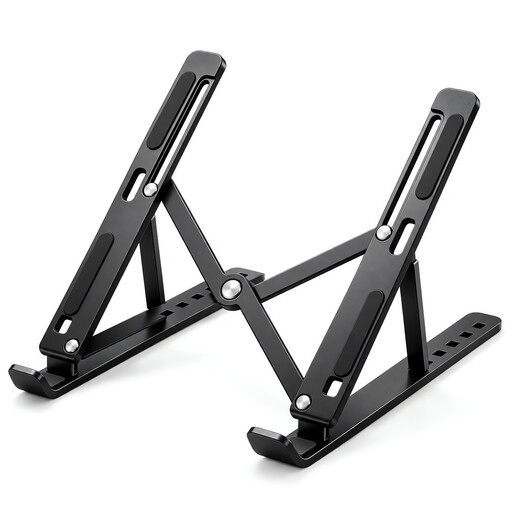 Image unavailable
Foldable Adjustable Laptop Stand, 10–17-inch Fit
Consider a riser if you will keep using the laptop screen and need to position it higher. For prolonged laptop use, Health and Safety Executive guidance pairs a raised screen with a separate keyboard and mouse.
The product name specifies seven height levels, 15–45-degree adjustment and a stated fit for 10–17-inch laptops. Check your laptop against that range; the stand alone does not separate its built-in keyboard from the raised screen. Where UK DSE duties apply, buying a riser does not replace the employer’s workstation assessment and responsibility to reduce risks.
Joybuy
Frequently asked questions
Does buying a riser or monitor replace a workplace DSE assessment?
No. For workers covered by UK DSE duties, the Health and Safety Executive says employers must assess the workstation when employees use DSE daily as part of their normal work, continuously for an hour or more. Buying an accessory does not replace an assessment of the workstation and the work being done.
Do I have to pay personally for equipment identified as necessary by an assessment?
Where a DSE workstation assessment indicates that action is needed, such as providing equipment, the Health and Safety Executive says workers cannot be charged for it. For other purchases, ask your employer who provides or pays for equipment, repairs and support; Acas advises agreeing these arrangements.
Can I raise my laptop and keep using its built-in keyboard?
For prolonged laptop use, the Health and Safety Executive describes separating the keyboard and mouse so the screen can be raised on a riser, or using a separate display. Check that your chosen arrangement also leaves the input devices usable at your desk.
Will a USB-C hub necessarily run my monitor and charge my laptop?
Not necessarily: the connector alone does not confirm that your laptop supports the hub’s video and power functions. Apple Support says a Mac’s ports determine what displays it can connect; check your exact laptop, hub, cable, charger and display requirements together.
Can a task lamp or an eye-comfort monitor replace adjusting the workstation?
Do not treat a lamp or a manufacturer’s monitor feature as a substitute for arranging the workstation. The Health and Safety Executive advises adjusting screens and lighting to avoid reflections and glare, so assess the conditions at your desk before adding a light.


