What matters when choosing
Identify the part of your laptop setup that limits your work, then check the space and connections needed for the accessory that addresses it. The Health and Safety Executive advises assessing the whole workstation rather than assuming everyone needs the same equipment.
| Concern |
What to check |
Who this matters to |
| Screen position and workspace |
For a stand, allow room for separate input devices; for a monitor, check the laptop’s supported display connection and cable. |
If I spend long periods reading documents or arranging windows, I need a screen position or viewing area that works at my desk. Around 33% of consumers would put that screen need first. |
| Separate keyboard and mouse |
Check desk space, keyboard layout and whether the connection works with the laptop and any work-device policy. |
Once I raise my laptop, I still need somewhere comfortable to place my hands while working. Around 27% of consumers would make separate input devices their primary concern. |
| Dock compatibility |
Match the laptop’s port capabilities to the dock’s stated display, charging and operating-system support; check work-device approval. |
If I regularly reconnect displays and peripherals, I want fewer connections to manage without losing a function I rely on. For around 27% of consumers, connectivity would be the main priority. |
| Calls and portability |
Check camera placement, headset connection and whether Bluetooth or a USB receiver is permitted. |
When meetings dominate my working day, I need call equipment that fits both my desk and the way I move between locations. Around 13% of consumers would prioritise calls and portability. |
Joybuy products for laptop workspaces
These products cover separate displays, a dock and input devices for an existing laptop setup. Choose the route that addresses your workstation need, then check its compatibility with your laptop.
 No image available
ASUS ProArt PA278CV IPS WQHD monitor
Consider a separate monitor when laptop screen space is the main limitation during desk work.
Check the laptop’s supported video connection and the monitor’s USB-C charging capability if you intend to charge through the display.
View on Joybuy
 No image available
ASUS ZenScreen MB166CR FHD display
A separate display is worth considering if you need more viewing space when moving between work locations.
Check that your laptop supports the USB-C video connection required for your intended setup.
View on Joybuy
 No image available
Targus USB-C Universal Dual HDMI 4K Docking Station, 100W Power Delivery pass-through
Consider this dock if reconnecting displays and peripherals is the main obstacle in your desk setup.
Its title specifies dual HDMI 4K and 100W Power Delivery pass-through; confirm the required functions with your laptop and whether a suitable external adapter is included.
View on Joybuy
 No image available
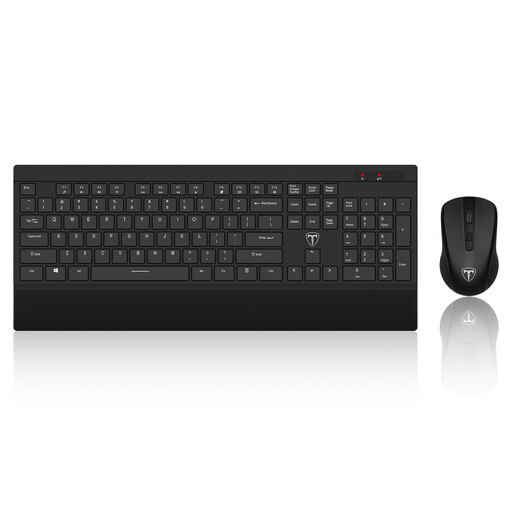
ET 2.4GHz wireless keyboard and mouse set, US layout
A separate keyboard and mouse can accompany a raised laptop for prolonged work, as described in Health and Safety Executive guidance.
Check that the US keyboard layout suits you and that your work laptop permits the wireless connection.
View on Joybuy
 No image available
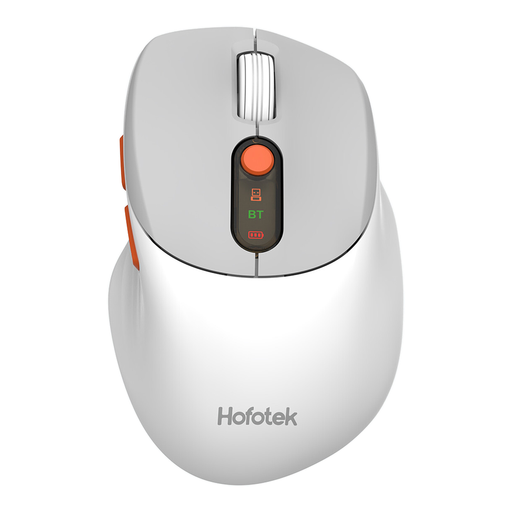
HOFOTEK M311 2.4G+BT mouse, white-grey, 1xAA battery
Consider a separate mouse if laptop pointing-device placement is your main input concern.
Check which wireless connection your laptop and employer permit. A mouse alone does not provide the separate keyboard described in Health and Safety Executive guidance for prolonged work with a raised laptop.
View on Joybuy
Common questions
When should a home or hybrid worker ask about a display screen equipment assessment?
Ask when sustained screen work makes your home setup difficult to use, rather than assuming a particular accessory is required. For Great Britain, the Health and Safety Executive says display screen equipment rules can apply to permanent, long-term and routine hybrid home workers who use it daily for continuous periods of an hour or more; where applicable, the assessment should reflect their individual working arrangements.
Does everyone working on a laptop at home need a monitor and dock?
No. The Health and Safety Executive says equipment needs should follow the individual workstation assessment. A monitor addresses viewing space, while a dock addresses connections; neither should be treated as a universal requirement.
Will any USB-C dock run two monitors and charge my work laptop?
No—those functions depend on the exact dock and laptop. Check the laptop’s video-capable port, the dock’s stated display and power support, operating-system compatibility and any employer-approved peripheral list before buying.
Does adding a monitor or laptop stand remove the need for breaks?
No. The Health and Safety Executive says employers must plan breaks or changes of activity for display screen equipment users. Hardware can improve one part of a workstation arrangement, but it does not replace those work-routine measures.


