If your laptop screen needs raising for prolonged work, consider a stand with a separate keyboard and mouse; choose a monitor or dock when screen space or connections are the actual constraint, and check compatibility first. In Great Britain, an employer’s individual display screen equipment (DSE) assessment determines what action is needed where the requirements apply, while workplace IT rules may limit which accessories can be connected.
Who this applies to
Laptop-only hybrid workers
If you use a laptop for sustained work at home, screen position and separate input devices may be more relevant than extra ports. The Health and Safety Executive (HSE) advises using a separate keyboard and mouse when a laptop screen is elevated.
Workers connecting several desk devices
If your setup involves a display, charging, USB peripherals or Ethernet, check your computer’s connection capabilities and workplace rules before choosing a hub or dock.
Frequent remote-meeting workers
If calls are the main difficulty, a webcam or headset may address a more relevant need than another screen or additional ports. Check the intended meeting platform and device policy.
What to check before buying
Start with the issue at your own workstation and any DSE assessment or employer IT requirements. Then choose between positioning, screen space, connections and call equipment rather than treating every accessory as part of one shopping list.
| Concern |
Buying checks |
Who this matters to |
| Laptop positioning |
If raising the screen, allow room for a separate keyboard and mouse; use the individual workstation assessment to identify what needs changing. |
If I work on a laptop for long stretches, I need to position the screen without moving my typing position with it. Around 29% of consumers put positioning first. |
| Display and dock compatibility |
Match the exact computer’s video and charging capabilities to the monitor or dock; check operating-system and driver requirements. |
When I connect a display and several devices, I need the intended arrangement to work with my laptop, not merely fit its socket. Roughly 29% of consumers prioritise compatibility. |
| Switching work locations |
Decide whether the accessory will stay at one desk or travel; check the connections and power equipment needed at each location. |
If I move between home and office, I want a setup I can carry or reconnect without rebuilding my desk each time. Around 18% of consumers put switching locations first. |
| Remote calls |
Identify whether camera or microphone needs are the issue; check the meeting platform and permitted connections. |
When calls take up much of my workday, I care more about the camera or audio setup than additional display connections. Roughly 12% of consumers make collaboration equipment their primary concern. |
| Workplace approval |
Check employer rules before connecting a dock, USB device or personal peripheral, or installing its software. |
If I use a managed work computer, I need to know which devices and software IT permits before choosing hardware. Around 12% of consumers put approval and security first. |
Purchasing pitfalls
-
Using a shopping list in place of a DSE assessment
For workers covered by the Great Britain DSE requirements, HSE guidance calls for an individual assessment of the workstation, work activity and worker’s requirements. A generally useful accessory may not address the issue at a particular desk.
Identify the required change through the employer’s assessment process before selecting equipment for it.
-
Assuming all USB-C connections do the same job
A matching plug shape does not establish the laptop’s supported display arrangement, charging capability or software requirements. Microsoft Support also notes that a display splitter does not create another independent extended display.
Compare the exact laptop and monitor connections with the dock’s specifications, and check whether required software can be installed.
-
Connecting an accessory that workplace IT does not permit
Personal devices and storage can raise data-separation and security concerns. The Information Commissioner’s Office advises organisations to keep device owners’ data separate from organisational data.
Check the employer’s rules for peripherals, storage, wireless connections and driver installation before connecting equipment to a work computer.
-
Buying a laptop riser as a standalone change
Raising the screen also raises the built-in keyboard and trackpad. HSE guidance identifies a separate keyboard and mouse as part of an elevated-laptop arrangement.
Consider the riser alongside input devices, available desk space and the individual workstation assessment.
Relevant brands for reference
Dell
Dell offers USB-C and Thunderbolt dock lines for laptop desk connections.
- Dell describes its docks as providing connections for displays, audio and data through one laptop connection.
- Supported displays, charging and operating systems depend on the specific dock and host computer.
Anker
Anker offers USB-C hubs and docks for expanding laptop connections.
- Its range includes models with combinations of display, USB, charging, Ethernet and audio connections.
- Port counts and supported functions vary by model; check the exact host laptop rather than relying on its USB-C connector alone.
Logitech
Logitech’s business range includes keyboards, mice, webcams and headsets for different desk and call setups.
- The product categories cover separate input devices as well as meeting peripherals.
- Check the chosen model’s platform compatibility and any employer rules on wireless devices or conferencing equipment.
Joybuy accessories by need
These products cover desk connections, a separate monitor and remote-call equipment. Choose the type that addresses your workstation’s particular need, then check it against your computer and workplace requirements.
 No image available
Targus USB-C Universal Dual HDMI 4K Docking Station, 100W Power Delivery Pass-Thru (Retail Packaging)
Consider this dock if your desk setup calls for HDMI display connections and laptop charging through a dock.
The product name specifies dual HDMI 4K and 100W Power Delivery pass-through. Check your laptop’s supported display configuration and power requirements, as well as employer approval, before choosing it.
Joybuy
 No image available
EMEET All-in-One 4K USB Webcam with Sony Sensor, 4-Mic Array, Dual AI Speakers, Fixed Focus and Adjustable 98° FOV
Consider this webcam when camera and call-audio equipment, rather than screen positioning or ports, is the priority.
Its name specifies a Sony sensor, four-microphone array, speakers, fixed focus and adjustable 98° field of view. Check its connection, meeting-platform compatibility and workplace approval.
Joybuy
 No image available
V7 V7UC-U3CRJ45HDVG-BLK USB-C Adapter with 4K HDMI, VGA, Gigabit Ethernet, 100W Power Delivery and Dual USB 3.0 Ports
Consider this adapter when you need display, wired-network and USB connections from a laptop setup.
The product name specifies HDMI, VGA, Gigabit Ethernet, dual USB 3.0 ports and 100W Power Delivery. Check the laptop’s video support, the intended display arrangement and compatible charging equipment before buying.
Joybuy
 No image available
Samsung 22-inch S40GD LS22D400GAUXXU Full HD Monitor
Consider a separate monitor if screen space is the issue identified for your home workstation.
This is a 22-inch Full HD monitor. Check that your computer has a suitable display connection and confirm which cable you need and what comes in the box.
Joybuy
 No image available
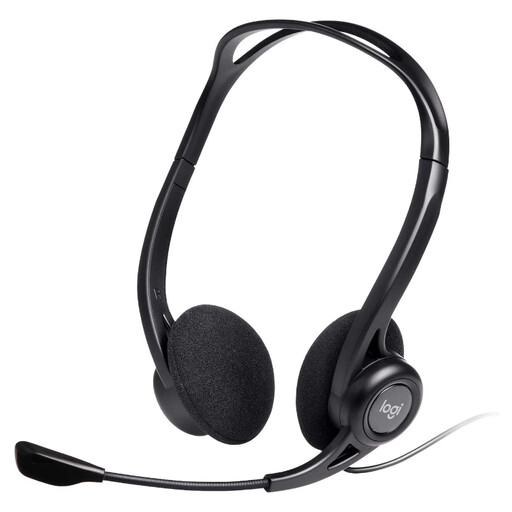
Logitech 960 Wired USB Headset with In-line Remote and Noise-Cancelling Microphone, Black
Consider this wired headset if call audio is your main accessory need.
Its name specifies a USB connection, in-line remote and noise-cancelling microphone. Confirm the USB connection type against your computer and check workplace device approval.
Joybuy
Common questions
Can an accessories guide determine what equipment a home worker needs?
No: where the Great Britain DSE requirements apply, the employer’s individual assessment determines what action is needed. HSE guidance says the assessment should consider the whole workstation, the work and the worker’s requirements, rather than treating a general product list as the answer.
When is a DSE assessment relevant to home or hybrid work?
HSE guidance for Great Britain says DSE requirements can apply to permanent home workers and people who routinely split work between home and the workplace. HSE describes DSE users as workers who use display screen equipment daily for continuous periods of an hour or more; ask your employer about the assessment process for your working arrangement.
What should I check before buying a USB-C dock?
Check the exact laptop’s display and charging capabilities, the monitor inputs, operating-system support and any required software before choosing a dock. Microsoft Support notes that the appropriate cable or adapter depends on the computer and display connections; also check whether employer IT permits the dock and any driver installation.
Can I use my own hub or peripheral with a work computer?
Check your employer’s device policy before connecting it. The Information Commissioner’s Office highlights the need to separate personal and organisational data, while rules for USB devices, storage and software installation depend on the workplace setup.


