Choose the accessory that addresses your main recurring problem: a monitor for limited screen space, a compatible hub or dock for repeated reconnection, or a stand and separate input devices for screen and typing position. Add call equipment when your meetings reveal a specific need. Before buying a display or dock, check the laptop’s supported displays, connection capabilities and charging requirements; the Health and Safety Executive also advises considering the whole workstation for regular home or hybrid display-screen work.
Who this setup is for
Document workers short of screen space
If documents, spreadsheets and meeting material compete for room on a laptop display, an external monitor may be the first accessory to consider. Apple Support notes that a Mac’s external-display capacity depends on its model and the selected resolution and refresh rate.
Hybrid workers reconnecting a desk
If moving between workplaces means repeatedly connecting a display and peripherals, a hub or dock may simplify the routine. Check the work laptop’s port capabilities before choosing one; Microsoft Support notes that USB4 dock functionality depends on host support.
Laptop users adjusting screen and input position
If screen height or use of the built-in keyboard and trackpad is the main concern, a stand with separate input devices may be more relevant than extra video ports. The Health and Safety Executive advises looking at the whole workstation, including furniture and working conditions.
What to check before buying
Identify the problem that most often interrupts your work, then check the laptop and accessory together rather than judging either by its connector alone.
| Concern | What to check | Who this matters to |
|---|
| Display space |
Check the laptop’s supported external-display count and the monitor’s input and resolution requirements. |
When documents and meeting material crowd my laptop screen, I need more visible workspace. About 33% of consumers would put display expansion first. |
| Reconnection |
Match the hub or dock’s video, USB and charging functions to the laptop’s actual port capabilities. |
If I reconnect a display and peripherals whenever I return to my desk, fewer separate connections matter most; about 27% of consumers would prioritise reconnection. |
| Screen and input position |
Check stand fit and desk space for a separate keyboard and mouse; choose a suitable keyboard layout. |
I want to position my screen independently of where I type and use a mouse. For about 20% of consumers, that positioning and input need would come first. |
| Calls or a clearable desk |
Identify the particular call-equipment issue, or check whether compact accessories provide the connections you need. |
When meetings expose a call-equipment problem, or I need to clear the desk between workdays, I want an accessory that addresses that interruption. About 20% of consumers would put calls or easy pack-away first. |
Common buying mistakes
-
Assuming every USB-C port supports a full dock setup
A matching connector does not establish video output, USB4 or Thunderbolt functionality, or laptop charging. Microsoft Support and Anker’s product guidance describe functions that depend on the host connection.
Check the exact laptop model and port against the dock or monitor requirements, including the intended display mode and charging support.
-
Expecting two HDMI sockets to provide two independent Mac screens
Apple Support says external-display support varies by Mac model and display settings. The Anker Nano hub described in its UK product information also has different dual-display behaviour on Windows and macOS.
Check both the Mac’s supported external-display configuration and the hub’s stated macOS mode before choosing a dual-display setup.
-
Treating one accessory as the whole workstation fix
A monitor or keyboard does not by itself address furniture, working conditions or individual requirements. The Health and Safety Executive advises considering the whole workstation for relevant display-screen work.
Identify the specific difficulty first. For recurring employer-based work, use the employer’s display-screen-equipment assessment process alongside accessory selection.
-
Choosing dock capacity you will not use
Extra ports and networking functions are useful only when the laptop supports them and the devices you regularly connect need them. CalDigit states that its TS4 has reduced functionality with USB-C-based hosts.
List the connections used at each desk session, then decide whether a compact hub, a hub monitor or a desktop dock fits that routine.
Brands to consider for specific accessories
Dell
Relevant when an external display is the main upgrade and a USB-C hub monitor could also provide desk connections.
- Dell UK lists the P2425HE as a Full HD USB-C hub monitor with up to 90W power delivery.
- Check the laptop’s display output and charging requirements, as well as the space available for a monitor.
Anker
Relevant to buyers considering a compact USB-C hub for connecting desk peripherals.
- Anker UK specifies full-function USB-C, USB4 or Thunderbolt host connections for its Nano 8-in-1 hub.
- Check its display mode for your operating system and whether the laptop supports the required video and charging functions.
CalDigit
Relevant to a more permanent desk where several peripherals connect through a desktop dock.
- CalDigit positions the TS4 as a Thunderbolt dock for a multi-peripheral setup.
- CalDigit says USB-C-based computers and tablets have reduced TS4 functionality; check the exact host and display configuration.
Logitech
Relevant when a separate keyboard and switching between devices matter more than adding display ports.
- Logitech UK lists switching across up to three devices for the MX Keys S.
- Check the keyboard layout, desk space and whether the intended connection method is permitted on a managed laptop.
Joybuy accessory selections
These keyboards, mice and headset relate to separate input devices and call audio for a laptop desk. Choose a monitor, hub or dock separately if screen space or repeated reconnection is your main concern.
 Image unavailable
HP 680 CFT Dual-Mode Keyboard/Mouse Combo
For a desk where separate typing and pointing devices are the priority. Check which wireless connection your work laptop permits before choosing this combo.
 Image unavailable
Philips 3000 Series SPT6318B/05 Keyboard and Mouse, UK English
A wireless keyboard-and-mouse option when a UK English layout matters. Confirm that its connection method works with your laptop and any workplace device restrictions.
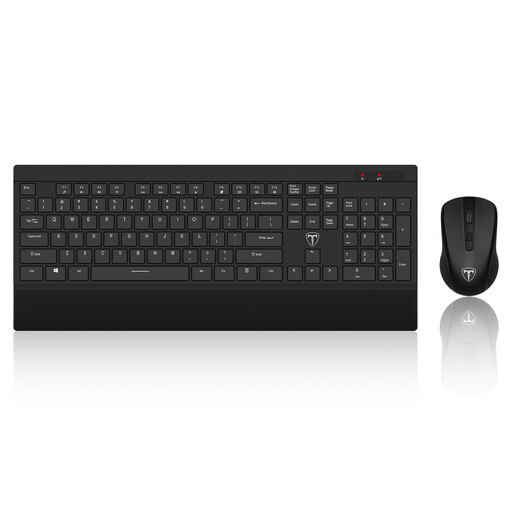 Image unavailable
ET Silent 2.4GHz Keyboard and Mouse, US Layout
For separate typing and pointing at a laptop desk. Its stated US layout may not suit someone accustomed to UK key positions; also check how it connects to the work laptop.
 Image unavailable
Lofree OE907 65% Mechanical Keyboard, 68-Key US Layout
A compact external keyboard option for a desk with limited space. Check that its 68-key US layout covers the keys you use for work, and confirm the contents of the listing if you also need a mouse.
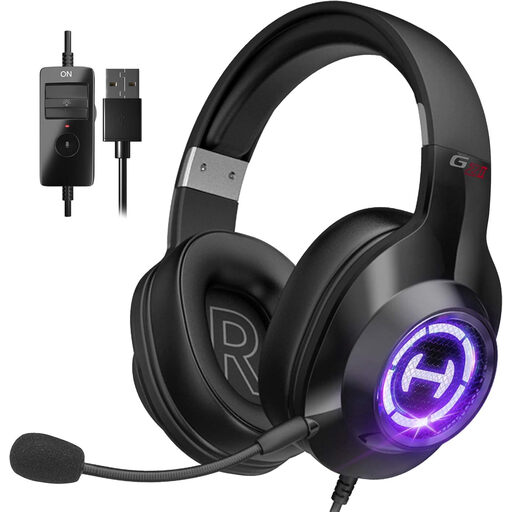 Image unavailable
Edifier G2II USB Wired Gaming Headset
Consider this headset if a wired headset and microphone address a specific call-audio need. Check its connection and compatibility with the laptop and conferencing software before buying; its gaming designation does not establish call performance.
Frequently asked questions
Does display-screen-equipment guidance cover hybrid work?
It can. The Health and Safety Executive says the Display Screen Equipment Regulations can apply to workers who routinely split their time between home and a workplace, and that assessments should cover both situations where applicable. This does not mean every worker needs the same accessories.
Can my employer charge me for equipment required by a workstation assessment?
The Health and Safety Executive says workers cannot be charged when a display-screen-equipment workstation assessment indicates that action is needed, such as providing equipment. Whether a particular accessory is required depends on that assessment and the working arrangements.
Will any USB-C dock provide two independent screens and laptop charging?
No. The laptop must support the intended display arrangement and charging through the relevant port, while the dock must support the required modes. Apple Support says Mac display limits depend on the model and display settings; check the dock’s operating-system-specific display mode as well.
Can a display splitter turn one output into two extended screens?
A splitter that duplicates one video signal does not create two independent displays, according to Microsoft Support. Check the laptop’s supported external-display configuration before choosing a dock or other connection method for extended screens.


