What to prioritise when choosing
Start with the constraint that most affects your work sessions, then check that the accessory fits both your laptop and the space you use.
| Concern |
What to check when buying |
Who this matters to |
| Positioning for prolonged laptop work |
Check stable support, laptop size, keyboard layout and room for a mouse. |
If I raise my laptop for long sessions, I need to position the screen separately from my hands. About 26% of consumers put screen and input positioning first. |
| Clearing or moving a shared workspace |
Consider how the equipment folds or packs away, and whether you have space to store it. |
When the table has to return to other household use, I need equipment I can move or put away. Consumers whose main concern is clearing the workspace account for about 26%. |
| More usable viewing space |
Choose fixed or portable according to whether the screen can stay set up; check the surface, video input and power arrangement. |
If I need documents visible beside my work, I want a second screen that suits where I work. About 21% of consumers prioritise additional viewing space. |
| Connections and charging compatibility |
Check the laptop port’s video support, the screen output you need, charging requirements and the hub’s capabilities. |
If I regularly reconnect peripherals, I need a hub that works with my laptop’s exact ports and power needs. Consumers who prioritise connection management make up about 16%. |
| Calls from the home workstation |
Check whether the laptop’s existing camera and audio meet your needs, then confirm the accessory’s connection. |
When calls are part of my work and the laptop’s existing audio or camera is not suitable, I may need a separate call accessory. About 11% of consumers put call equipment first. |
Relevant brands to consider
These examples relate to particular product lines and models; their features should not be assumed to apply to every product from the same brand.
Kensington
A laptop stand option if you want to keep using the laptop screen and put the riser away after work.
- Kensington specifies that the SmartFit Easy Riser Go K50420EU folds and supports laptops up to 17 inches.
- A stand does not provide separate input devices. HSE guidance recommends a separate keyboard and mouse when a laptop is raised for prolonged use.
Logitech
The Pebble 2 Combo is an example of a separate keyboard and mouse set for a changing work surface.
- Logitech says this combo can switch between three devices.
- Check the chosen variant’s keyboard layout and connection method against your laptop and workspace.
Lenovo
The ThinkVision M14d is a portable-display example for a second screen that needs to move or be stored.
- Lenovo specifies a 14-inch, 2240 × 1400 display, a weight of 600 g and a USB-C DisplayPort Alt Mode connection for the M14d.
- Its stated 65 W power pass-through does not establish that it will charge every laptop; check your laptop’s requirements.
Dell
The P2426HE is an example of a conventional height-adjustable USB-C hub monitor for a surface where a screen can stay set up.
- Dell specifies a 23.8-inch display and USB-C power delivery of up to 100 W for this model.
- The stated features depend on compatible host connections, and a fixed monitor requires a suitable place to remain set up.
Belkin
The AVC008 USB-C multiport adapter illustrates a compact connection-expansion option.
- Belkin lists HDMI, USB-A, Ethernet, SD and a USB-C power-delivery port for this variant.
- Belkin specifies HDMI up to 4K at 30 Hz for the AVC008 and advises checking the device’s display support. Pass-through charging alone does not confirm laptop compatibility.
Joybuy products for compact laptop workstations
These products cover separate input devices, laptop stands, portable displays, connection expansion and call equipment for compact laptop workstations.
 No image available
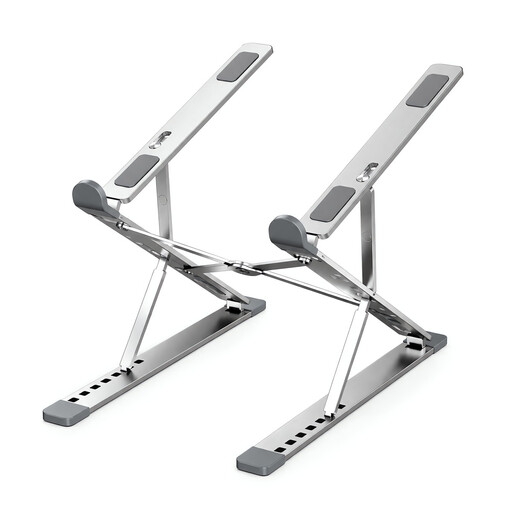
Foldable Aluminium Laptop Stand, 10–17.3-inch
Consider a riser if you need to raise your laptop screen on a temporary work surface; for prolonged use, HSE recommends separate keyboard and mouse.
The product name specifies an adjustable-height, foldable stand for 10–17.3-inch laptops.
Shop on Joybuy
 No image available
HP 680 CFT Dual-Mode Keyboard and Mouse Combo
A separate keyboard and mouse can help you position your inputs independently from a raised laptop screen.
Check the keyboard layout and connection method you need before choosing a set.
Shop on Joybuy
 No image available
ASUS ZenScreen MB166CR FHD
Consider a portable second screen if you need additional viewing space that can move between work locations.
Check the laptop’s video output and the display’s connection requirements before choosing a cable or power arrangement.
Shop on Joybuy
 No image available
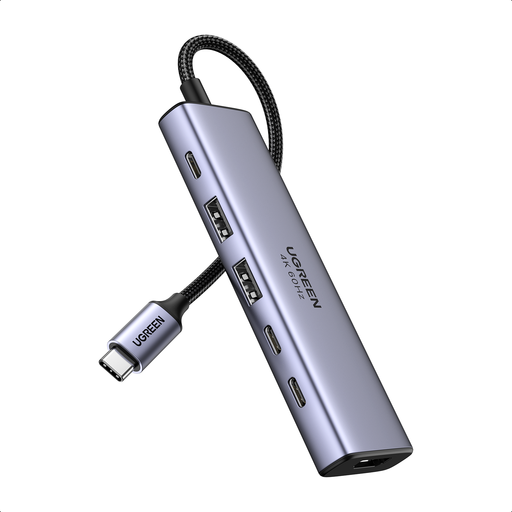
Ugreen 6-in-1 USB-C Multifunctional Adapter
A multiport adapter may suit you if connecting a display and peripherals is the main issue; confirm that the laptop supports the display output you need.
The product name lists HDMI, two USB-A 3.2 ports, two USB-C 3.2 ports and a PD port.
Shop on Joybuy
 No image available
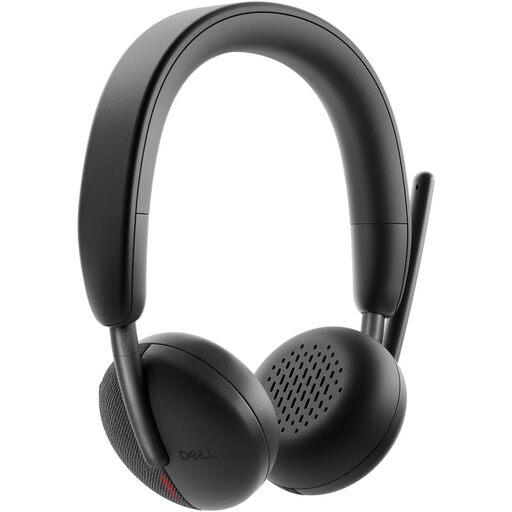
Dell Pro Headset WL3024
Consider a headset if calls are part of your home workstation and your current audio setup does not meet your needs.
Check that the headset’s connection suits your laptop and that you have a place to store it between calls.
Shop on Joybuy
Frequently asked questions
Does every USB-C laptop port work with a USB-C monitor or HDMI hub?
No. Check the exact laptop model and port for video support such as DisplayPort Alt Mode, then compare the display or hub’s input requirements. Check charging support and required power separately; a matching connector alone does not settle either question.
Can a laptop stand alone make prolonged laptop work suitably arranged?
Not by itself if you need to raise the screen while keeping the keyboard and mouse at a separate position. The Health and Safety Executive’s laptop guidance recommends a separate keyboard and mouse, or a display separate from the laptop, for this arrangement.
Who deals with display-screen risks if I am an employee working at home?
The Health and Safety Executive says the Display Screen Equipment Regulations can apply to permanent or long-term home workers and to people who routinely split their time between home and a workplace. Its definition of a DSE user includes daily work for continuous periods of an hour or more; where the regulations apply, the employer should carry out an individual assessment. This does not mean every personal buyer must purchase particular accessories.
Should I pay for work accessories myself?
Check your work arrangement before buying, as you should not assume that every accessory will be reimbursed or that you must pay personally. Acas advises discussing who will pay for home-working equipment and other extra costs with the employer.
What if an accessory bought online arrives faulty or does not match its description?
UK government guidance says a faulty or misdescribed item can qualify for a refund. It also describes a separate cancellation right for qualifying distance purchases: notify the seller within 14 days of receiving the item, with a further 14 days to return it. Check which right applies to your circumstances rather than treating a manufacturer warranty as your only remedy.


