Choose accessories for the part of your regular laptop setup that is causing trouble, rather than replacing a working laptop by default. A fixed desk may call for separate screen and input devices, while meeting audio or video, repeated cable connections and unreliable Wi-Fi call for different checks. Before buying a dock or display accessory, confirm your laptop’s ports, display and charging capabilities, and any workplace restrictions.
Who these accessories suit
Fixed-desk hybrid workers
If you spend long periods working at the same desk, screen and input-device placement may matter more than finding an accessory to carry. The Health and Safety Executive’s workstation guidance is relevant to arranging a display, keyboard and mouse for prolonged use.
Meeting-heavy laptop workers
If recurring calls are the main difficulty, identify whether camera position, being heard clearly, privacy or connection stability is the problem before choosing a device. A desk dock will not address every call issue.
One-cable desk users
If you repeatedly reconnect a display, charging and USB devices at one desk, a dock may simplify the connections. Its usefulness depends on the exact laptop port, required display arrangement and charging support.
What to check before buying
For recurring home or hybrid video-call work, identify the problem that matters most before comparing accessories: desk comfort, meeting audio and video, repeated connections or the computer’s network link.
| Concern | Buying checks | Who this matters to |
|---|
| Comfort at a fixed desk |
Check desk depth and display placement. If you raise the laptop, plan space for a separate keyboard and mouse; the Health and Safety Executive advises placing the screen top roughly at eye level and the screen about an arm’s length away. |
If I work at one desk for long stretches, looking down at a laptop and typing on its raised keyboard may make the arrangement awkward. Around 31% of consumers would put desk comfort first. |
| Meeting audio and video |
Try the existing camera and microphone in your meeting app, then check the proposed device’s connector, positioning and workplace permissions. |
When callers struggle to see or hear me, I want to address that specific part of the call rather than add more desk connections. For around 31% of consumers, meeting audio or video would be the main concern. |
| Reconnecting desk equipment |
Match the laptop’s documented video-output and charging capabilities to the dock’s display and power requirements; check operating-system support. |
If I connect a display and peripherals each time I return to my desk, repeated cable swapping is the difficulty I want to solve. Around 23% of consumers would prioritise those desk connections. |
| Call connection stability |
Where practical, try Ethernet directly to the router and check whether an adapter, cable route and free router port are needed. |
If calls falter while I am on Wi-Fi, I need to establish whether the computer-to-router link is involved before changing the camera. A more reliable call connection would come first for around 15% of consumers. |
Buying pitfalls
-
Assuming every USB-C port supports the same dock features
A connector’s shape does not establish whether the laptop supports the dock’s intended video output or charging functions.
Find the exact laptop model’s documented port capabilities, then compare them with the dock’s display, operating-system and charging requirements. Anker’s docking guidance specifically calls for these checks.
-
Changing the camera before checking the connection
A different webcam will not address call interruptions caused by the network link. Ofcom says a direct Ethernet connection can provide a faster, more reliable computer connection than Wi-Fi.
Where practical, compare a call over Wi-Fi with one connected directly to the router, and note whether interruptions coincide with other household internet activity.
-
Raising the laptop without arranging the keyboard
Moving the screen upwards also moves the built-in keyboard. That can make it difficult to position the screen and input devices separately for prolonged work.
Check that your desk has room for an external keyboard and mouse as well as the raised laptop. The Health and Safety Executive gives separate guidance on screen and keyboard positioning.
-
Assuming a personal device can be used with a work laptop
Workplace controls may restrict peripherals or the software they require, regardless of their physical connector.
Before purchasing, ask your employer or IT team about approved devices, drivers, updates and support for the equipment you intend to connect.
Relevant brands to consider
Logitech
Webcams and call accessories to consider when camera placement or meeting equipment is the main concern.
- Logitech lists webcam options at 4K, 1080p and 720p; its C920s specification states 1080p at 30fps.
- A listed resolution does not settle how a camera will work with your lighting, meeting app or managed laptop. Check the exact model’s connector and mounting arrangement.
Anker
USB-C hubs and docks for connecting desk equipment through a laptop port.
- Anker’s range includes compact hubs and docking stations for different connection needs.
- Anker advises checking host-port video output, Power Delivery and the required number of monitors; capabilities must be checked for the particular dock and laptop.
Kensington
USB-C, USB4 and Thunderbolt docking options for desks that need displays and other connections.
- Kensington lists docks with different host-connection and display arrangements.
- Compatibility varies by model. Do not apply one Kensington dock’s laptop or display specifications to another.
Joybuy product choices
These choices cover webcams for calls, a dock for a recurring desk setup, separate input devices and a USB-C adapter with Ethernet. Match the accessory to the problem you have identified, then check compatibility with your laptop and workplace.
 No image available
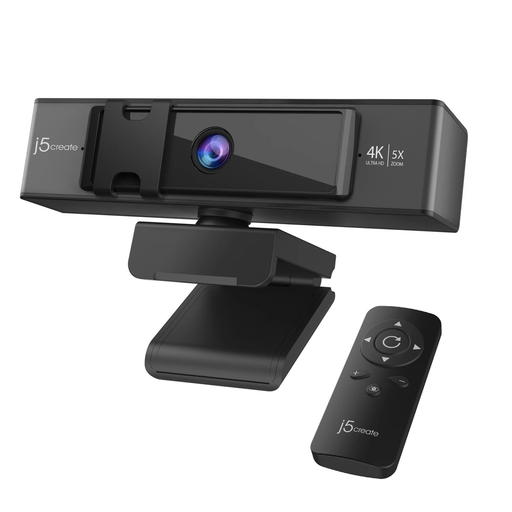
j5create JVCU435 USB 4K webcam with 5x digital zoom and remote control
Consider a separate webcam if the built-in camera’s position does not suit recurring calls. The named model offers 4K video and 5x digital zoom with remote control; check that your work laptop and meeting app permit its use.
View on Joybuy
 No image available
EMEET all-in-one 4K webcam with Sony sensor, four microphones and dual speakers
Consider this combined camera and audio device when those are the parts of your call setup you want to address. Its name specifies fixed focus and an adjustable 98° field of view; check whether that framing, its USB connection and workplace permissions suit your setup.
View on Joybuy
 No image available
Targus USB-C Universal Dual HDMI 4K dock with 100W Power Delivery pass-through
Consider a dock if you regularly reconnect displays and other desk equipment. This model is named for dual HDMI 4K connections and 100W Power Delivery pass-through; confirm the exact laptop’s video modes and charging needs, and whether the required external power adapter is included.
View on Joybuy
 No image available
HP 680 CFT Dual-Mode keyboard and mouse
A separate keyboard and mouse let you position your input devices independently when arranging a laptop at a desk. Check the keyboard layout before buying; plan a stand or display separately if you need to raise the screen.
View on Joybuy
 No image available
V7 V7UC-U3CRJ45HDVG-BLK USB-C adapter with Ethernet, HDMI and VGA
Consider an Ethernet adapter if a wired connection to the router is practical and you want to check whether Wi-Fi is affecting calls. The named adapter also has 4K HDMI, VGA, 100W Power Delivery and two USB 3.0 ports; verify the laptop’s video and charging compatibility, the intended display arrangement and whether a suitable charger is included.
View on Joybuy
Common questions
Do I need a dock for one monitor and a keyboard?
Not necessarily: if your laptop has a compatible display output and enough connections, you can connect the monitor and input devices directly. A dock becomes more relevant when you repeatedly reconnect several functions; check the laptop’s video and charging capabilities before choosing one.
How can I check whether Wi-Fi is affecting my video calls?
Where practical, compare calls over Wi-Fi with a direct Ethernet connection to the router. Ofcom says Ethernet can provide a faster, more reliable computer connection than Wi-Fi, but a wired connection alone will not resolve every broadband or household-capacity problem.
Will any USB-C dock run two external displays?
No: the USB-C connector alone does not establish the laptop’s supported display arrangement. Check the exact laptop model’s documented video modes and charging requirements against the dock’s specifications, including any operating-system conditions.
Can I connect a personal webcam or dock to my work laptop?
Check your employer’s device rules before buying one. An accessory may need approval or software permissions even if it has a connector that fits; ask the IT team about supported peripherals, drivers and updates.


