One-cable desk switchers
If you connect a display, power and peripherals at each desk, a hub or dock may reduce cable swapping. The useful connection is the one your particular laptop, cable and display arrangement can support.


Choose accessories around your laptop’s supported connections and the task that changes most between desks, rather than buying a dock for its port count alone. A hub can simplify repeated connections, a portable monitor can provide a second screen in both places, and a webcam or headset addresses a recurring call problem. Check display support and charging requirements before choosing: an accessory’s advertised features cannot override the laptop’s limits.
If you connect a display, power and peripherals at each desk, a hub or dock may reduce cable swapping. The useful connection is the one your particular laptop, cable and display arrangement can support.
If you need an extra display at both locations but cannot leave a monitor at each desk, consider a portable screen you are willing to carry. Check its connection method and your laptop’s external-display limit first.
If changing light or background noise is the recurring difficulty, camera and audio equipment may matter more than additional ports. A webcam addresses the picture and framing; a headset addresses listening and voice pickup.
Start with the exact laptop model and the feature you need to use at both locations. Then check the accessory’s connection and power requirements; a USB-C-shaped socket alone does not establish its video or dock capabilities.
| Concern | What to check | Who this matters to |
|---|---|---|
| One-cable connection | Check the laptop’s host-port features and supported external-display count, then match the dock and cable to them. | I want to connect my screen and peripherals when I reach either desk without rebuilding the setup. Around 33% of consumers put that repeatable connection first. |
| Calls across locations | Identify whether the recurring problem is camera framing, lighting, voice pickup or listening in noise; check software compatibility for the chosen device. | If colleagues struggle to see or hear me in changing rooms, I would address the call setup before adding screen space. Call clarity comes first for around 27% of consumers. |
| A second screen to carry | Check the monitor’s video connection, driver requirements, size and weight, alongside the laptop’s display limit. | I need an extra screen at both desks and can carry it between them, rather than relying on a fixed monitor in one place. Around 20% of consumers prioritise that mobile second screen. |
| Charging and cables | Compare the laptop’s charging requirement with the power delivered to it; check the charger, cable and any hub bundle. | I do not want to arrive with the wrong charger or discover that a hub needs a separate power supply. Charging and cable readiness is the primary concern for around 20% of consumers. |
A matching connector does not establish that the laptop supports the dock’s video or USB4 functions. Microsoft Support notes that unsupported hardware or cables can limit functionality, while Apple Support advises checking the specific Mac’s ports and supported number of displays.
Note the exact laptop model, port specification and intended monitor arrangement before comparing docks.
A different compatible cable, adapter or hub may be needed if the intended connection cannot provide the required function.
Anker specifies up to 100W pass-through charging for its 555 USB-C Hub but reserves 15W for the hub itself. Anker also states that a wall charger is not included with that model.
Compare the stated power delivered to the laptop with its charging requirement, and check what the particular bundle includes.
ASUS specifies one-cable USB-C power and video for the ZenScreen MB14AC, but its USB-A hybrid connection requires a DisplayLink driver. ASUS states that automatic rotation works only with Windows on that model.
Choose a connection method your laptop and operating system can use, and check whether you can install any required driver.
A webcam’s camera and framing features address a different need from a headset’s listening and microphone features. Noise-cancellation wording alone does not establish how well a headset will work in a particular room; Jabra notes that ANC experience can vary for its Evolve2 55.
Decide whether the repeated difficulty is the picture, voice pickup or noise you hear before choosing the accessory type.
These examples illustrate model-specific features and checks, not a judgement about every product from each brand.
USB-C hubs for bringing display, data connections and charging together at a desk or in a compact setup.
ZenScreen portable displays for carrying a second screen between work locations.
Portable and desk-monitor options for different screen arrangements.
External webcams for calls where camera positioning or lighting is the recurring concern.
Call-focused headsets for working across changing surroundings.
These products address different parts of a move between desks: a portable screen, desk connections, meeting equipment and laptop charging. Choose by the need you face repeatedly, then confirm compatibility with your own laptop.
 No image available
Consider this portable monitor if you need to bring a second screen to both work locations and are comfortable carrying it.
 No image available
This dock is worth checking if you want one desk connection for displays and several peripherals.
 No image available
Consider an external camera with integrated audio if your recurring meeting need is a different camera position or a single device for picture and sound.
 No image available
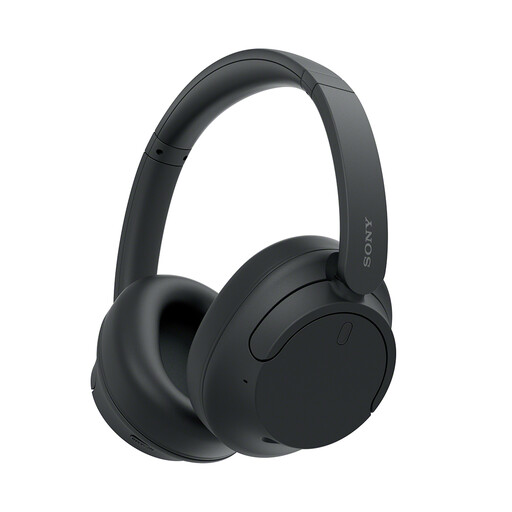
These headphones are relevant if listening and calls across changing locations matter more to you than adding display connections.
 No image available
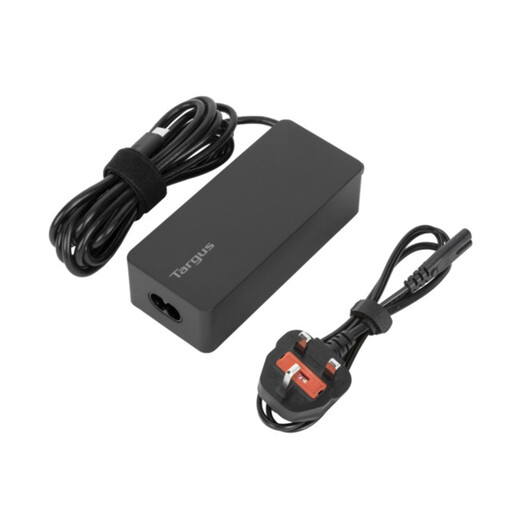
A separate charger may suit a routine in which you need charging equipment ready at both work locations, provided it matches your laptop.
Check your exact laptop model’s ports, supported external-display count, video connection and charging requirement. Microsoft Support cautions that hardware and software combinations can limit USB-C functionality, while Apple Support advises Mac users to check their model’s ports and display support.
No: the laptop must support the intended number of external displays and the connection the hub uses. Apple Support, for example, says a Mac’s supported display count depends on its technical specifications; two sockets on an accessory do not change that limit.
Yes, when both the monitor and laptop support the necessary video and power connection. ASUS specifies one-cable USB-C power and video for the ZenScreen MB14AC, but its USB-A hybrid alternative requires a DisplayLink driver and its automatic rotation works only with Windows.
Check the particular hub bundle rather than assuming a charger is included. Anker states that its 555 USB-C Hub has no included wall charger and that 15W of its up-to-100W pass-through input is reserved for hub operation; compare the resulting host power with your laptop’s requirement.