Decide whether you need two external monitors or two screens in total before choosing a laptop for your harvest records. Apple specifies support for up to two external displays on the MacBook Air M5; Lenovo documents at least two for the ThinkPad T14 Gen 6 Intel family, subject to processor configuration. Your spreadsheet software, monitor connections and plans for carrying the laptop will determine which route fits.
Who needs which setup?
Two-external-monitor record keepers
If your harvest spreadsheet needs to stay visible beside photos, notes or a planting plan on two external monitors, check the exact laptop’s external-display limit and connection requirements. Apple and Lenovo publish display-support specifications for the models discussed below.
Windows spreadsheet and device users
If your records rely on Windows applications or existing devices, check that those tools work with the laptop you choose. Microsoft Support explains how to detect and arrange connected displays in Windows after the hardware is in place.
Users moving between home and allotment
If the monitors stay at home but you take the laptop elsewhere to review notes or photos, consider its built-in screen and carrying needs separately from its external-display capability. Check the selected size and configuration rather than assuming every variant has the same ports or display.
What to check before buying
Start by defining what counts as your two screens: the laptop panel plus one monitor, two external monitors, or two displays built into the laptop. Then check the software and connections that will let you use that workspace for your records.
| Concern |
What to check when buying |
Who this matters to |
| Display support and connections |
Check the exact configuration’s external-display count and intended resolution and refresh rate, then match its ports to both monitors and any dock or adapters. |
If I want my spreadsheet and reference material on two external monitors, I need to know both will work together, not just that the laptop has USB-C. Around 46% of consumers put confirmed display support first. |
| Software and workflow |
Check your spreadsheet files, sharing tools and required peripherals against the proposed operating system. |
My existing records and devices need to keep working when I change laptops; around 36% of consumers make workflow compatibility their primary concern. |
| Use away from the desk |
Compare the selected laptop’s built-in screen, weight and charger for the places you expect to use it. |
When I take the laptop away from my home monitors, I still need to read and update my notes on its own screen. For around 18% of consumers, portable use comes first. |
Two-screen setup mistakes to avoid
-
Assuming USB-C guarantees two external monitors
A USB-C connector alone does not establish the laptop’s external-display limit or whether a particular dock will work. Apple’s display guidance and Dell’s dock guidance both make the connection method relevant to compatibility.
Check the exact laptop specification, both monitors’ inputs and the cables, adapters or compatible dock needed for your intended display modes.
A different dock, adapter or cable may be needed if your existing connections cannot provide the intended setup.
-
Relying on a laptop family name instead of its configuration
Lenovo’s ThinkPad T14 Gen 6 Intel specification distinguishes U/H-series models, which support up to three external monitors, from V-series models, which support up to two, alongside the built-in display.
Keep the selected part number to hand and check its processor family, ports and display-output specification before ordering.
-
Mirroring when you need more workspace
Mirroring repeats the desktop rather than giving your spreadsheet, photos and notes separate space.
Once the displays are connected, choose an extended desktop and arrange the screens, unless showing the same content on each is what you intend. Microsoft Support describes these Windows display controls.
Relevant brands for reference
Apple
The MacBook Air M5 is a macOS option for a laptop connected to two external monitors.
- Apple’s UK MacBook Air M5 specifications state support for up to two external displays while the built-in display remains active, with two Thunderbolt 4 ports.
- Check that your spreadsheet, peripherals and monitor cables work with the Mac and your chosen connections.
Lenovo
The ThinkPad T14 Gen 6 Intel is a configurable Windows-laptop route for a desk with external displays.
- Lenovo’s family specification documents support for two or three external monitors alongside the built-in display, depending on processor family.
- Verify the selected configuration’s processor, ports, keyboard and warranty; family specifications do not make every variant identical.
Dell
Dell is relevant if you are considering a Windows laptop with a compatible desk dock.
- Dell lists dual 4K output at 60 Hz among the video modes for its Pro Thunderbolt 4 Smart Dock.
- Check the dock against the exact laptop, monitors and cables. A USB-C-shaped laptop port does not establish that the combination supports that mode.
Joybuy laptops for this setup
These laptops represent two different ways to work with two screens: the ASUS has two built-in displays, while the MacBook Air M5 models have Apple-documented support for up to two compatible external displays. Choose according to which screens you mean and the software you use for your harvest records.
 No image available
ASUS Zenbook DUO UX8406CA-QL135W, 14-inch dual OLED, Core Ultra 7 255H, 16 GB, 1 TB SSD
Consider this configuration if two screens built into the laptop suit your record-keeping setup. Check external-display support separately if you instead need two monitors at your desk.
- Intel Core Ultra 7 255H; 16 GB LPDDR5X memory; 1 TB SSD.
- Confirm the panel resolution on the selected listing before buying.
View on Joybuy
 No image available
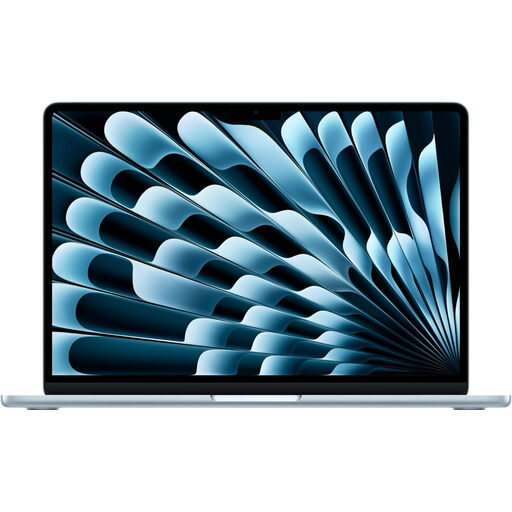
Apple 13-inch MacBook Air M5, 10-core CPU and GPU, 16 GB, 1 TB SSD, Sky Blue
Consider the 13-inch MacBook Air if your harvest-record tools work on macOS and you want two compatible external monitors while retaining the laptop display. Apple’s UK specifications document support for up to two external displays on the M5 model.
- M5 chip with 10-core CPU and 10-core GPU; 16 GB memory; 1 TB SSD.
- Check your monitors’ required modes, cables or adapters and any software or peripherals you rely on.
View on Joybuy
 No image available
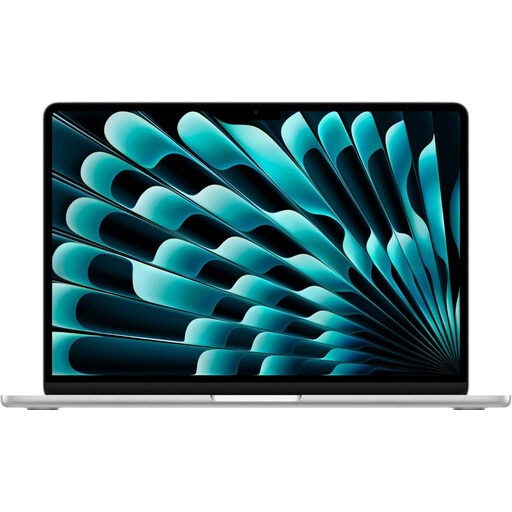
Apple 15-inch MacBook Air M5, 10-core CPU and GPU, 16 GB, 1 TB SSD, Silver
Consider the 15-inch MacBook Air if you want a larger built-in screen for records away from your desk and your tools work on macOS. Apple’s UK M5 specifications document support for up to two compatible external displays.
- M5 chip with 10-core CPU and 10-core GPU; 16 GB memory; 1 TB SSD.
- Check the selected configuration’s ports and the cables or adapters required by your monitors.
View on Joybuy
Frequently asked questions
Can any laptop with USB-C run two external monitors?
No: USB-C describes the connector, not the number of displays the laptop can drive. Check the exact model’s external-display specification, the required video mode and any dock requirements, then match the monitors and cables to that connection path.
How do I arrange two screens on a Windows laptop?
Connect the displays, then open Settings, System and Display to identify and arrange them. Microsoft Support also describes detection and window-location settings; choose an extended desktop if you want your harvest spreadsheet and reference material on separate screens.
How do I use two screens with a Mac?
Check the exact Mac’s supported display count and connect compatible displays using the required cables or adapters. Apple Support advises matching connections to the available ports; then use macOS Displays settings to arrange the screens and choose whether to extend or mirror the desktop.


