Choose a pen-compatible 2-in-1 if circling text, drawing connectors and writing in the margins are central to your work; a conventional laptop is a better fit to consider if you mainly type comments. Before buying either, check the complete pen-and-keyboard setup, your exact foreign-language input and annotation tools, and your organisation’s device rules.
Who needs which setup?
Pen-first academic or editorial annotators
If you circle passages, draw connectors or write marginal notes, a touchscreen and compatible pen matter more than they would for typed comments alone. Check whether the pen works with the exact device and annotation app you intend to use.
Multilingual keyboard annotators
If you mostly type corrections, quotations or translations, focus on your required language input method, a physical keyboard and the document software your team uses. Microsoft Support and Apple Support describe language-input controls for Windows and macOS respectively.
Shared-office document reviewers
If articles or annotations contain employer or client information, establish which devices and accounts your organisation permits before choosing hardware. The Information Commissioner’s Office advises organisations to consider access controls and separation of work and personal data when personal devices are used.
What matters when choosing?
Start with how you mark up the article: that determines whether a detachable, an attached-keyboard convertible or a conventional laptop makes sense. Then check the language, document and office requirements that could rule out an otherwise suitable device.
Pen-enabled detachable
Choose it when: Freehand marks are central and you want to switch between direct pen input and typing; Microsoft describes this workflow for Surface Pro.
Bear in mind: Confirm the compatible pen and keyboard as part of the complete setup; Microsoft lists them as optional accessories for the Surface Pro examples.
Convertible with an attached keyboard
Choose it when: You need direct screen markup alongside a permanently attached keyboard for longer typed comments. Lenovo’s examined Yoga 7 2-in-1 configuration has a 360-degree hinge and touchscreen.
Bear in mind: Lenovo lists the pen as optional for that configuration; check its dimensions if you regularly move between desks.
Conventional keyboard-first laptop
Choose it when: Highlights and typed comments dominate, or you work with a monitor at a desk. Apple lists external-display support for MacBook Air, while macOS offers input sources for other languages.
Bear in mind: Do not assume a conventional laptop supports the direct pen workflow you need; confirm your annotation and collaboration software before choosing macOS or Windows.
| Concern |
What to check |
Who this matters to |
| Handwritten markup |
Check pen compatibility for the exact model and whether your annotation app supports the marks and file output you need. |
If I regularly circle wording and draw links between passages, I need to write directly on the document. Around 33% of consumers put handwritten markup first. |
| Language and software fit |
Confirm the exact script or input method and the required annotation and collaboration applications. |
When my corrections and translations are mostly typed, reliable text entry and the office’s document workflow take priority; around 27% of consumers put this need first. |
| Office data security |
Ask whether a managed device is required and, if personal devices are permitted, which access and storage controls apply. |
If I open employer or client material, I need a device my organisation allows me to use for those files. This is the primary concern for around 20% of consumers. |
| Reading and desk space |
Compare the exact screen configuration with its ports and external-display support for your desk. |
For long articles, I want room for the source and my notes without losing the ability to move between workspaces; around 20% of consumers put reading and desk flexibility first. |
Mistakes to avoid
-
Treating a detachable tablet as a complete typing-and-inking setup
A device may support handwriting and typing while its compatible pen or keyboard is optional. Microsoft describes optional accessories for Surface Pro, and Lenovo lists an optional pen for the examined Yoga configuration.
Check the exact bundle for a compatible pen, keyboard, charger and any adapter your working setup requires.
A compatible pen and keyboard may need to be obtained separately.
-
Assuming a UK keyboard covers every foreign-language input need
A physical keyboard layout does not establish whether the required script, input method or proofing workflow will work as intended. Windows and macOS offer language-input settings, but the precise setup matters.
Try a sample article in your usual annotation tool with the exact language and input method you need.
-
Opening work documents on a personal laptop without checking policy
The Information Commissioner’s Office identifies access control, software updates and separation of work and personal data as considerations for organisations that permit personal devices.
Confirm whether a company-managed device is required. If personal-device use is allowed, follow your organisation’s sign-in, update, storage and security requirements.
Relevant brands for reference
Microsoft Surface
Surface Pro detachable models are relevant to Windows users who want to switch between keyboard, touch and pen input.
- Microsoft describes annotating with the optional Surface Slim Pen on Surface Pro 12th Edition and lists 4,096 pressure points for compatible Surface Pro pen use.
- Confirm pen compatibility for the exact model and whether the pen and keyboard are included.
Lenovo
The examined Yoga 7 2-in-1 configuration represents the attached-keyboard convertible route.
- That Lenovo configuration combines a 360-degree hinge, touchscreen, UK-English keyboard and 16-inch 2.8K OLED display.
- Lenovo lists the pen as optional. The display and other configuration details should not be assumed for every Yoga model.
Apple
MacBook Air is a conventional keyboard-first option to consider for typed annotation and a desk setup with an external display.
- Apple lists a 13.6-inch display and two Thunderbolt 4 ports for MacBook Air; Apple Support explains how to add macOS input sources for other languages.
- Check that your required annotation software, file-sharing workflow and organisation’s device policy allow macOS.
Joybuy product choices
These laptops offer different ways to review articles: a compact touchscreen model with stated pen support, a conventional 15-inch touchscreen laptop and a 16-inch convertible. For each one, confirm your annotation app, language input method and office device policy.
 No image available
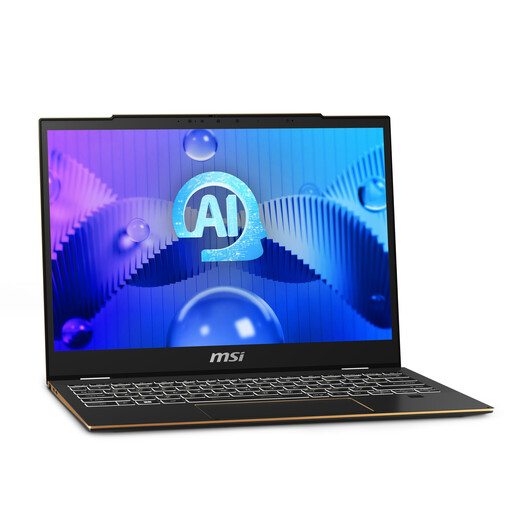
MSI Summit E13 AI Evo touchscreen laptop, Core Ultra 7 155H, 32 GB RAM, 1 TB SSD
Consider this model if direct screen markup is part of your workflow: its listing states support for MSI Pen 2. The named configuration includes an Intel Core Ultra 7 155H processor, 32 GB RAM, 1 TB SSD and an FHD+ 60 Hz touch display.
Confirm whether the compatible pen is included and check the exact display size and configuration before choosing it.
View on Joybuy
 No image available
Microsoft Surface Laptop 7 15-Inch Copilot+ PC, Snapdragon X Elite, 16GB RAM, 256GB SSD, Maya Color
This conventional laptop is worth considering if typed comments and a larger built-in reading area matter most. Its named configuration has a 15-inch PixelSense touchscreen, Snapdragon X Elite processor, 16GB RAM and 256GB SSD.
If you need handwritten marks, confirm stylus support for this exact model. Check that your required annotation application works with its processor and operating system.
View on Joybuy
 No image available
HP 16-as0004na OmniBook X Flip 16 Copilot+, Core Ultra 5 226V, 16GB RAM, 512GB SSD
Consider this convertible if you want an attached keyboard and a 16-inch touchscreen for reading and typed review. Its named configuration includes an Intel Core Ultra 5 226V processor, 16GB RAM, 512GB SSD and Windows 11 Home.
Check stylus support before planning a handwritten workflow, and confirm the device’s weight if you often move between desks.
View on Joybuy
Frequently asked questions
Do I need a touchscreen to annotate a foreign-language PDF?
No: if you mainly highlight passages and type comments, a touchscreen need not drive your choice. Adobe describes PDF tools for comments, highlighting and other markup; choose a compatible touchscreen and pen when writing or drawing directly on the page is central to your work.
Can I type in another language on a UK keyboard?
Often, provided the operating system offers the input method your language and script require. Microsoft Support describes Windows language and keyboard-layout controls, while Apple Support describes adding input sources on a Mac; check the precise method and any proofing tools you need.
Can I use a personal laptop for shared-office documents?
Only if your organisation permits it for the documents and accounts involved. The Information Commissioner’s Office advises organisations considering personal-device use to address matters including access controls and separation of organisational and personal data; follow your employer’s specific policy.
What else should I check with a pen-enabled laptop?
Confirm that the exact compatible pen and keyboard are included or can be obtained for your chosen model. Microsoft lists optional accessories for the Surface Pro examples, and Lenovo lists an optional pen for the examined Yoga configuration; also check whether your desk setup needs a compatible adapter or monitor.


