Choose a pen-capable detachable or convertible laptop if writing on PDFs and marking figures are central to your work; check pen compatibility and what comes with the exact configuration. If you mainly highlight papers and type comments, a conventional laptop may suit you without a pen. For cafe sessions, weigh the complete device you will carry, check your required software and plan for glare, charging and public-network security.
Who each setup suits
Handwritten PDF annotators
If you circle figures, write in margins or draw directly on papers, look for a touchscreen with a compatible active pen and an annotation app that accepts ink. Check whether the pen is included with the particular configuration.
Cafe-based literature reviewers
If you carry papers and a laptop between home, campus and cafes, consider the weight of your complete setup, how you will charge it and whether you can position the screen away from reflections. Manufacturer battery figures describe stated test activities, not a guaranteed reading session.
Typing-first academic writers
If your work centres on highlighting, typed notes and references, start with the applications you use and the keyboard setup you prefer. Adobe describes basic PDF mark-up tools in macOS Preview, though specialist software needs a separate compatibility check.
What matters when choosing
Decide whether you need to write directly on the PDF or mainly type alongside it. That choice narrows the form factor; the table then helps you check the working setup you would take to a cafe.
Pen-enabled detachable
Consider it when: Handwriting on papers and drawing around figures are your main annotation tasks; Microsoft describes Surface Pen writing and drawing in apps that support inking.
Trade-off: Check the keyboard, pen, charger and app together rather than judging the tablet alone.
Convertible 2-in-1
Consider it when: You want a laptop keyboard for notes and a tablet-style position for occasional handwriting; Lenovo describes these modes for the Yoga 7 2-in-1 Gen 10 (14-inch AMD).
Trade-off: Pen support and bundle contents depend on the configuration; Lenovo lists the Yoga Pen as optional for that model.
Conventional laptop
Consider it when: Highlighting, typed comments and document management matter more to you than writing on the screen.
Trade-off: Check that its operating system runs the PDF, reference and institutional applications you need; do not assume a typed mark-up workflow replaces pen input.
| Concern | What to check | Who this matters to |
|---|
| Handwriting on PDFs |
Confirm active-pen compatibility with the exact device and annotation app; check whether the pen and keyboard are included. |
If I regularly mark equations and draw around figures, I need to write directly on the page rather than rely on typed comments. Around 25% of consumers put handwritten annotation first. |
| Carrying and charging |
Check the weight of the complete setup, the charger you will carry and battery claims under their stated test conditions. |
When I move between campus and a cafe, I want a setup I can carry and use without counting on a nearby socket. Roughly 31% of consumers make portability and power their primary concern. |
| Typed work and software |
Check operating-system support for your PDF reader, citation manager and required institutional apps; try saving and reopening an annotated paper. |
If my notes are mainly typed and shared with a research group, the document and application workflow needs to fit. Around 25% of consumers prioritise typed annotation and compatibility. |
| Glare and cafe security |
Assess screen positioning under changing light, and plan device-lock and network precautions for sensitive files. |
Near windows or on public Wi-Fi, I need to read comfortably and handle unpublished work with care. About 19% of consumers place comfort and cafe security first. |
Purchasing pitfalls
-
Assuming a touchscreen includes a suitable pen
Touch input alone does not establish an active-pen workflow. Lenovo lists the Yoga Pen as optional for the Yoga 7 2-in-1 Gen 10 (14-inch AMD), while Microsoft describes Surface Pen writing in apps that support inking.
Check the exact device and compatible pen, how the pen charges, and whether both pen and keyboard are included before ordering.
You may need to obtain a compatible active pen separately.
-
Treating battery claims as a session guarantee
Apple's wireless-web figure and Microsoft's active-web figure describe their respective test activities. Neither establishes how long your combination of PDFs, screen brightness, syncing and calls will last.
Use each claim in its stated context, then check charging requirements and plan around your usual workload.
A charger or compatible power bank adds something to carry if you need a longer session away from a socket.
-
Choosing a processor label before checking the PDF workflow
A processor label does not tell you whether you can annotate figures, manage references and reopen shared files in the applications your course or research group uses.
Check the whole sequence in your intended software: open a paper, highlight it, add a note or drawing, save, sync and reopen it.
-
Assuming laptop specifications secure cafe Wi-Fi
The UK National Cyber Security Centre warns that attackers on public or insecure networks may intercept or modify data. Choosing a different laptop specification does not, by itself, resolve that risk.
Lock and update your device, follow your institution's network guidance and review sharing settings before accessing sensitive or unpublished material.
Relevant brands to consider
These model lines illustrate different ways to annotate papers; the details of an individual configuration still need checking.
Microsoft
Surface Pro is a detachable Windows option to examine if compact, pen-based annotation is your priority.
- Microsoft lists a 13-inch touchscreen and 895 g weight for the cited Surface Pro 11 Wi-Fi model. Its Surface Pen guidance describes writing and drawing in apps that support inking.
- Check the exact keyboard, pen and charger bundle. Microsoft's up-to-10-hour active-web figure is not a duration promised for your annotation workload.
Lenovo
The Yoga 7 2-in-1 line offers a convertible Windows format for switching between keyboard work and tablet-style reading.
- Lenovo describes laptop, tablet and tent modes for the Yoga 7 2-in-1 Gen 10 (14-inch AMD).
- Lenovo lists the Yoga Pen as optional and sold separately. Check the exact display and pen configuration rather than applying line-wide maximum specifications to every model.
Apple
MacBook Air is a conventional-laptop route to consider when your PDF work is mainly highlighting and typed notes.
- Apple lists a 13.6-inch, 500-nit display for the cited 13-inch MacBook Air specification. Adobe describes highlighting and notes in macOS Preview.
- Check macOS support for the specialist PDF, citation and institutional applications you use. Apple's up-to-15-hour wireless-web figure describes its stated test activity, not continuous annotation.
Joybuy laptops for these workflows
These laptops offer conventional, convertible and touchscreen options for reading and annotating papers. If handwriting is essential, confirm active-pen support for the particular device before choosing it; a touchscreen or 2-in-1 name alone is not enough.
 No image available
Apple 13-inch MacBook Air (2026), M5, 24GB, 1TB SSD, Midnight
Consider this conventional laptop if you highlight papers and type notes rather than write directly on the screen.
- The named configuration has an M5 chip with a 10-core CPU and 10-core GPU, 24GB memory and a 1TB SSD.
- Check that the macOS PDF, citation and institutional applications you need fit your workflow.
- If carry weight or time away from a socket will decide your choice, check those details for this configuration.
Joybuy
 No image available
HP OmniBook Ultra Flip 14-fh0006na 2-in-1, 16GB, 1TB SSD
Consider this 2-in-1 if you want to alternate between laptop-style typing and a different position for reading papers.
- The named configuration has 16GB RAM, a 1TB SSD and Windows 11 Home.
- If you need handwriting on PDFs, confirm active-pen compatibility and whether a suitable pen is included.
- Check battery runtime against the length of your usual cafe session.
Joybuy
 No image available
ASUS Vivobook 14 X1407QA-LY003W, Snapdragon X, 16GB, 512GB SSD, Quiet Blue
Consider this conventional laptop for reading papers and typing annotations, rather than choosing it for direct on-screen handwriting.
- The named configuration has a Snapdragon X processor, 16GB RAM and a 512GB SSD.
- Check the exact screen and input specification if glare or handwriting affects your decision.
- Confirm that your required PDF and reference applications work on this configuration, and check expected battery runtime.
Joybuy
 No image available
Microsoft Surface Laptop 7 15-inch, Snapdragon X Elite, 16GB, 256GB SSD, Maya Color
Consider this conventional laptop if you want a 15-inch touchscreen for navigating papers while keeping a laptop keyboard for typed work.
- The named configuration has a Snapdragon X Elite processor, 16GB RAM, a 256GB SSD and a PixelSense touchscreen.
- Touchscreen specification alone does not establish active-pen compatibility; check it before planning handwritten annotation.
- Check the weight and battery runtime for the exact configuration if you will carry it regularly.
Joybuy
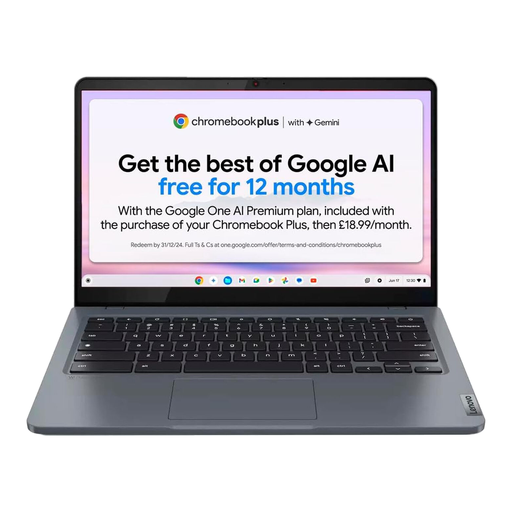 No image available
Lenovo IdeaPad Slim 3 Chromebook 14IAN8, 83BN001EUK, 8GB, 256GB eMMC, Grey
Consider this Chromebook for paper-reading sessions only after checking that your annotation and reference workflow works in Chrome OS.
- The named configuration has a 14-inch display, an Intel Core i3 N305 processor, 8GB RAM and 256GB eMMC storage.
- Check your required PDF apps, citation tools and offline tasks before deciding whether it fits your work.
- Assess the manufacturer's battery claim against your own mix of reading, browser use and syncing.
Joybuy
Frequently asked questions
Do I need a touchscreen to annotate research papers?
No: you can highlight and add typed notes without writing on the screen. Adobe describes those tools in Acrobat Reader and basic mark-up in macOS Preview; choose a compatible touchscreen and active pen when handwriting or drawing directly on the PDF is important to you.
Does a 2-in-1 laptop come with a pen?
Not necessarily. Lenovo says the Yoga Pen for its Yoga 7 2-in-1 Gen 10 (14-inch AMD) is optional and sold separately; check the compatible pen and the contents of the exact configuration you are ordering.
How can I reduce screen glare while reading in a cafe?
Adjust your seat and screen position to avoid reflections where possible. The UK Health and Safety Executive includes screen and lighting arrangement to reduce glare in its display-screen-equipment guidance; take breaks or change activity during longer sessions.
Can I work on unpublished papers over cafe Wi-Fi?
Treat public or insecure Wi-Fi as a risk rather than assuming it is private. The UK National Cyber Security Centre warns that attackers may intercept or modify data on such networks; follow your institution's security requirements and check device updates and file-sharing settings before accessing sensitive work.


