Confirm your employer’s required applications, sign-in method, security tools and dock before choosing an operating system. A Windows laptop is a starting point when your workplace setup is Windows-based; consider a Mac once macOS support is confirmed, or a Chromebook only when your required work is permitted in the browser or supported ChromeOS apps. For any route, check the exact laptop’s meeting hardware, connections, carrying weight and battery test results.
Who needs a remote-work laptop?
Workers tied to specific software and docks
If your job depends on employer applications, a VPN, security tools or a desk dock, establish what your organisation supports before comparing laptop specifications. Microsoft advises checking application and hardware requirements beyond the Windows baseline.
People in frequent video meetings
If calls are a regular part of your day, assess the chosen model’s camera, microphone and audio connections alongside your meeting service’s requirements. Zoom notes that features such as virtual backgrounds can place additional demands on a device.
Workers moving between locations
If you carry your primary computer between home and another workplace, compare its exact weight, charging arrangement and tested battery life. Check that it can reconnect to the equipment you use at your desk.
What matters when choosing?
Establish which operating systems your workplace permits, then compare the exact models that can run your work.
Windows laptop
Consider it when: Your required workplace applications or equipment are specified for Windows.
Keep in mind: Meeting performance and battery life depend on the configuration; meeting Windows 11’s minimum requirements does not establish suitability for your workload, as Microsoft notes.
Mac laptop
Consider it when: Your employer confirms that its applications, security tools and peripherals work with macOS.
Keep in mind: A Windows-only application or management tool could rule out this route, regardless of the Mac’s other features.
Chromebook
Consider it when: Your required work runs in an approved browser or permitted ChromeOS apps.
Keep in mind: Microsoft says Microsoft 365 can be accessed through the web on a Chromebook, but its Android Office apps are not supported there.
| Concern |
What to check |
Who this matters to |
| Workplace compatibility |
Confirm the required apps, sign-in and security tools for the operating system. Match the exact laptop ports to your dock and peripherals. |
If a required work app or desk connection fails, I cannot use the laptop as my primary work computer. About 40% of consumers would put workplace compatibility first. |
| Video calls |
Check the exact model’s camera, microphone and headset connections; compare your connection with your meeting service’s requirements. |
When meetings fill my working day, I need colleagues to see and hear me clearly without disrupting calls. For about 30% of consumers, reliable video calls would be the primary concern. |
| Carrying and power |
Compare the model’s weight, charging support and independent battery results for a relevant workload. |
Moving between work locations makes carrying the laptop and finding power part of my daily routine. Mobility and battery endurance would come first for about 30% of consumers. |
Common buying mistakes
-
Choosing an operating system before checking work software
A laptop can meet an operating system’s hardware requirements without running a particular workplace app or peripheral. Microsoft also specifies web access, rather than supported Android Office apps, for Microsoft 365 on Chromebooks.
Ask your employer which applications, sign-in methods, security tools and devices are required, then confirm support for the operating system and laptop you intend to buy.
-
Assuming every USB-C port works with the same dock
The connector shape alone does not establish charging or display-output support. ASUS advises checking the exact laptop specification or manual for a port’s capabilities.
Compare the laptop’s stated port functions with your dock’s power and display requirements before ordering.
-
Treating rated battery life as a video-call guarantee
A manufacturer’s battery figure reflects its stated test conditions, not necessarily a day of calls, screen sharing and other work applications.
Look for independent battery tests where available and judge how closely their workload resembles yours.
-
Overlooking a Chromebook’s update date
Google identifies the model’s Auto Update Expiration date as the way to assess its remaining period of official support.
Check that date for the exact Chromebook before deciding whether it suits the time you plan to use it.
Brands to consider for specific work needs
Apple
MacBook Air is relevant when your employer has confirmed that your work setup supports macOS.
- Apple lists a 12MP Centre Stage camera and two Thunderbolt 4 ports for the current MacBook Air.
- Those features do not establish compatibility with a particular employer app, management tool or dock.
Lenovo
ThinkPad business models are worth examining when meeting hardware and camera privacy controls matter.
- Lenovo lists an FHD hybrid IR camera option for the ThinkPad E14 Gen 7 and describes ThinkShutter as a physical camera cover.
- Camera and privacy features vary by model and configuration.
Dell
The Latitude line includes configurations to assess for Windows-based work and built-in meeting hardware.
- Dell lists an FHD/IR camera with shutter for a Latitude 7455 configuration.
- Check the chosen configuration rather than assuming the same hardware across the line.
HP
The ProBook 440 14-inch G11 is a business-laptop line to consider when its configuration fits your work requirements.
- HP describes this model as having an upgradeable design.
- HP says webcam privacy switches, shutter keys or covers are available only on select notebook models.
ASUS
Zenbook 14 models are relevant to buyers checking how a portable laptop will connect to their desk setup.
- ASUS lists Thunderbolt 4 display and power-delivery support for the Zenbook 14 UX3480 Intel.
- ASUS advises checking the exact model specification or manual to establish USB-C functions.
Windows and Mac laptops on Joybuy
These Windows laptops and the MacBook Air offer configurations to assess for regular remote work. Check your employer’s operating-system requirements and your own meeting, carrying and desk-connection needs against each model.
 Image unavailable
Lenovo LOQ Essential 15ARP11, Ryzen 7 170, 16GB, 1TB
Consider this Windows model if you need a primary laptop and can accommodate a larger machine in your carrying routine. Its listed configuration includes a 15.6-inch 144Hz FHD display and GeForce RTX 5050; confirm your work apps and dock against the exact model, and compare independent battery results before relying on it away from power.
Joybuy
 Image unavailable
ASUS Vivobook 14 X1407QA-LY003W, Snapdragon X, 16GB, 512GB
The 14-inch model is an option to assess if you carry your laptop between locations. Because this configuration uses Snapdragon X, confirm support for your employer’s exact applications, security tools and peripherals; check independent battery results and your dock requirements too.
Joybuy
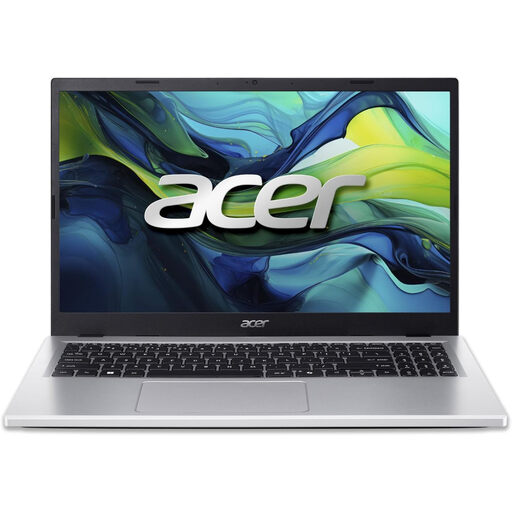 Image unavailable
Acer Aspire Go 15 AG15-71P, Core i5-13420H, 8GB, 256GB
This 15.6-inch Full HD laptop is worth assessing for everyday work if its configuration meets your application requirements. Confirm its Windows mode before buying: the product information describes Windows 11 Home in one place and Windows 11 Home in S Mode in another. Check dock support and battery testing separately.
Joybuy
 Image unavailable
Apple 13-inch MacBook Air M5, 24GB, 1TB, Midnight
Consider this MacBook Air only if your employer supports macOS for your required software and security tools. The listed M5 configuration has a 10-core CPU, 10-core GPU and 1TB SSD; confirm your dock setup and use battery tests suited to your workload rather than treating a video-streaming rating as workday runtime.
Joybuy
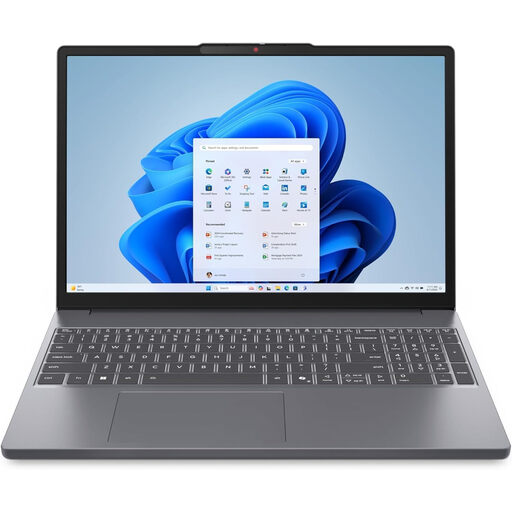 Image unavailable
Lenovo IdeaPad Slim 3 83K7009MUK, Ryzen 5 7535HS, 24GB, 512GB
This Windows 11 Home configuration is an option if you want a 15.3-inch WUXGA display in a laptop you can carry between work locations. Confirm its microphone, battery performance and exact port functions if calls or an existing dock are central to your day.
Joybuy
Remote-work laptop questions
Should I choose Windows, a Mac or a Chromebook for remote work?
Choose from the operating systems your employer supports for its required software and security tools. A Mac needs confirmed macOS compatibility; a Chromebook needs approval for browser-based or supported ChromeOS workflows. Microsoft says Microsoft 365 is accessible through the web on Chromebooks, but its Android Office apps are not supported there.
Can I use Microsoft 365 and Teams on a Chromebook?
Microsoft says Microsoft 365 apps, including Teams, can be accessed through the web on a Chromebook. Confirm that your employer permits the device and browser workflow, particularly if you rely on desktop features, local files or specific security controls.
Will my USB-C dock work with a new laptop?
It will work as intended only if the exact laptop ports support the dock functions you need. Compare charging, display output and accessory requirements with both specifications; ASUS cautions against judging a USB-C port’s functions by its connector shape alone.
What should I check before buying a Chromebook that I plan to keep for years?
Check the exact model’s Auto Update Expiration date as well as your workplace’s ChromeOS requirements. Google identifies that date as the most reliable way to assess the Chromebook’s remaining period of official support.


