Choose a laptop with two built-in screens if you need to organise photographs in different locations without carrying a separate monitor. If you work mainly at a desk, a conventional laptop and external screen let you choose and position the second display independently. In either case, check the exact laptop configuration, the capacity needed for your working library and any required video connections before buying.
Who each setup suits
Mobile archive organisers
If you catalogue photographs in more than one location, two built-in screens can keep image review and metadata work together without a separate monitor. Check the configuration you would actually carry, including its screens, memory and storage; ASUS offers the Zenbook DUO UX8406 as one example of this format.
Desk-based collection cataloguers
If most of your work happens at one desk, a separate screen can be positioned for folders, metadata fields or reference material. Microsoft Support describes how to arrange connected displays in Windows 11; the laptop, cable and monitor must still support the intended connection.
Large-library and editing-workflow users
If you keep a substantial working library or combine cataloguing with desktop photo editing, compare the exact memory, SSD and connection options of each laptop. Adobe publishes system requirements for Lightroom Classic, while Lenovo UK lists configuration-specific workstation options rather than one specification shared by every model.
What to check before buying
Built-in dual screens
Choose when: You need image and catalogue views together while working away from a desk.
Trade-off: The built-in panels have fixed sizes and are less adaptable than a separately chosen desk monitor; ASUS specifies two 14-inch screens for the Zenbook DUO UX8406.
Laptop and external screen
Choose when: You mainly work at a desk and want to position or change the second display independently.
Trade-off: A portable setup means carrying and connecting another device. Video support depends on the particular laptop port, monitor input and cable.
| Concern | What to check | Who this matters to |
|---|
| Two-screen connection |
For an external screen, match the exact laptop’s documented video output with the monitor input and cable. Check dock compatibility if using one. |
I need photographs on one screen and folders or metadata on the other, so the connection has to work reliably. Around 36% of consumers put a dependable two-screen setup first. |
| Working library and preservation |
Allow for photographs, catalogue files and future imports when choosing SSD capacity. Keep preservation copies on separate media and in separate locations, as advised by the Library of Congress. |
My active collection needs room to grow, but I cannot rely on the laptop as its only copy. For around 29% of consumers, capacity and preservation are the primary concern. |
| Image-review screen |
Check the exact panel’s resolution, colour specification and finish if you will inspect photographs on it; a model family may offer different screens. |
If I assess images on the laptop rather than using its screen chiefly for metadata, the panel specification matters to me. Around 21% of consumers place image review first. |
| Carrying and setup |
Compare the complete kit you would carry. For a separate monitor, check its power connection and stand as well as the laptop’s weight. |
I move between work locations and do not want the second screen to make each session cumbersome. Keeping the setup portable comes first for around 14% of consumers. |
Buying pitfalls
-
Assuming every USB-C port carries video
A USB-C connector alone does not establish external-display support. ASUS says its ZenScreen OLED MQ16AHE needs DisplayPort Alt Mode on the laptop’s USB-C port for a USB-C video connection.
Match the exact laptop port specification to the monitor’s inputs before choosing a connection.
A different cable, adapter or connection method may be needed.
-
Reading dock display modes as laptop guarantees
Dell lists multiple display modes for its Pro Thunderbolt 4 Smart Dock SD25TB4, but the connected laptop and display arrangement affect which modes can be used.
Check compatibility documentation for the exact laptop, dock and screens you intend to connect.
-
Keeping the only archive copy on the laptop
Internal SSD capacity helps with an active library, but one laptop is not a preservation plan. The Library of Congress advises copies on at least two different storage media kept in separate physical locations.
Plan where those separate copies will live before moving an important collection onto a new laptop.
-
Choosing a model family by its optional screen
Lenovo UK describes different ThinkPad P16s display options; a specification offered within the family does not identify the panel in every retail configuration.
Check the exact model number and its display, memory, SSD and ports before checkout.
Relevant brands to consider
ASUS
ASUS has examples of both routes: the Zenbook DUO UX8406 has built-in dual screens, while ZenScreen models provide separate displays.
- ASUS specifies two 14-inch 3K OLED screens for the Zenbook DUO UX8406 family, with memory and SSD options dependent on configuration.
- For the ZenScreen OLED MQ16AHE, USB-C video requires a host port supporting DisplayPort Alt Mode; check the selected laptop and monitor together.
Lenovo
The ThinkPad P16s range is relevant to a conventional 16-inch laptop used with an external display or dock.
- Lenovo UK lists a P16s configuration with a 100% sRGB anti-glare screen, 32 GB RAM, a 1 TB SSD, Thunderbolt 4 ports and HDMI.
- Those specifications belong to a particular configuration; the P16s Gen 3 family also has optional displays that must be checked against the retail SKU.
Dell
Dell’s Pro Thunderbolt 4 Smart Dock SD25TB4 is relevant to a desk setup that connects displays and peripherals through a dock.
- Dell lists dual-4K-at-60-Hz among the dock’s display modes under its stated configurations.
- A dock mode does not establish that a particular laptop, cable and pair of displays will support it; confirm the complete arrangement.
HP
HP presents its ZBook mobile-workstation family as an option for creative work, including photography.
- HP’s product-family guidance identifies photography and graphic design among ZBook Power use cases.
- That is HP’s positioning, not a specification for every ZBook; compare the exact screen, memory, storage and ports of the model on offer.
Joybuy laptop choices
The first laptop has two built-in screens; the others are conventional laptops to consider for a setup with a separately chosen monitor. Check the intended external-display connection before pairing any conventional laptop with a screen or dock.
 No image available
ASUS Zenbook DUO UX8406CA-QL135W, 14-inch dual OLED touch
Consider this format if you need two screens while cataloguing photographs away from a desk.
The named configuration includes an Intel Core Ultra 7 255H, 16 GB LPDDR5X RAM and a 1 TB SSD. Confirm the exact screen resolution before buying, as the descriptions for this configuration differ.
Joybuy
 No image available
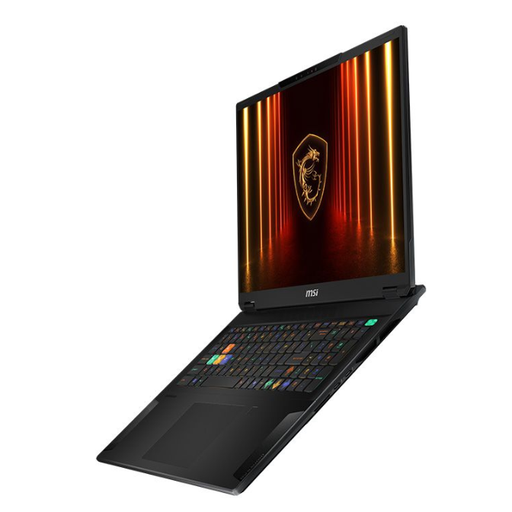
MSI Stealth 18 AI Studio A1VGG-001UK, 18-inch
Consider its larger built-in screen and storage for a predominantly desk-based working library, with a separate monitor chosen for the second view.
The named configuration has an Intel Core Ultra 9, 32 GB RAM, a 2 TB SSD and NVIDIA GeForce RTX 4070 graphics. Confirm the external-display arrangement you need before choosing a monitor or dock.
Joybuy
 No image available
ASUS Vivobook 15 X1504VA, 15.6-inch, Cool Silver
Consider this conventional laptop if you plan to keep the second screen as a separate part of your photo-cataloguing setup.
The named configuration has an Intel Core 5 120U, 24 GB RAM and a 1 TB SSD. If you will review colour on the built-in panel, check its exact display specification; also confirm the intended external-screen connection.
Joybuy
 No image available
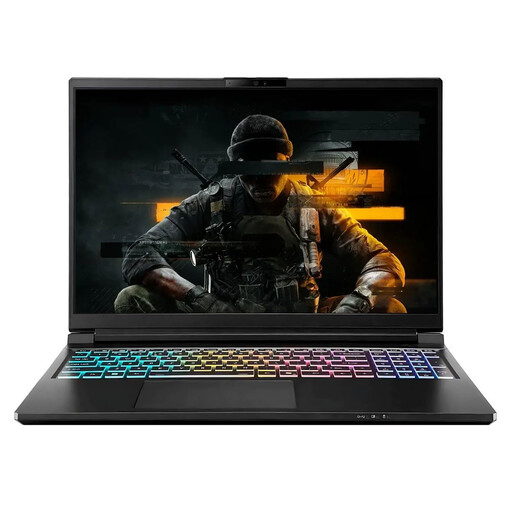
Stormforce Exobook 16-inch QHD+, Ultra 9, 5080
Consider this configuration if keeping a larger active photo library on the laptop matters alongside a separate-screen workflow.
Its name specifies 32 GB RAM and 4 TB storage. Check the exact panel’s colour specification if it will be used for image review, and confirm the external-display arrangement before selecting a monitor.
Joybuy
 No image available
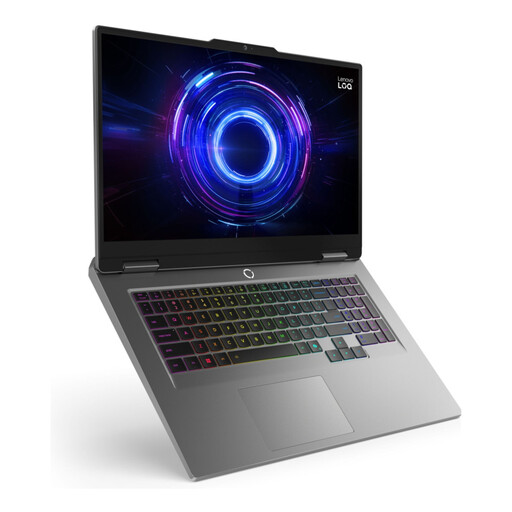
LOQ 17IRX10 i7-13650H, 24 GB, 1 TB, W11H
Consider its larger laptop format if you want one screen for the active photograph and plan to add a separate screen for catalogue work.
The named configuration has 24 GB memory and 1 TB storage. Check the precise display and external-monitor specifications for the setup you intend to use.
Joybuy
Frequently asked questions
Can any laptop with USB-C run a second monitor?
No: the connector alone does not confirm video output. ASUS specifies that a USB-C video connection to its ZenScreen OLED MQ16AHE requires DisplayPort Alt Mode on the host laptop; its mini-HDMI connection is another route when paired with USB-C power. Check the exact laptop port and monitor requirements.
How do I arrange two screens on a Windows laptop?
After connecting the displays, use the Windows display settings to identify and arrange them so their on-screen positions match the physical setup. Microsoft Support describes these controls for Windows 11; if a screen does not appear, check its cable and any dock connection first.
Is a large internal SSD enough for an archival photograph collection?
No: use the SSD for the active working library, but keep separate preservation copies. The Library of Congress advises copies on at least two different storage media in separate physical locations and migration to current media about every five years.


