Choose around the way the shared desk will work: a 15-inch laptop gives you more built-in space for viewing photographs, filenames and metadata, while a smaller laptop makes sense if it can connect to the desk’s existing monitor and peripherals. For either setup, compare the installed memory and SSD capacity with your active catalogue, then check your photo software, drives, dock and display against the exact laptop configuration.
Who is this for?
Shared-desk archive organisers
If you spend long sessions sorting folders, naming files and comparing thumbnails, consider the whole screen and peripheral arrangement, not just the laptop’s size. The UK Health and Safety Executive advises basic workstation risk assessment when workers change desks regularly.
Existing-monitor and dock users
If a monitor, keyboard, mouse or external drive is already on the desk, check that the chosen laptop’s documented ports and display support match that equipment.
Growing-archive keepers
If your active catalogue and incoming scans are expanding, compare installed memory and SSD capacity with the files you need close at hand. Plan backup separately from space for current work.
What matters when buying?
Compact laptop with a shared display
Choose it when: The desk already has a monitor and the laptop needs to move or be put away between sessions.
Trade-off: The smaller built-in screen may feel cramped when used alone; confirm that the exact laptop, dock and cables support your display arrangement.
15-inch laptop used on its own
Choose it when: There is no permanent monitor and you want more built-in room for thumbnails, filenames and metadata.
Trade-off: It takes up more of the shared desk, and a larger screen does not remove the need to manage position and glare.
| Concern | Buying checks | Who this matters to |
|---|
| Viewing and desk fit |
Decide whether you will use the built-in screen alone or a monitor; check documented display support and the space available for your setup. |
When I spend hours scanning thumbnails and metadata at a desk others use, I need a screen arrangement I can position comfortably. Around 37% of consumers would put viewing and workstation fit first. |
| Active archive capacity |
Compare installed memory and SSD capacity with your photo application, active catalogue and current imports; plan backup separately. |
If incoming scans keep adding to my working files, I want enough local capacity without repeatedly moving the active catalogue. Roughly 36% of consumers would make archive capacity their primary concern. |
| Software and peripherals |
Check the required operating system, drive format, card reader, dock and monitor against the exact model and its ports. |
I need my existing photo software and archive equipment to work with the new laptop before screen size becomes the deciding factor. For around 27% of consumers, compatibility would come first. |
Buying pitfalls
-
Choosing by screen size alone
A larger built-in display can help when there is no monitor, but screen position, glare and a crowded desk still affect long sorting sessions.
Map out where the laptop, display and input devices will sit, then check the exact model’s external-display support if you intend to connect a monitor.
A monitor-based arrangement may also call for a stand, keyboard, dock, adapters or cables.
-
Mistaking configurable capacity for installed capacity
A laptop family’s available memory or storage options do not tell you which configuration is fitted to the product you are buying.
Check the exact model number, installed memory, SSD capacity, display and ports on the chosen configuration. If you expect to expand it later, confirm which parts that configuration permits you to upgrade.
-
Assuming every USB-C connection does the same job
The connector shape alone does not establish whether a particular laptop, cable and dock will support your intended display arrangement.
Compare the laptop’s port and external-display specifications with the documentation for each monitor, dock and cable you plan to use.
An incompatible setup may require a different dock, cable, card reader or display adapter.
-
Expecting the laptop to solve workstation setup
At a shared work desk, people may need to readjust the screen and manage lighting or glare when they change places. The UK Health and Safety Executive specifically addresses workstation assessment for regular hot-desking.
If the desk is used for work, include chair and screen position, lighting and breaks in the workstation arrangement rather than relying on the laptop choice alone.
Relevant brands to consider
Apple
MacBook Air is worth considering when your archive software suits macOS and the shared desk uses compatible external displays and USB-C or Thunderbolt equipment.
- Apple lists the 13-inch M5 MacBook Air with 16GB unified memory, a 512GB SSD and two Thunderbolt 4/USB-C ports. Its specifications support up to two external displays while the built-in display remains in use.
- Check your applications, external-drive format and dock before choosing a macOS setup.
Lenovo
The ThinkPad E14 Gen 6 is a Windows-oriented option for buyers who want a 14-inch business-laptop format and may need more capacity later.
- Lenovo describes storage and memory as upgradeable for the ThinkPad E14 Gen 6 product line.
- Display options, installed capacity and ports depend on the configuration; confirm the exact model and supported upgrades.
Microsoft
Surface Laptop is relevant if you prefer Windows and use USB-A equipment alongside newer USB-C accessories at the desk.
- Microsoft’s UK Surface Laptop comparison lists models with USB-C/USB4 and USB-A; its 15-inch options include a MicroSDXC Express card reader.
- Generations and configurations differ, so check the particular model’s storage, ports and compatibility with your photo applications and peripherals.
Joybuy laptops for this setup
These laptops cover two ways to use the shared desk: working mainly from a larger built-in screen, or choosing a smaller laptop for a setup that may include an external monitor. Check your own software and equipment before treating either arrangement as a fit.
 No image available
ASUS Vivobook 15 X1504VA, Cool Silver
Consider this if you expect to sort photographs mainly on the laptop screen. The listed configuration has a 15.6-inch display, Intel Core 5 120U, 24GB memory and a 1TB SSD.
If you also plan to use a monitor or dock, check the exact USB-C display capability and compatibility with your equipment and photo software.
View on Joybuy
 No image available
ASUS Vivobook 14 X1407QA-LY003W, Quiet Blue
The 14-inch format suits a desk where the laptop needs to be moved or put away between sessions. This Snapdragon X configuration lists 16GB memory and a 512GB SSD.
Before choosing it for an established archive workflow, confirm that your photo applications, drives, monitor and dock work with this exact configuration.
View on Joybuy
 No image available
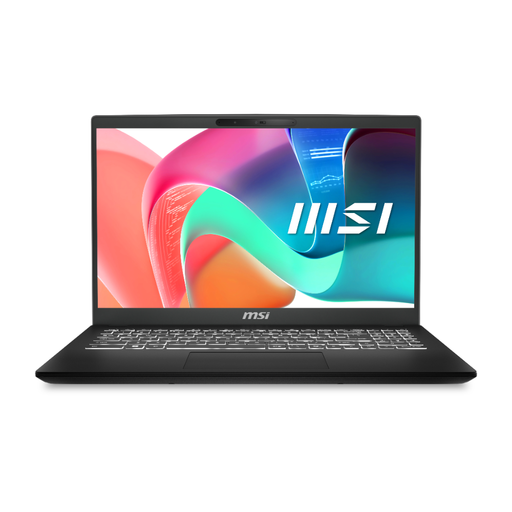
MSI Modern C2RMG-282UK, 9S7-15H431-282
This is another option if the built-in screen will be your main workspace. Its listed configuration includes a 15-inch Full HD display, Intel Core 5, 16GB DDR IV memory and a 512GB SSD.
Check the precise USB-C video and dock capabilities before planning an external-display setup, as well as compatibility with your software and drives.
View on Joybuy
 No image available
Microsoft Surface Laptop 7 15-inch, Maya
Consider the 15-inch PixelSense touchscreen if you expect to work mainly from the laptop itself. This Snapdragon X Elite configuration lists 16GB memory and a 256GB SSD.
Check whether that SSD holds your active catalogue and current projects, and confirm that your photo software, drives and desk peripherals suit the exact model.
View on Joybuy
 No image available
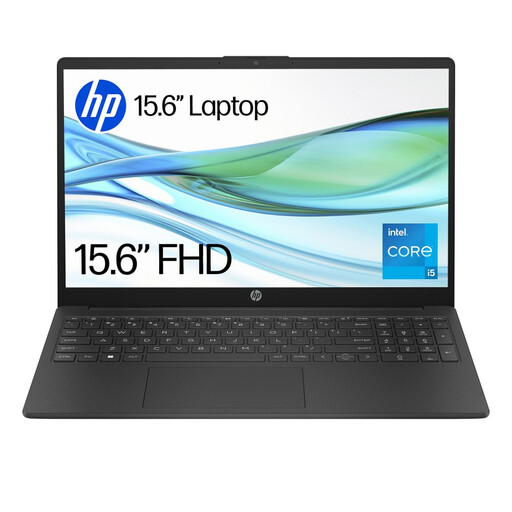
HP 15-fd0064na
The 15.6-inch display makes this a built-in-screen option for sorting folders and thumbnails. The listed configuration has an Intel Core i5-1334U, 8GB memory, a 256GB SSD and Windows 11 Home.
Compare the installed memory and storage with your application and active archive before buying. Check ports, external-display support and compatibility with your drives if those are part of the desk setup.
View on Joybuy
Common questions
Do I need a 15-inch laptop to organise archival photographs?
No. A 15-inch laptop gives you more built-in viewing space when you usually work without a monitor; a smaller laptop can suit a shared desk with an existing display, provided its documented ports and display support match the equipment.
Is 16GB of memory a sensible starting point?
It is a useful configuration to compare if you run a photo organiser alongside other applications, but your software and workload determine what you need. Check installed memory on the exact laptop rather than assuming a product family’s available options are included.
Will any USB-C laptop work with my monitor or dock?
Not automatically. USB-C identifies the connector, so check the laptop’s documented video and charging capabilities alongside the monitor input, dock documentation and cable specifications for your intended arrangement.
What should I check if the desk is shared at work?
Include workstation setup as well as laptop specifications in the decision. The UK Health and Safety Executive advises basic risk assessment when workers change desks regularly; screen position and glare may need attention each time the desk is used.
Should the laptop be the only place I keep archival photographs?
Use the laptop’s SSD as working space for the active catalogue and current files, not as your entire preservation plan. Set up a separate backup and retention process suited to the importance of the archive.


