For a small desk, consider a 13- or 14-inch laptop, but check its physical footprint and match its software and connections to the scanner, card reader and photo application you use. If that application is Lightroom Classic, Adobe recommends 16GB or more RAM and a fast SSD. The laptop’s drive can hold working files, but the Library of Congress advises keeping preservation copies on at least two different media in separate locations.
Who is this for?
Small-desk photo cataloguer
You need room for photographs and perhaps a scanner or card reader while you name files, add dates and apply keywords. Check the laptop’s actual dimensions as well as its screen: the display diagonal alone does not tell you how much desk space it occupies.
Lightroom-based archive organiser
You plan to browse and organise a substantial library in Lightroom Classic, perhaps making occasional RAW adjustments. Adobe’s application guidance makes memory and a fast working drive relevant, while the Library of Congress’s preservation advice calls for separate archive copies.
Peripheral-dependent Windows user
You already have a scanner, card reader, display or archive application you want to keep using. The connector list matters, but so does software and driver compatibility with the exact Windows laptop, particularly when considering a Snapdragon configuration.
What matters when choosing?
For consumers choosing a laptop to organise archival photographs on a small desk, identify the one concern you would put first: usable workspace, a responsive working library, or compatibility with your existing tools and preservation plan. Then check the other two before ordering.
| Concern |
Buying checks |
Who this matters to |
| Desk space and catalogue view |
Compare chassis dimensions, display size and shape, and whether an external display is an option. |
I need space beside the laptop for photographs and equipment, but still want to read folders and metadata comfortably. Around 42% of consumers might put workspace first. |
| Working-library responsiveness |
For Lightroom Classic, compare the exact memory configuration with Adobe’s recommendation of 16GB or more RAM and a fast SSD; size the drive for your active files. |
If my photo library is growing, I want browsing and catalogue work to remain comfortable without treating the laptop drive as my only archive. Roughly 33% of consumers might make working-library responsiveness their primary concern. |
| Tools and preservation |
Check application and driver support, scanner and card-reader connections, and how you will keep copies on different media in separate locations. |
I need my existing equipment and software to work with the new laptop, and I cannot leave irreplaceable photographs on one drive. About 25% of consumers might put compatibility and preservation first. |
Buying pitfalls
-
Choosing only the application’s minimum memory
Adobe lists 8GB RAM as a minimum for Lightroom Classic but recommends 16GB or more and a fast SSD. A minimum configuration is not the same as one chosen for a growing working library.
If Lightroom Classic is central to your work, compare the memory and SSD capacity of the exact configuration before buying, rather than relying on the laptop family name.
-
Treating the laptop SSD as the archive
Loss or failure of the laptop could also mean loss of photographs kept only on its internal drive. The Library of Congress advises copies on at least two different storage media in separate physical locations.
Plan the working drive and the separate preservation copies together; review how stored copies will be moved to current media over time.
-
Assuming compact laptops fit existing equipment
Apple, Microsoft and ASUS list different connectors for the compact models discussed here. A connector match also does not establish that scanner drivers or photo applications will work with a particular processor and operating system.
List your scanner, card reader, external drive, monitor and essential software, then check each against the exact laptop configuration.
Depending on those connections, the setup may also need an adapter, dock or separate reader.
Brands to consider for this setup
Apple
The 13-inch MacBook Air with M5 is a macOS route for a small desk when your photo software and peripherals support that workflow.
- Apple lists a 13.6-inch, 2560 × 1664 P3 display and support for up to two external displays alongside the built-in screen.
- Its listed connections are two Thunderbolt 4/USB-C ports, MagSafe and audio. Check what your USB-A, HDMI or camera-card equipment would need.
Microsoft
The 13.8-inch Surface Laptop is a Windows option for consumers who want a 3:2 touchscreen and both USB-C/USB4 and USB-A connections.
- Microsoft lists a 2304 × 1536 display, two USB-C/USB4 ports, USB-A, audio and Surface Connect for the 13.8-inch model.
- The current line uses Snapdragon X2 processors. Check essential photo applications and peripheral drivers against the exact configuration before choosing it.
ASUS
The Zenbook 14 OLED UX3405 family is a compact Windows route worth examining when USB-A, HDMI and Thunderbolt connections are important at the desk.
- ASUS lists two Thunderbolt 4 ports, USB-A, HDMI and audio for the UX3405 family.
- Display, memory, storage and other configuration details vary within the family; check the specific model being offered rather than assuming every UX3405 is alike.
Joybuy product choices
These 13- and 14-inch laptops offer macOS and Windows starting points for the small-desk task. Compare the stated memory and storage of each variant, then confirm desk fit, application support and connections for your own archive equipment.
 No image available
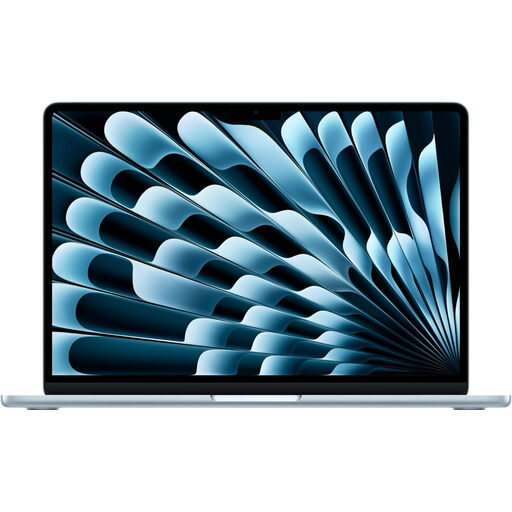
Apple 13-inch MacBook Air (2026), M5 10-core CPU and 10-core GPU, 16GB, 1TB SSD, Sky Blue
A macOS choice if your photo application and peripherals work with it and the laptop fits beside your archive materials. This variant is listed with 16GB memory and a 1TB SSD. Check its physical dimensions and any adapters needed for USB-A, HDMI or card-reading equipment; keep preservation copies away from the laptop.
View on Joybuy
 No image available
Apple 13-inch MacBook Air (2026), M5 10-core CPU and 10-core GPU, 24GB, 1TB SSD, Midnight
Consider this macOS configuration if you want the listed 24GB memory for your working library and your essential software supports macOS. It also has a 1TB SSD. Confirm the chassis fits your desk and that you have the connections or accessories your scanner, display and card reader require.
View on Joybuy
 No image available
ASUS Vivobook 14 X1407QA-LY003W Copilot+ PC, Snapdragon X, 16GB, 512GB SSD, Quiet Blue
A 14-inch Windows option to assess if its working-storage capacity meets your library plan. The named variant has a Snapdragon X processor, 16GB RAM and a 512GB SSD. Before choosing it, confirm your photo application and scanner or card-reader drivers work with this processor configuration.
View on Joybuy
 No image available
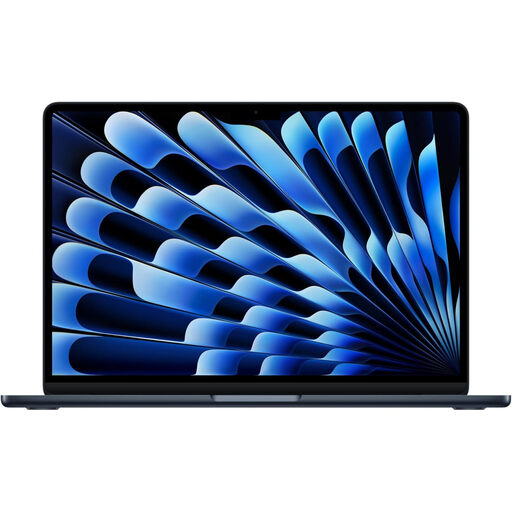
Apple 13-inch MacBook Air (2026), M5 10-core CPU and 8-core GPU, 16GB, 512GB SSD, Midnight
This macOS variant is worth comparing if a 512GB working drive accommodates your active catalogue or you plan to keep originals on separate storage. It is listed with 16GB memory and a 512GB SSD. Check its desk footprint, software compatibility and any adapters your equipment needs.
View on Joybuy
 No image available
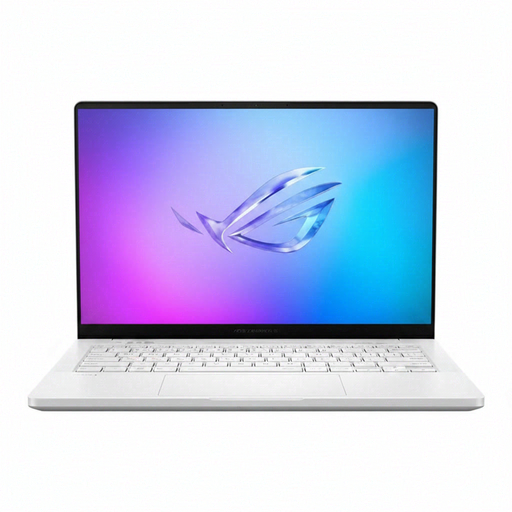
ASUS ROG Zephyrus G14 GA403WR-QS088W, Ryzen AI 9 HX 370, RTX 5070 Ti, 32GB, 2TB SSD, German Grey
Consider this 14-inch Windows model if your active working library calls for the listed 32GB memory and 2TB SSD. Its product name also specifies a WQXGA+ display and Windows 11 Home. Check the chassis dimensions, port connections and keyboard layout against your desk and archive workflow before ordering.
View on Joybuy
Questions about the setup
How much memory should I look for if I use Lightroom Classic?
Adobe recommends 16GB or more RAM and a fast SSD for Lightroom Classic. Choose the SSD capacity after estimating your active library and deciding whether originals will stay on external storage; that memory recommendation is specific to the application, not every way of organising photographs.
Can I keep the only copy of my photographs on the laptop?
The laptop can hold working files, but it should not be the only preservation location. The Library of Congress advises keeping copies on at least two different storage media in separate physical locations and periodically moving stored copies to current media.
Will I need an adapter for a scanner or external display?
That depends on the equipment’s connectors and the exact laptop. Apple lists Thunderbolt 4/USB-C but not USB-A or HDMI for the MacBook Air route discussed here; Microsoft lists USB-A and USB-C/USB4 for the 13.8-inch Surface Laptop, while ASUS lists USB-A, HDMI and Thunderbolt 4 for the Zenbook 14 OLED UX3405 family. Check the individual configuration and every device before ordering.


