Photo and file backup keepers
You want a separate copy of family photos, documents and laptop files. Capacity and a backup routine you can repeat matter more than rapid everyday transfers.


Choose an external HDD when the main task is keeping a separate local copy of photos and laptop files; a desktop drive suits storage that will stay at one desk. Which? describes portable SSDs as generally faster for frequent transfers, while cloud storage suits access across devices. Whichever route you choose, check capacity, connections and the backup routine: access to a file is not, by itself, a separate recoverable copy.
You want a separate copy of family photos, documents and laptop files. Capacity and a backup routine you can repeat matter more than rapid everyday transfers.
You carry files between compatible devices regularly. Transfer speed, the cable and port combination, and how the drive handles travel matter to your choice.
You need to decide whether a drive will work with your computers, phone or tablet, or whether cloud storage better serves your need to reach selected files across devices.
Decide whether your primary job is a separate local copy, frequent file transfer or access across devices. Then check the connection and backup workflow for the devices you actually use.
Choose it when: You want to keep a local photo or laptop backup and move the drive only occasionally.
Bear in mind: Which? describes HDDs as suited to long-term backup but generally slower than SSDs; protect a frequently carried drive from knocks.
Choose it when: You regularly transfer large photo or video libraries or carry storage between locations.
Bear in mind: Quoted speeds depend on the exact drive and host connection, while resistance to dust, water or drops is model-specific.
Choose it when: Your local backup destination will remain mainly at one desk.
Bear in mind: A mains-powered drive needs a power connection as well as a data connection and is less convenient to carry.
Choose it when: Reaching selected files across your devices matters more than keeping an offline archive alone.
Bear in mind: Check which folders synchronise and how much account storage they share; cross-device access does not establish that you have a separate local copy.
| Concern | What to check | Who this matters to |
|---|---|---|
| A recoverable copy | Allow for the files you have and expect to add. Choose a repeatable backup routine and test that you can restore a file. | If my laptop fails, I need my photos and documents to exist somewhere else and be retrievable. Around 33% of consumers put that separate, recoverable copy first. |
| Portable transfers | Match the drive and cable to the laptop's USB connection; check ratings for the exact model if it will travel. | When I move large libraries regularly, waiting for transfers and protecting the drive in transit shape my choice. This is the primary need for roughly 27% of consumers. |
| Device compatibility | Check ports, supplied cables and file format against every intended device and backup application. | I need the storage to work with more than one device without disrupting files already on it. About 20% of consumers prioritise that compatibility. |
| Access across devices | Check which folders sync, the devices covered and the storage shared with other account services. | If I switch devices during the day, I want selected current files available without connecting a drive. For around 20% of consumers, that ongoing access comes first. |
If the drive fails, its hardware warranty may not protect your files. Seagate's UK limited warranty excludes data loss and recovery-related costs.
Keep another separately managed copy of important files and occasionally test that you can restore one.
A drive's stated transfer rate depends on its interface and the host connection. Supplied cables also vary by model.
Identify your laptop's ports and check the exact drive variant and cable before buying; a USB-C connector alone does not establish the transfer mode.
A different cable or adapter may be needed for the intended connection.
Apple says reformatting a Windows-formatted disk for a Mac Time Machine backup permanently removes its existing data.
Decide how you will use the drive before loading it, and copy existing contents elsewhere before changing its format.
Google says its included 15 GB is shared across Gmail, Drive and Photos. Synchronised access also serves a different purpose from a separately managed offline copy.
Check your total file collection, what else uses the account's storage and which folders are actually covered. Keep a local copy as well if you need one.
Consider its supported portable or desktop drives if password protection is part of your selection criteria.
Compare its external-drive models individually if recovery-service inclusion and warranty terms matter to you.
Its T7 Shield is relevant when you want to examine a portable SSD with manufacturer-stated protection against travel-related exposure.
Its Canvio Flex may be relevant if you plan to connect a portable HDD to different supported device types.
These portable SSDs and HDDs offer local storage for photo, file and laptop-backup decisions. Choose by the amount you need to store, how often you carry or transfer files, and the connections your devices support; set up a separate backup routine rather than relying on a drive alone.
 No image available
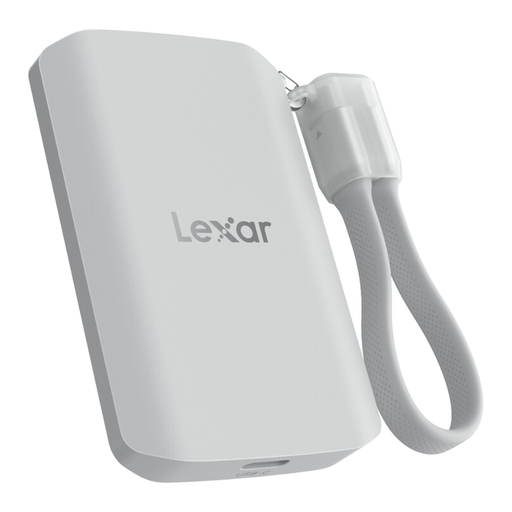
Consider this portable SSD for frequent large-file transfers or media backup using the Lexar App. The listing specifies USB 3.2 Gen 2x2, read and write speeds of up to 2,000 MB/s, and IP65 resistance; the stated speed depends on a compatible host connection. Check whether 1TB covers your files and expected growth.
 No image available
Consider this portable SSD if you need 4 TB for files you move between compatible devices. The listing specifies USB 3.2 Gen 2, speeds of up to 1,050 MB/s read and 1,000 MB/s write, and USB-C-to-C and USB-C-to-A cables. Those speeds depend on the host connection; the T7 is not IP-rated for water resistance. Keep another copy of important files.
 No image available
Consider this portable SSD if you carry files where dust, splashes or accidental drops are concerns. The listing specifies USB 3.2 Gen 2, speeds of up to 1,050 MB/s read and 1,000 MB/s write, IP65 resistance and claimed drop resistance up to three metres. Transfer speed depends on the host connection, and IP65 does not mean the drive can be submerged. Check whether 1 TB is sufficient.
 No image available
Consider this 5TB portable HDD as a local destination for a growing photo or laptop-file archive. The listing specifies USB 3.2 Gen 1, a USB-C cable and a USB-A adapter, and describes scheduled backup software. It is preformatted for Windows; macOS use requires reformatting, which erases existing contents. Protect the drive from severe drops and keep another copy of important files.
 No image available
Consider this 4TB portable HDD for local storage of photos, documents and other laptop files. The listing specifies a USB 3.2 Gen 1 interface and an included USB-A cable. It says reformatting may be needed for Mac or other operating systems, so check your intended backup workflow before loading files onto it. Avoid exposing the drive to water, dust or physical shocks.
Only if the drive holds a separate copy that you can restore when the original is lost or damaged. Microsoft describes backup as creating copies to protect against loss or corruption; use a repeatable routine and test a file restore.
It may be possible with an appropriate disk setup, but check the format and plan how the space will be used before copying files. Apple says Time Machine cannot back up to a Windows-formatted disk; reformatting that disk permanently removes its contents. Apple prefers APFS or APFS Encrypted for a Time Machine backup disk.
For supported drives using WD Security, Western Digital says it cannot recover a forgotten password and the drive must be erased before reuse. Keep recovery information securely and maintain another copy of important files before relying on that protection.
No. Seagate's UK limited warranty excludes data loss and recovery-related costs, while any Rescue Data Recovery Services inclusion needs checking for the exact model. Keep a separate copy rather than treating either provision as a way to preserve your files.